


Viewing Data
All Harvest Data access is counted as a data export when the Extended Data Retention option is enabled. This includes viewing data in the User Console, requesting data via the Soracom API/CLI, and accessing data through Soracom Lagoon. Refer to the Pricing & Fee Schedule for more information.
Viewing Data from a Single Device
To view Harvest Data, first select the device you want to view.
From the User Console, click the Menu button, then:
- for Air for Cellular devices, click SIM Management from the Soracom Air for Cellular section.
- for Air for Sigfox devices, click Sigfox Devices from the Soracom Air for Sigfox section.
- for Air for LoRaWAN devices, click LoRa Devices from the Soracom Air for LoRaWAN™ section.
- for Soracom Inventory devices, click Device Management from the Soracom Inventory section.
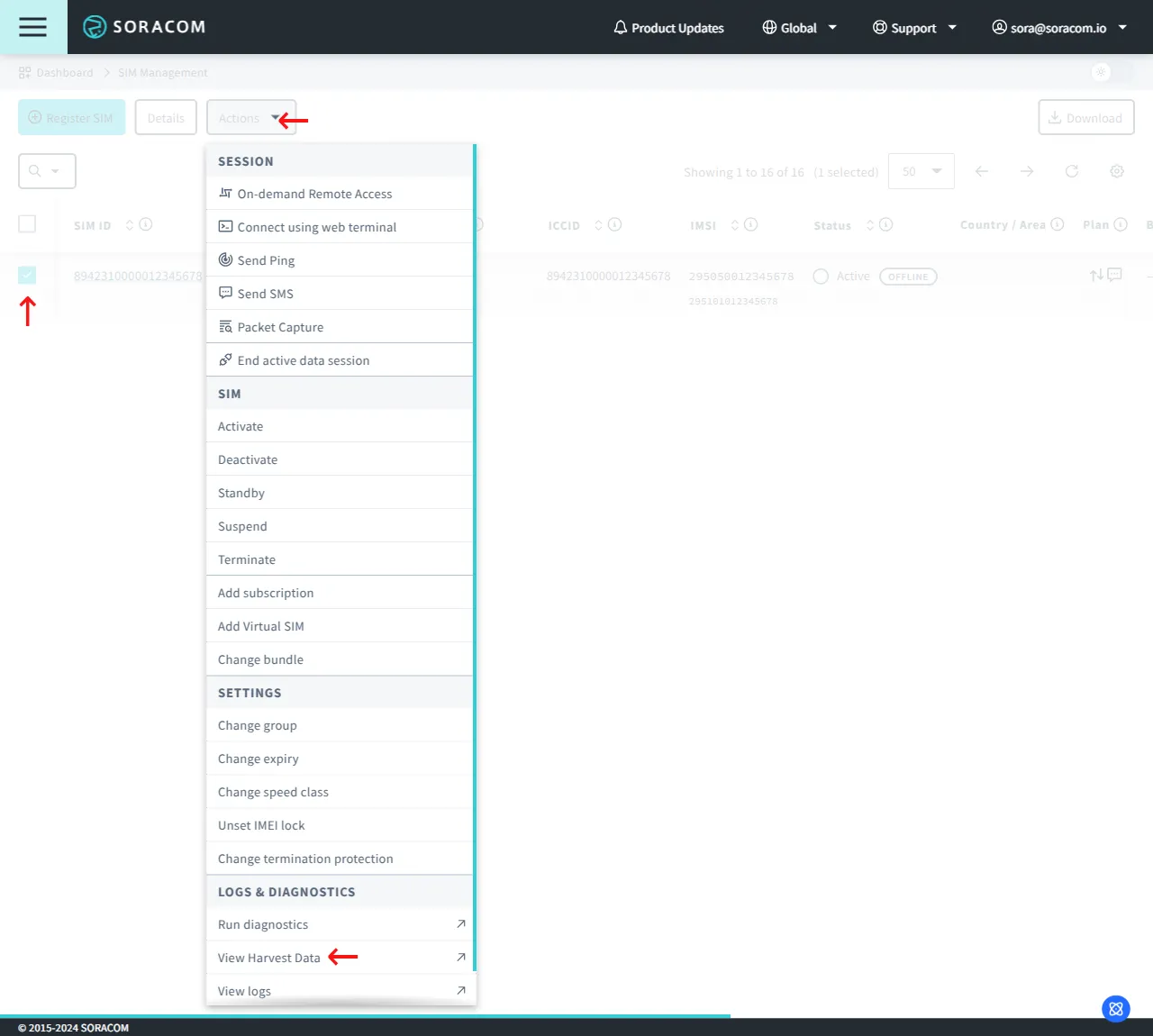
Then, from the list of devices in your account, click the ✓ for the device you want to view. Then click the **Actions ** button, and select View Harvest Data.
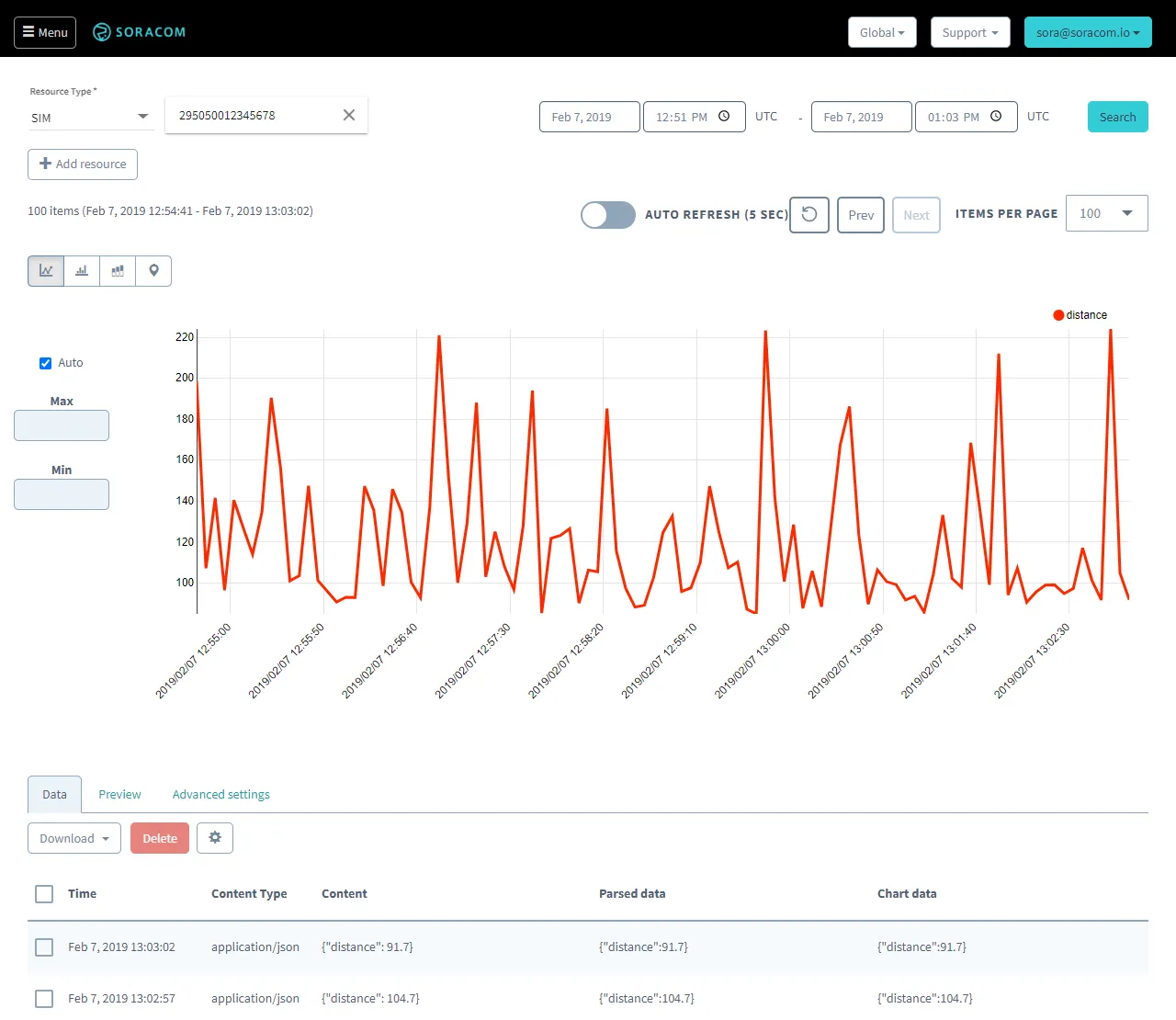
By default, Harvest Data will show data from the past 24 hours. To change the time range, use the time range fields next to the Search button.
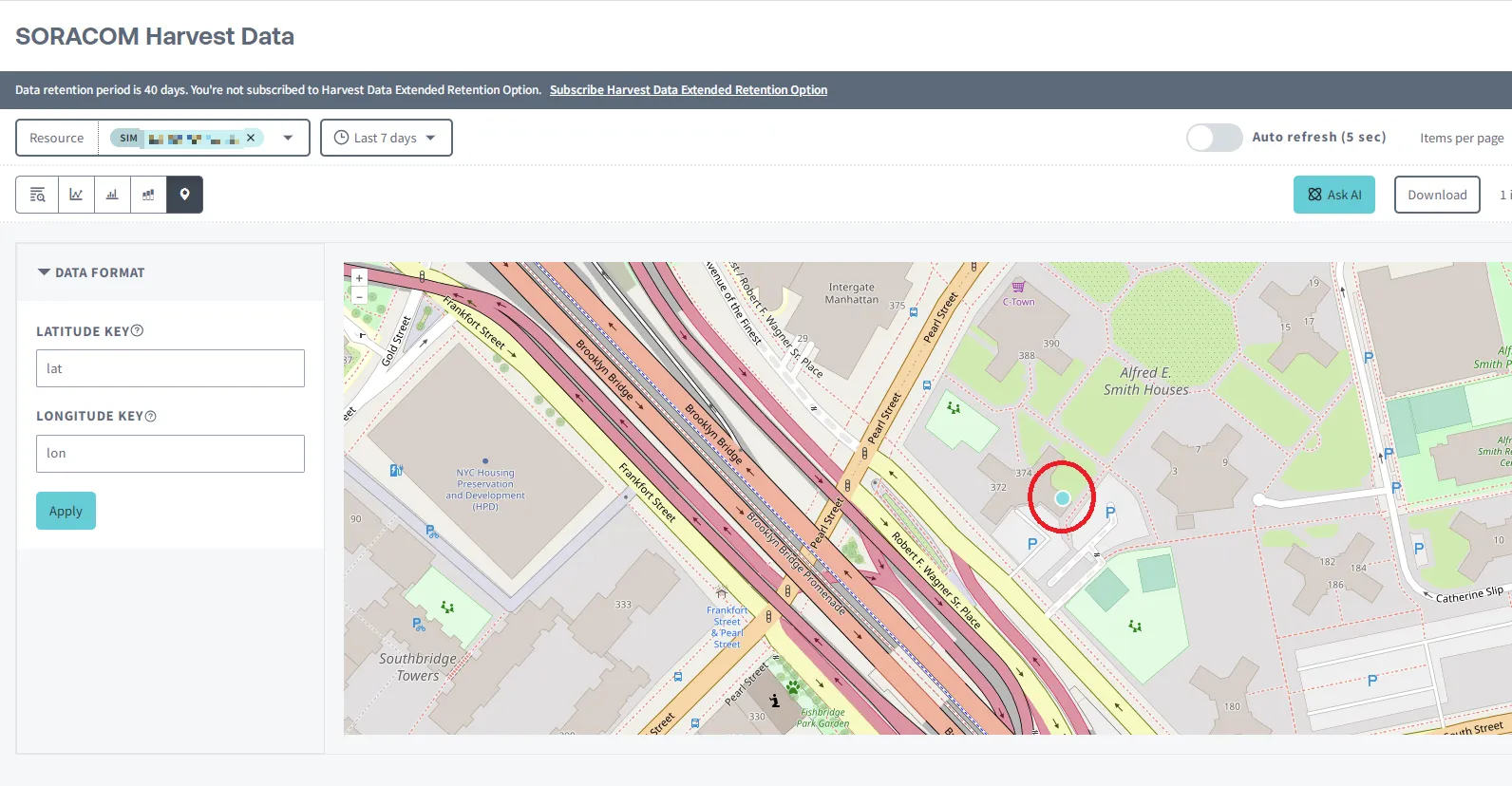
Harvest Data can also display data as a Map if the data includes Longitude lon and Latitude lat keys.
If your device is actively sending data to Harvest Data, you can also enable Auto refresh, which will automatically update the time range to the current time.
Viewing Data from Multiple Devices
From the Harvest Data chart page, you can add data from another device. Simply click the Add resource button, then select the resource type, and enter the device ID.
You can also select multiple devices from the device list view before clicking **Actions ** and selecting Harvest Data.
Viewing Data from a Terminated SIM
If you have set a SIM to Terminated that had been storing data in Harvest Data, the data will not be deleted. However, you will not be able to view the data within the User Console.
To view the data, you will need to utilize the Soracom CLI or API.
As terminated SIMs no longer appear in the User Console, you will need to know the SIM ID to retrieve the data.