


Sending HTTP/S Commands to a Device
With Remote Command, you can use the Soracom User Console and the Soracom API to send HTTP or HTTPS commands to devices that use IoT SIMs and verify their results.
Prepare your device:
Set up your device in advance so that it will execute any process triggered by an HTTP request and return the result of that process as an HTTP response.
From the User Console
-
Sign in to the User Console . From the Menu, open the SIM Management screen.
-
From the list of subscribers, click the ✓ for the SIM you want to send an HTTP/S command to.
-
Click the **Actions ** menu, then select Send Command via HTTP/S.
-
Configure the following settings:
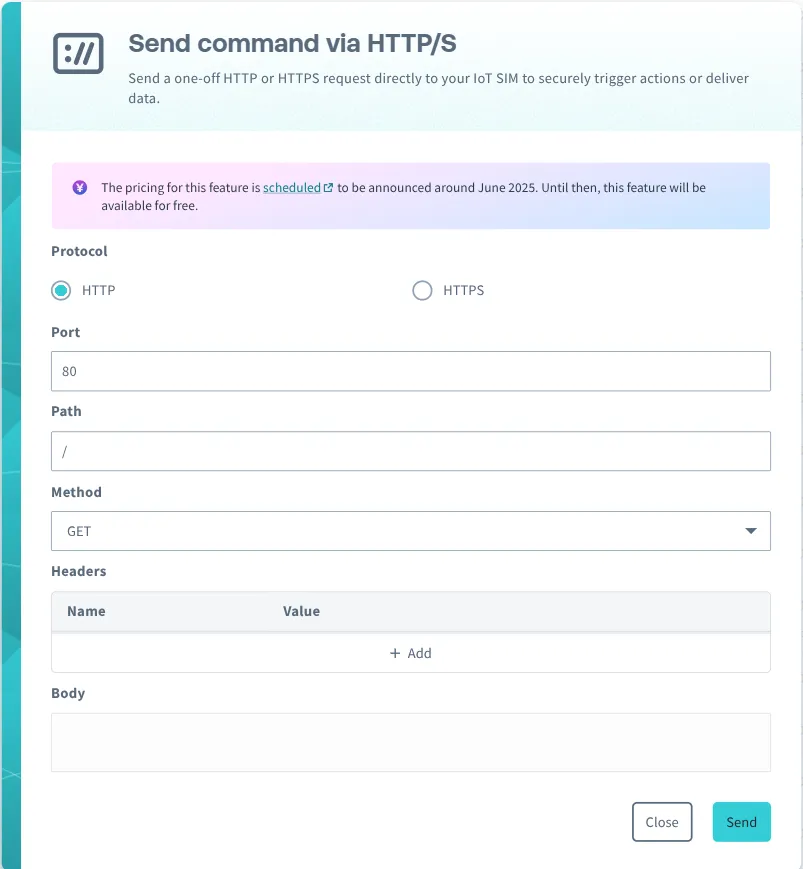
Setting Description Protocol Select the protocol that the device accepts requests on. Port Specify the port number that the device accepts requests on. Example: 80, 443 Path Specify the URL path. Do not include the hostname. Example: /path/to/resource Method Select the HTTP method. Headers Add to add multiple HTTP headers. Body If you select POST, PUT, or DELETE in Method, enter the request body to send. -
Click Send.
An HTTP request (command) is sent to the device. When the command execution is complete on the device, the HTTP response (command execution result) is displayed.
Programmatic Usage
Soracom API
To access the Soracom API, first use the auth API to obtain an API Key and Token. Refer to the API Usage Guide for instructions on how to use the API Key and Token in API requests.
Then, use the sendDownlinkHttp API to send an HTTP request to a device that has an IoT SIM:
curl -X POST \
|  -H 'X-Soracom-API-Key: <MY-API-KEY>' \
|  -H 'X-Soracom-Token: <MY-TOKEN>' \
|  -H 'Content-Type: application/json' \
|  -d '{
|        "method": "POST",
|        "path": "/command/settings",
|        "port": 6443,
|        "skipVerify": false,
|        "ssl": true,
|        "headers": {
|          "Content-Type": "application/json"
|        },
|        "body": "{\"param1\":\"value1\", \"param2\":\"value2\"}",
|      }' \
|  https://g.api.soracom.io/v1/sims/<SIM_ID>/downlink/http
curl -X POST \
| -H 'X-Soracom-API-Key: <MY-API-KEY>' \
| -H 'X-Soracom-Token: <MY-TOKEN>' \
| -H 'Content-Type: application/json' \
| -d '{
| "method": "POST",
| "path": "/command/settings",
| "port": 6443,
| "skipVerify": false,
| "ssl": true,
| "headers": {
| "Content-Type": "application/json"
| },
| "body": "{\"param1\":\"value1\", \"param2\":\"value2\"}",
| }' \
| https://jp.api.soracom.io/v1/sims/<SIM_ID>/downlink/httpSoracom CLI
To use the Soracom CLI, you must first configure it to authenticate with your account information, authorization key, or SAM user credentials.
Run the following command to send an HTTP request to a device that has an IoT SIM:
body='{
|        "method": "POST",
|        "path": "/command/settings",
|        "port": 6443,
|        "skipVerify": false,
|        "ssl": true,
|        "headers": {
|          "Content-Type": "application/json"
|        },
|        "body": "{\"param1\":\"value1\", \"param2\":\"value2\"}"
|      }'
soracom sims downlink-http --sim-id <SIM_ID> --body ${body} --coverage-type gbody='{
| "method": "POST",
| "path": "/command/settings",
| "port": 6443,
| "skipVerify": false,
| "ssl": true,
| "headers": {
| "Content-Type": "application/json"
| },
| "body": "{\"param1\":\"value1\", \"param2\":\"value2\"}"
| }'
soracom sims downlink-http --sim-id <SIM_ID> --body ${body} --coverage-type jp