


RTSP Camera Image Action
The RTSP Camera Image Action acquires a still image from an RTSP (Real-Time Streaming Protocol)-enabled camera.
Requires an RTSP-enabled camera using Soracom Air for Cellular or Soracom Arc for data communication.
Configuration
In the Action Condition section, you can specify the conditions under which the action will be executed using the values (Message or Context) from the event source to the channel. For more details on the expressions you can input, refer to Use Expressions in Actions.
In this input field, you can enter expressions representing data related to the trigger that starts the Flux application (e.g., event.payload.temp) or data related to the channel where the action is added (e.g., payload.temp).
Configuring RTSP Camera Image Action
Configure the RTSP Camera Image Action content:
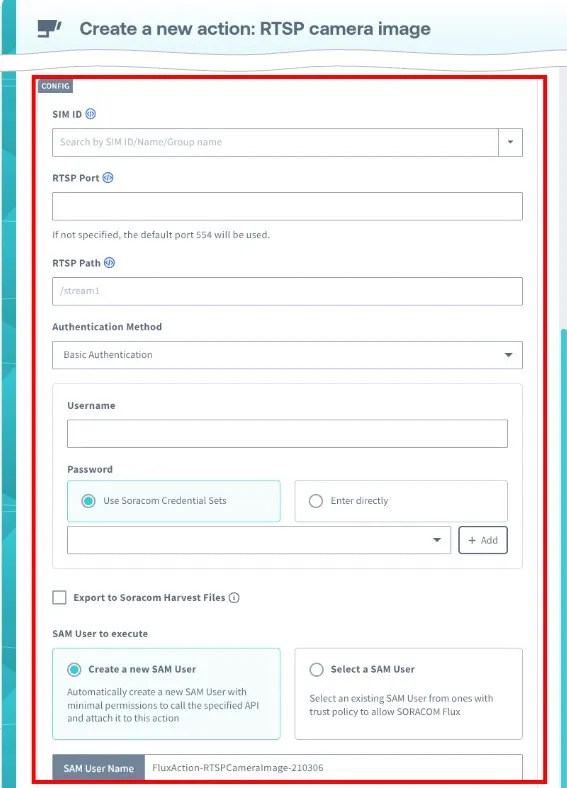
- SIM ID: Enter the SIM ID that the RTSP-enabled camera is using as its data communication.
In this input field, you can enter expressions representing data related to the trigger that starts the Flux application (e.g., ${event.payload.simId}) or data related to the channel where the action is added (e.g., ${payload.simId}). For more details on the expressions you can input, refer to Action Config Expressions.
- RTSP Port: Specifies the port number used by the RTSP-enabled camera. If not specified, the default port 554 is used.
- RTSP Path: Specify the path to access the RTSP-enabled camera. The path setting varies depending on the device. Check the device manual for details.
- Authentication Method: Specifies the authentication method issued by the RTSP-enabled network camera. Select from
NoneorBasic Authentication. - Username: If you select
Basic Authenticationas the authentication method, enter the Username issued by the RTSP-enabled network camera. - Password: If you select
Basic Authenticationas the authentication method, select either “Use Soracom's Credential Sets” or “Enter directly” and input the password. - Export to Soracom Harvest Files: To export to Soracom Harvest Files, check the box.
- In
Specify the directory to save, enter the path (directory) where the still images will be saved when exporting to Soracom Harvest Files. - If left blank or a single space is specified, the images will be exported to the root directory of Harvest Files.
- In this input field, you can enter expressions representing data related to the trigger that starts the Flux application (e.g.,
${event.payload.simId}) or data related to the channel where the action is added (e.g.,${payload.simId}). For more details on the expressions you can input, refer to Action Config Expressions.
- In
- Saving a file to Soracom Harvest Files incurs a write fee and downloading a file incurs a read fee. For more information, see Soracom Harvest Files Pricing Plans.
-
SAM User to execute: Create or select a SAM User.
Choose Create a new SAM User or Select a SAM User for this action.
For Create a new SAM User, use the automatically generated name or enter the user's name in the SAM User Name input field. The permissions and Trust Policy for executing the related API are automatically set and readily usable.
For Select a SAM User, ensure the Trust Policy is correctly configured. Only SAM Users with
statements[].principal.serviceset toFluxwill appear in the selection list.-
The Permissions tab should include a statement allowing the SAM User to execute the chosen API. For example, if
Export to Soracom Harvest Filesis checked:{ "statements": [ { "effect": "allow", "api": [ "Sim:sendDownlinkRtsp", "FileEntry:putFile" ] } ] }
For example, if
Export to Soracom Harvest Filesis unchecked:```json { "statements": [ { "effect": "allow", "api": [ "Sim:sendDownlinkRtsp" ] } ] } ```-
The Trust Policy must explicitly allow the SAM User permissions to use Flux. For example:
{
  "statements": [
    {
      "effect": "allow",
      "principal": {
        "service": [
          "Flux"
        ]
      }
    }
  ]
}
When selecting an existing SAM User, its Permissions and Trust Policy remain unchanged. Verify that these settings are correctly configured before using the Soracom API action.
To view permissions: Click your account menu, then select Security. Choose a SAM User and view settings in the Permissions and Trust policy tabs.
-
Output
The output data of the RTSP-enabled camera image acquisition action is as follows:
Example:
{
 "simId": "898110000XXXXXXXXXXXXX",
 "imageUrl": "https://xxxxxxxxxxx..." ,
 "harvestFilesPath": "/flux_rtsp_camera_images/898110000XXXXXXXXXXX-rtsp-snapshot-2025-08-20T09-16-23-364Z.jpg"
} | Item | Description |
|---|---|
simId | The SIM ID that the RTSP-enabled camera uses as data communication. |
imageUrl | The URL to download still images from the RTSP-enabled camera. The URL is valid for one hour from issuance. |
harvestFilesPath | The path where the still image was saved when exported to Soracom Harvest Files. |
URLs issued as
imageUrlexpire one hour after they are issued.