


Ask AI (ChatGPT API) with SORACOM Harvest Data Intelligence
You can ask AI questions about the data stored in Harvest Data
- Activating the extended data retention option will incur data export charges. If you have the extended data retention option enabled, you will incur data export charges (charges for reading from Harvets Data) each time you check your data.
- If you have disabled the extended data retention option for Harvest Data, you will not incur data export charges for reviewing your data.
Harvest Data Intelligence uses the model ChatGPT (gpt-35-turbo) provided by Azure OpenAI Service.
- Open the User Console
- Click [Menu] -> [Data Storage & Visualization] -> [Soracom Harvest Data]
- Select the IoT SIM / LoRaWAN device / Sigfox device / Inventory device under [Resources]
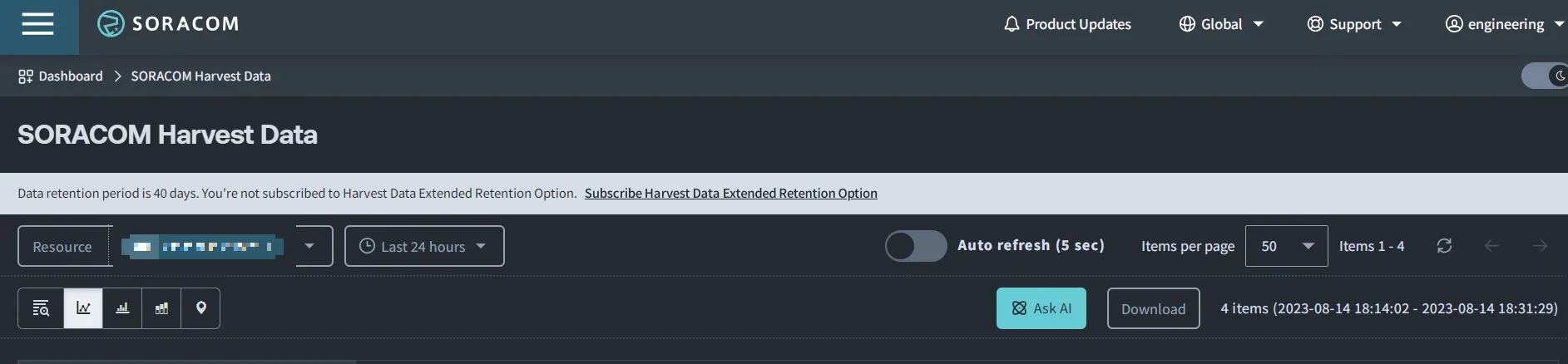
If you do not see your device, check the coverage you selected. in the initial step
-
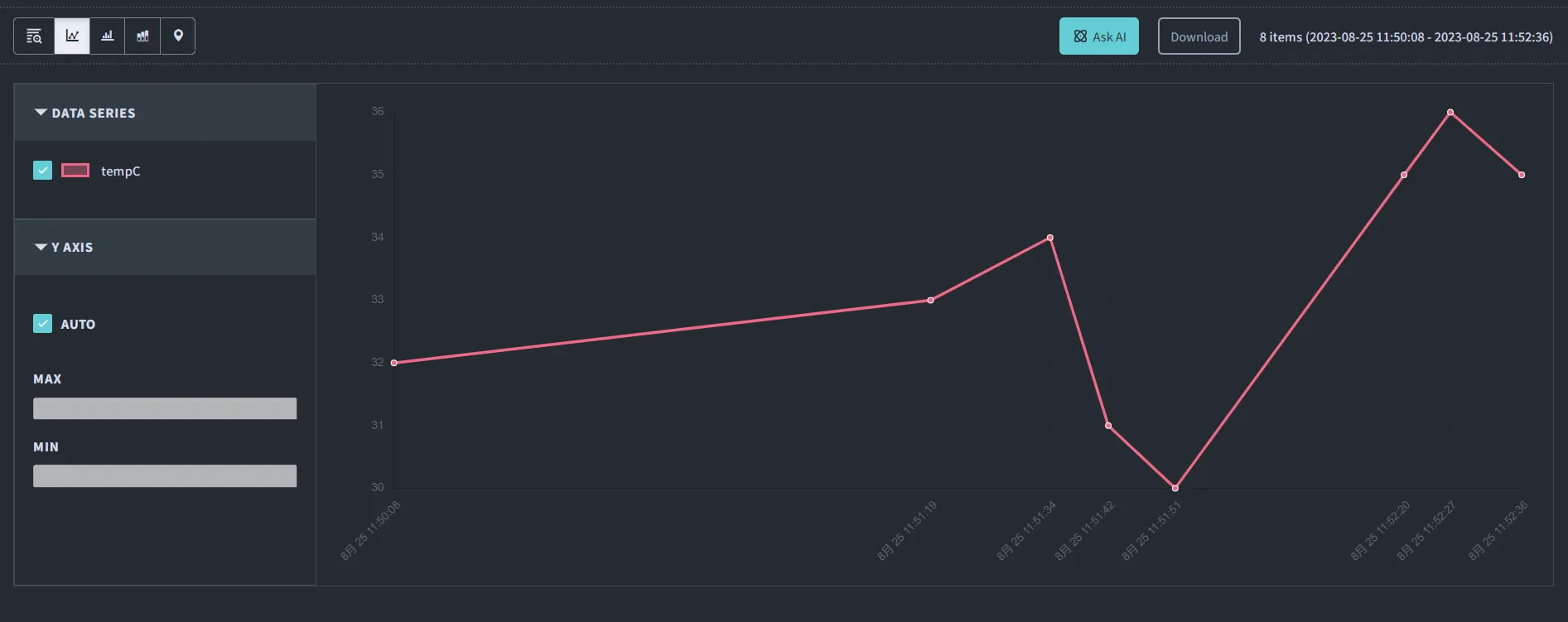
Choose from Line Chart, Grouped Column Chart, or Map to select the data you want to ask the AI about.
- For Line Chart, Grouped Column Chart and Column Chart, select the data series in [Data]
- For Map, enter the data series names in Latitude [lat] and Longitude [lon] and click [Apply]
Line Chart Eample
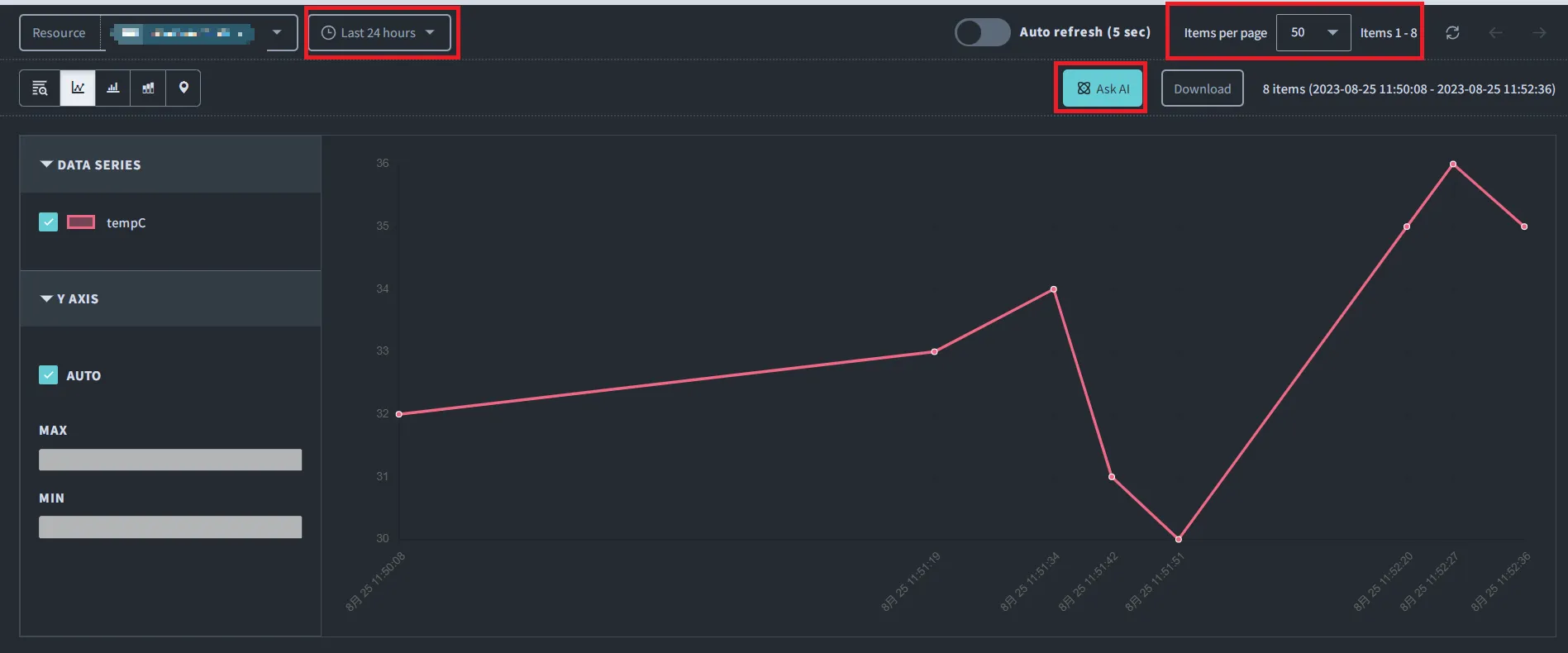
- Select the period and number of data to ask AI questions about and click [Ask AI]
The "Soracom Harvest Data Intelligence" screen will be displayed
- Set Auto Refresh (5 Seconds) to OFF. If data is submitted during automatic updates, you may see unintended answers.
- In Table, Ask AI is not clickable.
-
Click [Ask AI -> What is your question?]
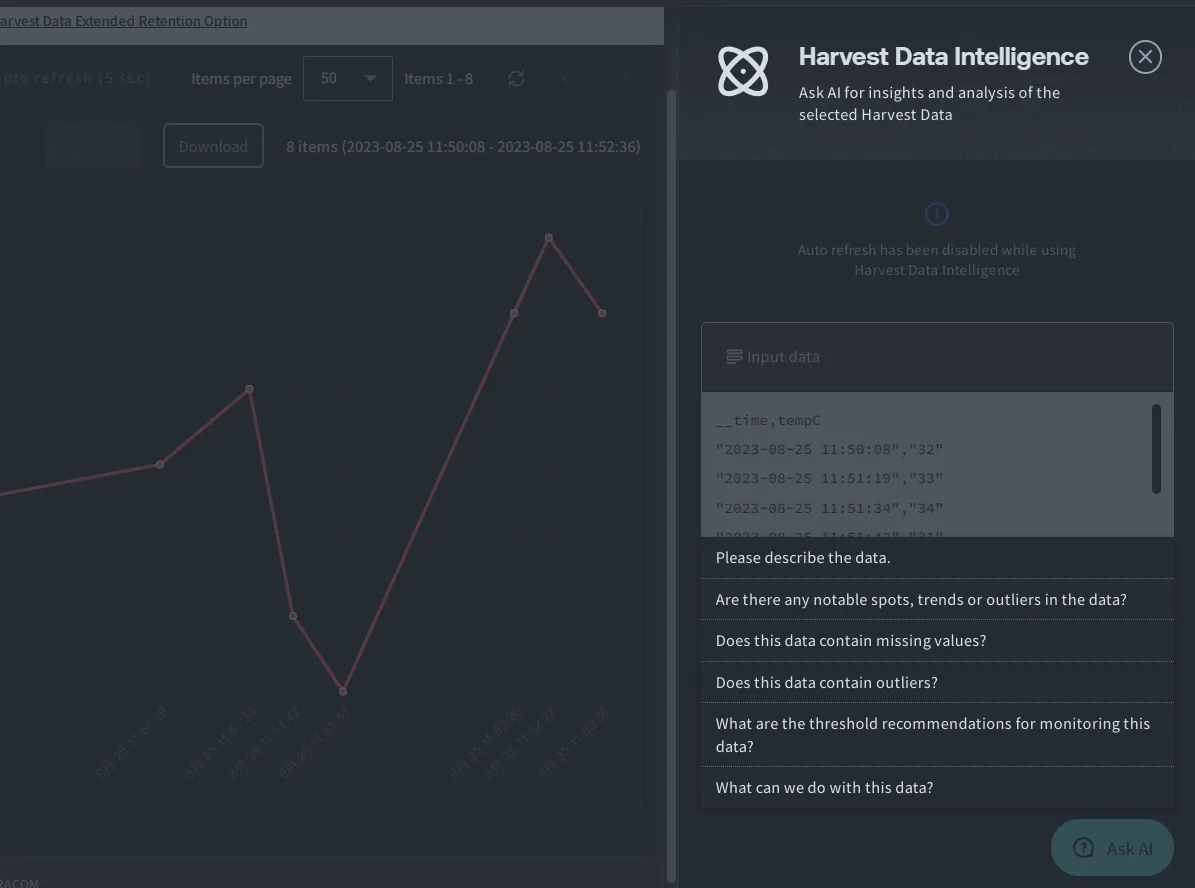
The selected question content and the data selected in the previous steps will be sent to the AI. After a brief period of time, the answer wil be displayed. You can continue to ask the AI additional questions following the same process.
When "Data size is too large. Select a field or reduce the number of data points." is displayed, there is too much data to send. Shorten the target period or reduce the amount of data.
- By selecting [Input Data] you can check the data sent to the AI among the data saved in Harvest Data.
- After re-selecting the data, you will see the message
The displayed data is different to the previous input data. Would you like me to start using this new data when answering questions?ClickUse PreviousorUse New Datato continue.- Clicking [x] will erase all previous conversations with AI.