


Event Mode
The Event mode sends a message each time the built-in button is clicked or the external I/O is triggered.
Configuration
To configure your button for Event mode:
-
Follow the Configuration instructions for configuring Soracom LTE-M Button settings.
-
Select the Event mode option:
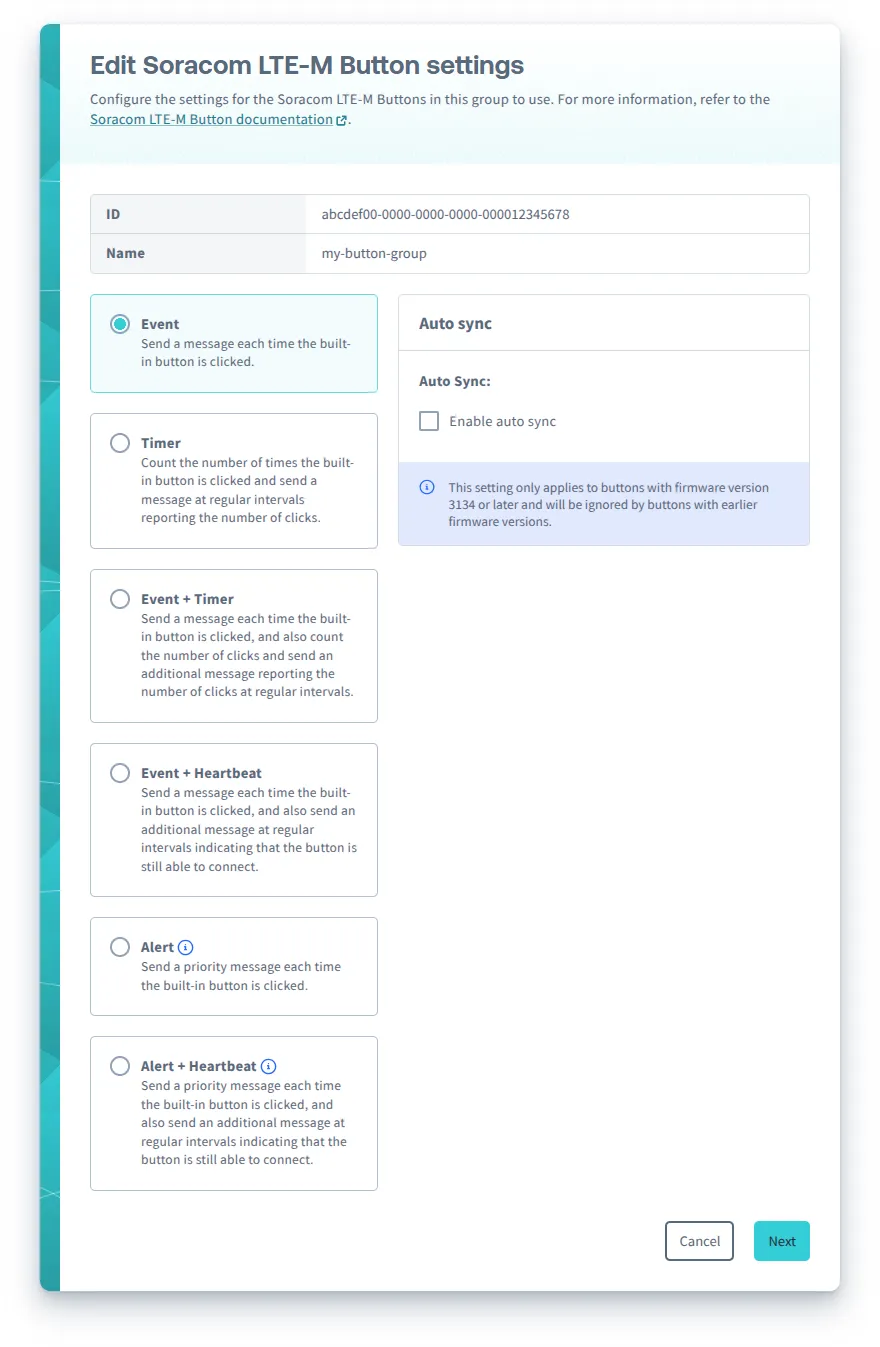
You can configure the following options for Event mode:
- Auto sync - For buttons with firmware version 3134 or later, automatically sync once a day.
- External I/O mode - Configure the external I/O accessory port:
- Enable debounce - Enables debouncing for Edge Detection and Pulse Detection external I/O modes to reduce false triggers.
After configuring Soracom LTE-M Button settings, follow the instructions to sync your button.
Messages
When the Soracom LTE-M Button operation mode is configured as Event, the button will send the following types of messages:
- Event message (when the external I/O mode is configured as Edge Detection, Pulse Detection, or disabled), indicating the type of event that triggered the message
- Event with Temperature message (when the external I/O mode is configured as Temperature Sensor), indicating the type of event that triggered the message and reporting the measured temperature
- Status message, reporting the current status and configuration of the button
Behavior
Firmware 3134:
| Input | Action | External I/O mode | |||
|---|---|---|---|---|---|
| Disabled | [Edge Detection](../edge-detection) | [Pulse Detection](../pulse-detection) | [Temperature Sensor](../temperature-sensor) | ||
| Built-in button | Single short click*1 | - LED blinks one short green blink: .\n- Sends an **Event message** with detect type `Single short click` | - LED blinks one short green blink: .\n- Sends an **Event with Temperature message** with detect type `Single short click` | ||
| Double short click | - LED blinks two short green blinks: . .\n- Sends an **Event message** with detect type `Double short click` | - LED blinks two short green blinks: . .\n- Sends an **Event with Temperature message** with detect type `Double short click` | |||
| Single long click | - LED blinks one long green blink: .---\n- Sends an **Event message** with detect type `Single long click` | - LED blinks one long green blink: .---\n- Sends an **Event with Temperature message** with detect type `Single long click` | |||
| Extra long click | - LED blinks three short green blinks: . . .\n- Sends a **Status message** to report the current status and configuration | ||||
| 2-wire accessory | Connected | - LED blinks one short green blink: .\n- Sends an **Event message** with detect type `Falling edge` | - Starts a timer and waits for the wire to disconnect | ||
| Disconnected | - LED blinks one short green blink: .\n- Sends an **Event message** with detect type `Rising edge` | - Calculates the timer and performs the same action as the built-in button | |||
| Internal timer | Uplink frequency | ||||
| Every 24 hours | - If Auto sync is enabled, sends a **Status message** to report the current status and configuration | ||||
*1 - If the button is connecting to the network in order to send a message, a Single short click will cancel the message.
Firmware 2220:
| Input | Action | External I/O mode | |||
|---|---|---|---|---|---|
| Disabled | [Edge Detection](../edge-detection) | [Pulse Detection](../pulse-detection) | [Temperature Sensor](../temperature-sensor) | ||
| Built-in button | Single short click*1 | - LED blinks one short green blink: .\n- Sends an **Event message** with detect type `Single short click` | - LED blinks one short green blink: .\n- Sends an **Event with Temperature message** with detect type `Single short click` | ||
| Double short click | - LED blinks one short green blink: .\n- Sends an **Event message** with detect type `Double short click` | - LED blinks one short green blink: .\n- Sends an **Event with Temperature message** with detect type `Double short click` | |||
| Single long click | - LED blinks one short green blink: .\n- Sends an **Event message** with detect type `Single long click` | - LED blinks one short green blink: .\n- Sends an **Event with Temperature message** with detect type `Single long click` | |||
| Extra long click | - LED blinks one short green blink: .\n- Sends a **Status message** to report the current status and configuration | ||||
| 2-wire accessory | Connected | - LED blinks one short green blink: .\n- Sends an **Event message** with detect type `Falling edge` | - Starts a timer and waits for the wire to disconnect | ||
| Disconnected | - LED blinks one short green blink: .\n- Sends an **Event message** with detect type `Rising edge` | - Calculates the timer and performs the same action as the built-in button | |||
| Internal timer | Uplink frequency | ||||
*1 - If the button is connecting to the network in order to send a message, a Single short click will cancel the message.
LED Indicator
While the button is sending an Event message, Event with Temperature message, or Status message, the LED will blink to indicate the progress:
| LED blink pattern | Description | Progress | ---|--- | .-- .-- .-- (repeating) | Slow green blinking | The button is connecting to a network | | . . . . (repeating) | Fast green blinking | The button has connected and is sending the message | | .-------- | Extra long green blink | The button successfully sent the message | | .-------- | Extra long red blink | An error occurred |
If the button has trouble sending a message, it will try one more time before giving up. For more information, refer to the Troubleshooting section.
Refer to the LED Reference for descriptions of additional indicators.
Canceling a Message
If you want to cancel an Event message, Event with Temperature message, or Status message, simply click the built-in button once while the button is connecting to a network.