


Expiration Function
In some applications, you may want to end your device's data session or suspend or terminate your subscription at a pre-determined date and time. The Expiration function allows you to set your IoT SIM to perform a one-time action.
Expiry Actions
The following actions are available when setting an Expiry Action for an Air subscriber:
- Do nothing - Allow any existing connections to continue, but block all future connections.
- Delete session - Forcibly end any existing connections and block all future connections.
- Deactivate - Forcibly end any existing connections and change the subscription status to Inactive.
- Suspend - Forcibly end any existing connections and change the subscription status to Suspended.
- Terminate - Forcibly end any existing connections and terminate the subscription.
When setting the Do nothing or Delete session actions, the subscription status will not be changed. Any daily basic fees associated with the existing status will continue. The Expiry Action date and time must be cleared or extended in order for the subscriber to establish new connections.
When setting the Deactivate or Suspend actions, the subscription status will be changed to Inactive or Suspended, respectively, at the specified date / time. Any daily basic fees for each status will apply according to the subscription plan. The subscription status must be changed back to Active and its Expiry Action date / time must be cleared or extended in order for the subscriber to establish new connections.
When setting the Terminate action, the subscription will be permanently terminated at the specified date / time. The subscription cannot be re-activated and no further connections will be possible.
Configuration
Set or Update an Expiry Action
-
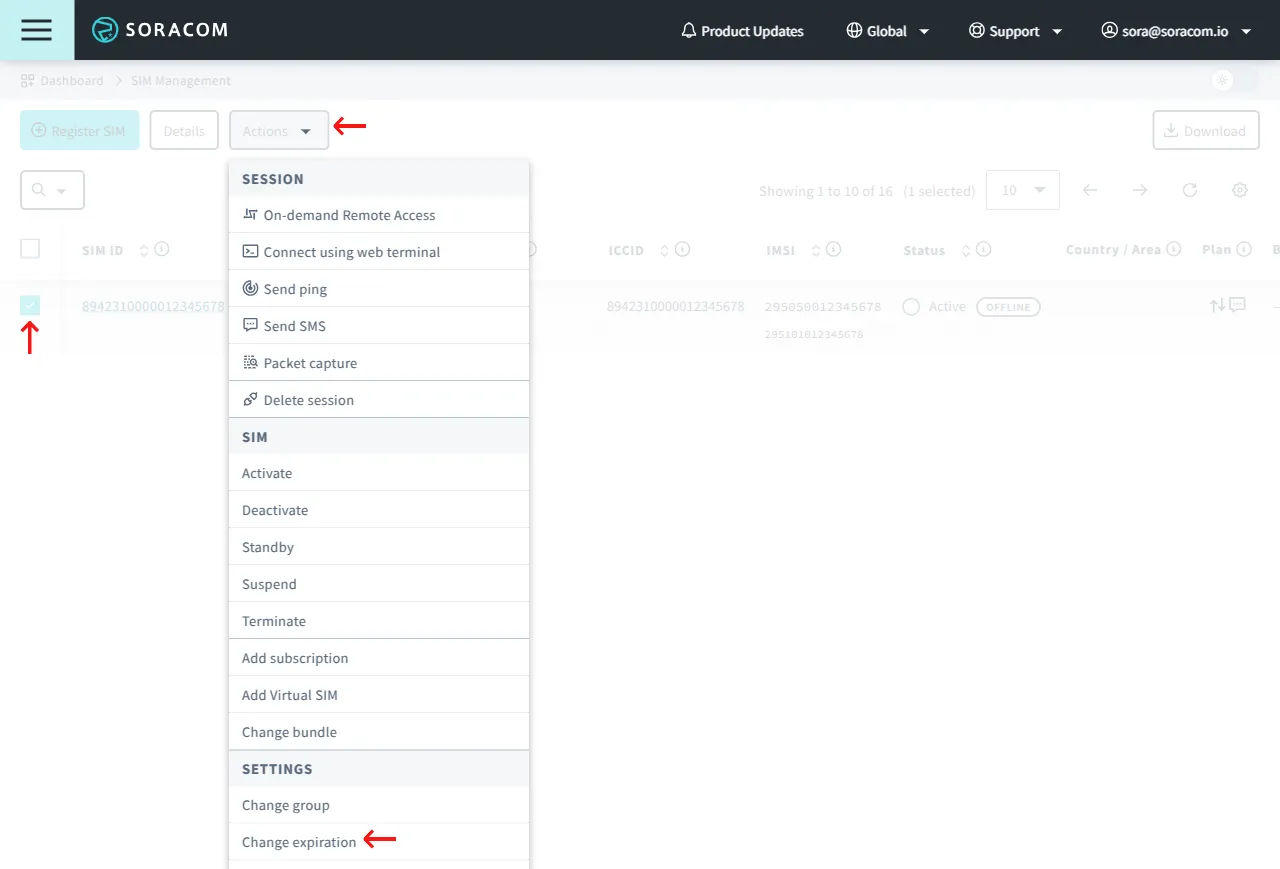
Sign in to the User Console . From the Menu, open the SIM Management screen.
-
From the list of subscribers, click the ✓ for the SIM you want to modify.
-
Click the **Actions ** menu, then select Change expiration.
-
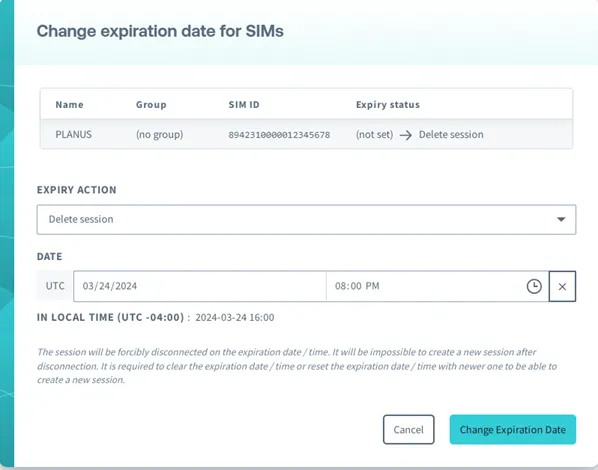
Select an Expiry Action and set the expiration date and time.
-
Click Change Expiration Date
Remove an Expiry Action
-
Sign in to the User Console . From the Menu, open the SIM Management screen.
-
From the list of subscribers, click the ✓ for the SIM you want to modify.
-
Click the **Actions ** menu, then select Change expiration.
-
Select No expiry action, then click Change Expiration Date.
Programmatic Usage
You can also use the Soracom API, Soracom CLI, and Metadata Service to enable or disable expiration.
Soracom API
To access the Soracom API, first use the auth API to obtain an API Key and Token. Refer to the API Usage Guide for instructions on how to use the API Key and Token in API requests.
Then, use the setSimExpiryTime API to enable expiration on an IoT SIM:
curl -X POST \
|  -H 'X-Soracom-API-Key: <MY-API-KEY>' \
|  -H 'X-Soracom-Token: <MY-TOKEN>' \
|  -H 'Content-Type: application/json' \
|  -d '{
|        "expiryAction": "deleteSession",
|        "expiryTime": 1704067200000
|      }' \
|  https://g.api.soracom.io/v1/sims/<SIM-ID>/set_expiry_time
curl -X POST \
| -H 'X-Soracom-API-Key: <MY-API-KEY>' \
| -H 'X-Soracom-Token: <MY-TOKEN>' \
| -H 'Content-Type: application/json' \
| -d '{
| "expiryAction": "deleteSession",
| "expiryTime": 1704067200000
| }' \
| https://jp.api.soracom.io/v1/sims/<SIM-ID>/set_expiry_timeTo remove expiration from an IoT SIM, use the unsetSimExpiryTime API:
curl -X POST \
|  -H 'X-Soracom-API-Key: <MY-API-KEY>' \
|  -H 'X-Soracom-Token: <MY-TOKEN>' \
|  https://g.api.soracom.io/v1/sims/<SIM-ID>/unset_expiry_time
curl -X POST \
| -H 'X-Soracom-API-Key: <MY-API-KEY>' \
| -H 'X-Soracom-Token: <MY-TOKEN>' \
| https://jp.api.soracom.io/v1/sims/<SIM-ID>/unset_expiry_timeSoracom CLI
To use the Soracom CLI, you must first configure it to authenticate with your account information, authorization key, or SAM user credentials.
Then, run the following command to enable expiration on an IoT SIM:
soracom sims set-expiry-time --sim-id <SIM-ID> --expiry-action "deleteSession" --expiry-time 1704067200000 --coverage-type gsoracom sims set-expiry-time --sim-id <SIM-ID> --expiry-action "deleteSession" --expiry-time 1704067200000 --coverage-type jpTo remove expiration from an IoT SIM, use following command:
soracom sims unset-expiry-time --sim-id <SIM-ID> --coverage-type gsoracom sims unset-expiry-time --sim-id <SIM-ID> --coverage-type jpMetadata Service
The Metadata Service allows an Air SIM device to access and configure its own settings without the need for authentication. For more information, refer to the Metadata Service documentation.
Because the Metadata Service allows an IoT SIM to access its own subscriber settings, this can be used as part of an initialization script so that a device sets its own expiration when it connects to a network for the first time.
To enable expiration on an IoT SIM, the Metadata Service Readonly option must be disabled. Then, from the IoT SIM device, use the setExpiryTime API:
curl -X POST \
|  -H 'Content-Type: application/json' \
|  -d '{
|        "expiryAction": "deleteSession",
|        "expiryTime": 1704067200000
|      }' \
|  http://metadata.soracom.io/v1/subscriber/set_expiry_time
Since the subscriber will be online, you can also omit the payload in order to lock the subscriber to its current IMEI.
To remove IMEI lock from the IoT SIM, use the unsetExpiryTime API:
curl -X POST http://metadata.soracom.io/v1/subscriber/unset_expiry_time