


Speed Class
Similar to AWS EC2 instance sizes and the Azure VM series, Soracom IoT SIMs can be configured to adjust the maximum upload and download bandwidth. Adjustments are made by setting an IoT SIM's Speed Class, with each class corresponding to a specific bandwidth:
Global Coverage:
| Speed Class | Download Speed | Upload Speed | 01s | 01s-ldv | US | P1 | X3 | X3-EU |
|---|---|---|---|---|---|---|---|---|
| s1.minimum | 32 kbps | 32 kbps | ✓ | ✓ | ✓ | ✓ | ✓ | ✓ |
| s1.slow | 128 kbps | 128 kbps | ✓ | ✓ | ✓ | ✓ | ✓ | ✓ |
| s1.standard | 512 kbps | 512 kbps | ✓ | ✓ | ✓ | ✓ | ✓ | ✓ |
| s1.fast | 2 Mbps | 2 Mbps | ✓ | ✓ | ✓ | ✓ | ✓ | ✓ |
| s1.4xfast | 8 Mbps | 8 Mbps | ✓ (Default) | ✓ (Default) | ✓ (Default) | ✓ (Default) | ✓ (Default) | ✓ (Default) |
| s1.8xfast | 16 Mbps | 16 Mbps | ✓ | |||||
Japan Coverage:
| Speed Class | Download Speed | Upload Speed | D-no-bundle | D-300MB | DU | K | K2 | KM1 *1 |
|---|---|---|---|---|---|---|---|---|
| s1.minimum | 32 kbps | 32 kbps | ✓ | ✓ | ✓ | ✓ | ||
| s1.slow | 128 kbps | 128 kbps | ✓ | ✓ | ✓ | ✓ | ||
| s1.standard | 512 kbps | 512 kbps | ✓ (Default) | ✓ | ✓ (Default) | ✓ | ||
| s1.fast | 2 Mbps | 2 Mbps | ✓ | ✓ | ✓ | ✓ | ||
| s1.4xfast | 8 Mbps | 8 Mbps | ✓ | ✓ (Default) | ✓ | ✓ (Default) | ||
| t1.standard | 2 Mbps | 2 Mbps | ✓ (Default) | |||||
| u1.slow | 128 kbps | 128 kbps | ✓ | |||||
| u1.standard | 4 Mbps | No limit | ✓ (Default) | |||||
*1 - Although t1.standard allows for download and upload speeds up to 2Mbps; throughput is limited by the LTE Cat-M1 network, and actual network speeds may be lower.
Off-Peak Pricing: The price (cost per MB of traffic) of D-No_Bundle and K SIMs is based on its speed class, with
am to 6 am (JST), all speed classes are reduced to a discounted price, with no difference in pricing between speed classes. This allows you to take advantage of lows1.minimumbeing the most economical. However, during off-peak hours from 2s1.minimumfees for basic data applications, then ramp up tos1.fastin the evening for heavier workloads such as downloading firmware updates or uploading buffered data.
Subscription containers inherit the speed class of the 01s, US, or P1 SIM card that they are added to.
Changing a Speed Class
For D and K SIMs, changing the speed class may affect the data usage cost.
-
Sign in to the User Console . From the Menu, open the SIM Management screen.
-
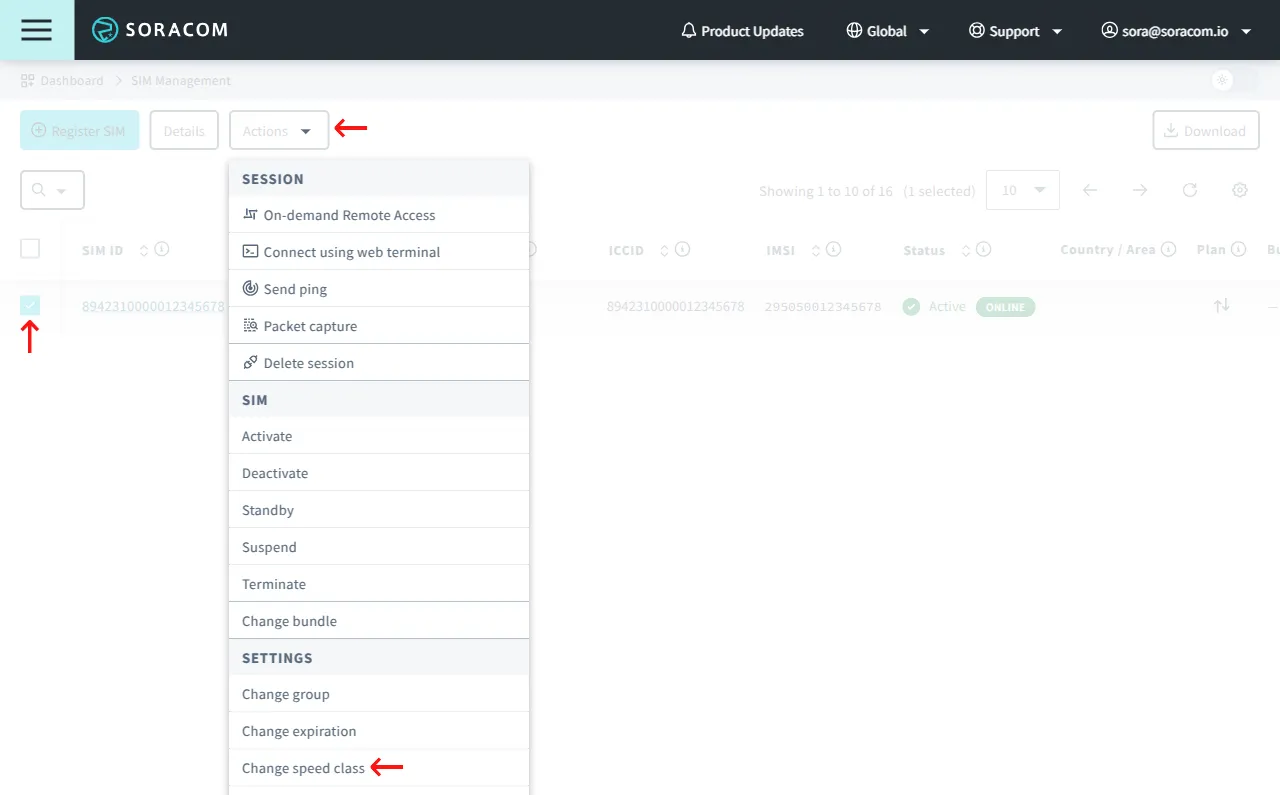
From the list of subscribers, click the ✓ for the SIM you want to manage.
-
Click the **Actions ** menu, then select Change speed class.
-
In the dialog, select the new speed class for the SIM, then click Change Speed Class.
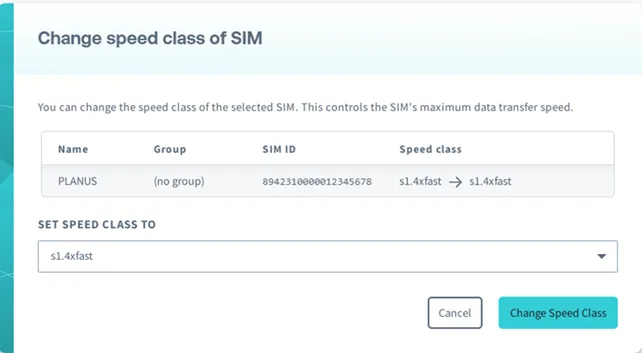
The new speed class is effective immediately.
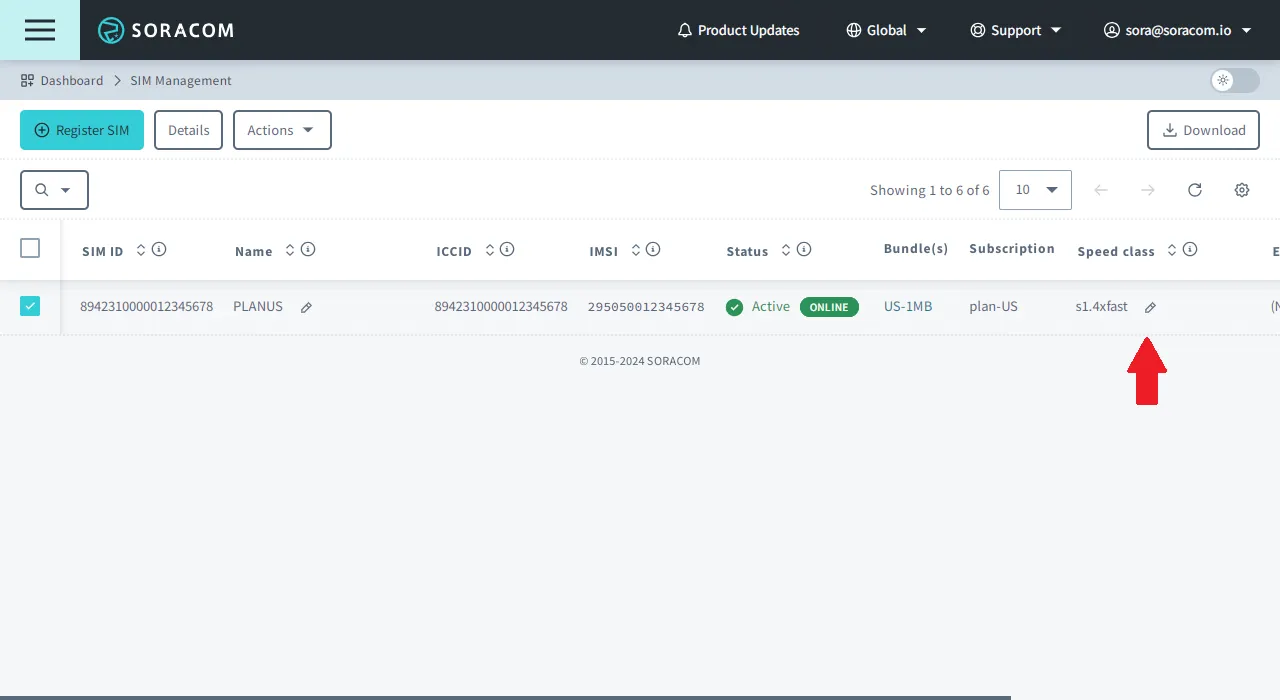
Alternatively, you can also change the speed class directly from the list of SIMs. Simply find the Speed class column for the SIM you want to update and click the icon next to the current speed class and the same dialog box will appear allowing you to change the speed class of your SIM.
Limitations
The following limitations apply to Soracom IoT SIM speed classes:
- When data transmission exceeds the rate defined by the speed class, the excess data may be lost.
- If a SIM contains multiple subscriptions through its use of Subscription Containers, applying a speed class to the SIM will change the speed class of all of its subscriptions. Speed classes cannot be changed for individual subscriptions.
- If a new subscription is added to a SIM whose speed class is set to a lower class than the default speed of the new subscription, the new subscription will use the lower speed class by default.
Programmatic Usage
In addition to configuring the speed class of each SIM from the User Console, you can also perform the same configuration programmatically, allowing you to integrate automated control of your device's bandwidth inside of your application.
Soracom API
To access the Soracom API, first use the auth API to obtain an API Key and Token. Refer to the API Usage Guide for instructions on how to use the API Key and Token in API requests.
Use the updateSimSpeedClass API to change the speed class of an IoT SIM:
curl -X POST \
|  -H 'X-Soracom-API-Key: <MY-API-KEY>' \
|  -H 'X-Soracom-Token: <MY-TOKEN>' \
|  -H 'Content-Type: application/json' \
|  -d '{
|        "speedClass": "s1.standard"
|      }' \
|  https://g.api.soracom.io/v1/sims/<SIM-ID>/update_speed_class
curl -X POST \
| -H 'X-Soracom-API-Key: <MY-API-KEY>' \
| -H 'X-Soracom-Token: <MY-TOKEN>' \
| -H 'Content-Type: application/json' \
| -d '{
| "speedClass": "s1.standard"
| }' \
| https://jp.api.soracom.io/v1/sims/<SIM-ID>/update_speed_classSoracom CLI
To use the Soracom CLI, you must first configure it to authenticate with your account information, authorization key, or SAM user credentials.
Run the following command to change the speed class of an IoT SIM:
soracom sims update-speed-class --sim-id <SIM-ID> --speed-class "s1.standard" --coverage-type gsoracom sims update-speed-class --sim-id <SIM-ID> --speed-class "s1.standard" --coverage-type jpMetadata Service
The Metadata Service allows an Air SIM device to access and configure its own settings without the need for authentication. For more information, refer to the Metadata Service documentation.
To change the speed class of an IoT SIM, the Metadata Service Readonly option must be disabled. Then, from the IoT SIM device, use the updateSpeedClass API (via Metadata Service):
curl -X POST \
|  -H 'Content-Type: application/json' \
|  -d '{
|        "speedClass": "s1.standard"
|      }' \
|  http://metadata.soracom.io/v1/subscriber/update_speed_class