


Ping Test
Pinging is a common technique used to quickly check whether two network-connected devices can reach each other. In many cases, you can easily send a ping request directly from a device to a network resource (such as a website or server) in order to check that your device is correctly connected to the network.
In some cases you may want to send a ping request in the opposite direction — that is, from the network to your device. This can be useful in situations where you cannot access the device directly, such as to check if the device is still reachable from the network, or to check for potential packet loss problems due to a poor signal.
The Ping Test tool allows you to send ping requests to your device directly from the User Console, or using the Soracom API or CLI.
The source IP address of pings sent from Soracom is
100.127.100.127, regardless of the service used by the device (Soracom Air, Soracom Arc).
Limitations
- A successful ping test does not necessarily mean the device OS or application is operating correctly, as the ICMP echo reply may be returned by the communication module itself.
- A failed ping test does not always mean the device is powered off or unreachable, as ICMP may be blocked or unsupported by the device or modem configuration.
- The device or communication module must support ICMP and be configured to allow or respond to ICMP requests.
- Pinging a device is only possible when the session status of the IoT SIM used in the device is Online.
- While there are no additional fees for pinging a device, a small amount of data will be used to send the ping, and normal data usage fees will apply.
Pinging a Device
To ping a device that is online:
-
Sign in to the User Console . From the Menu, open the SIM Management screen.
-
From the list of subscribers, click the ✓ for the SIM you want to ping.
-
Click the **Actions ** menu, then select Send ping.
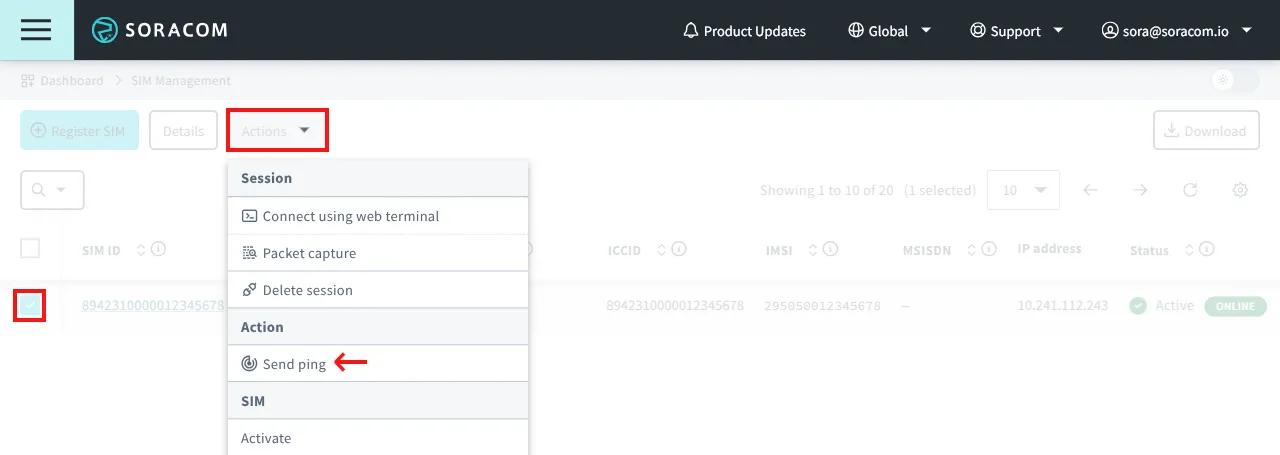
You can select more than one SIM to run a ping test across multiple devices at once.
-
From the Send ping to a SIM dialog, enter the Number of ping requests and Ping timeout:
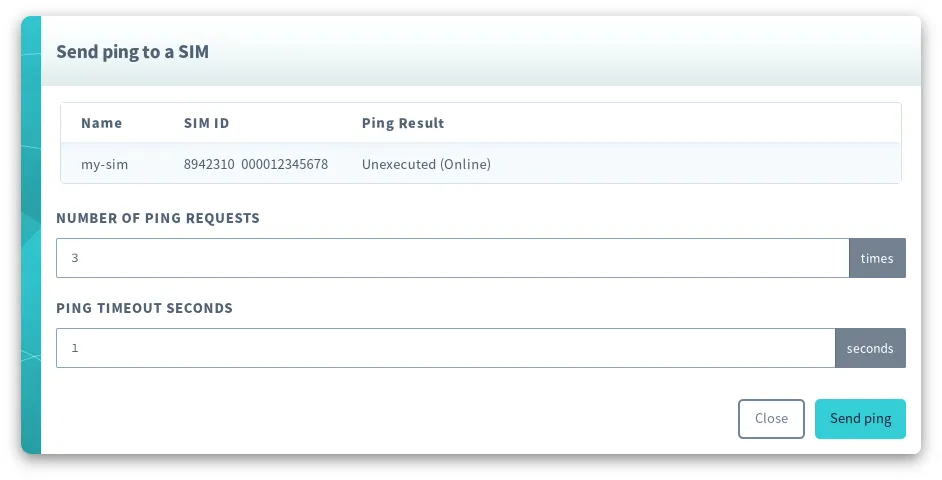
Then click the Send ping button.
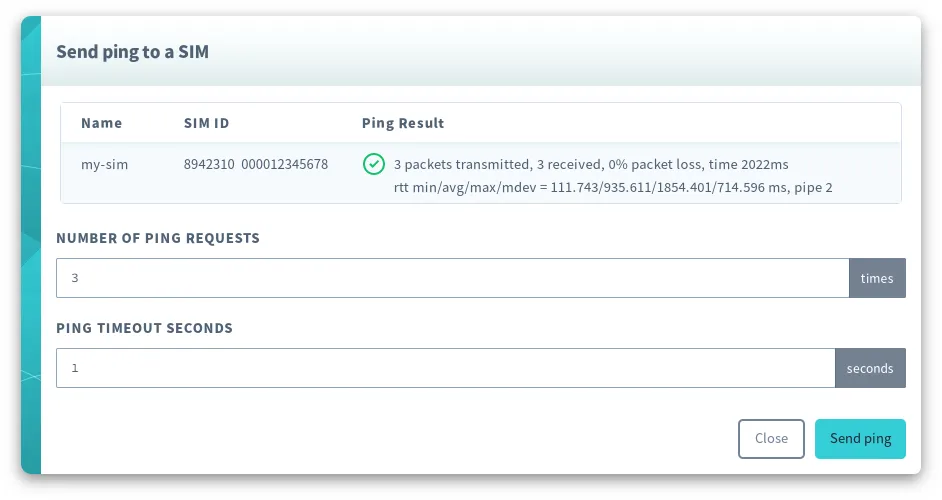
Once the ping test has finished, the results will be displayed:
Understanding the Ping Results
The ping test results include summary statistics and round-trip time measurements for the ICMP echo requests sent to the device.
The results are displayed as two lines:
-
Packet transmission statistics
Provides summary information about the ICMP echo requests sent during the ping test:
- Number of packets transmitted and received
- Packet loss ratio
- Total time taken to complete the ping test
-
Round-trip time (RTT) statistics
Shows the response time statistics for the received packets, measured in milliseconds:
- min: Minimum round-trip time
- avg: Average round-trip time
- max: Maximum round-trip time
- mdev: Mean deviation of the round-trip time
If no ICMP replies are received, only the packet transmission statistics are shown and no round-trip time (RTT) statistics are displayed. For example:
5 packets transmitted, 0 received, 100% packet loss, time 0msProgrammatic Usage
In addition to pinging a device from the User Console, you can also run a ping test programmatically.
Soracom API
To access the Soracom API, first use the auth API to obtain an API Key and Token. Refer to the API Usage Guide for instructions on how to use the API Key and Token in API requests.
Then, use the sendDownlinkPing API to start a ping test:
curl -X POST \
|  -H 'X-Soracom-API-Key: <MY-API-KEY>' \
|  -H 'X-Soracom-Token: <MY-TOKEN>' \
|  -H 'Content-Type: application/json' \
|  -d '{
|        "numberOfPingRequests": 3,
|        "timeoutSeconds": 1
|      }' \
|  https://g.api.soracom.io/v1/sims/<SIM-ID>/downlink/ping
curl -X POST \
| -H 'X-Soracom-API-Key: <MY-API-KEY>' \
| -H 'X-Soracom-Token: <MY-TOKEN>' \
| -H 'Content-Type: application/json' \
| -d '{
| "numberOfPingRequests": 3,
| "timeoutSeconds": 1
| }' \
| https://jp.api.soracom.io/v1/sims/<SIM-ID>/downlink/pingOnce the ping test has finished, the API will return a response containing the ping results, similar to the following:
{
  "rtt": "rtt min/avg/max/mdev = 111.743/935.611/1854.401/714.596 ms",
  "stat": "3 packets transmitted, 3 received, 0% packet loss, time 2022ms",
  "success": true
}
You can also use the sendSubscriberDownlinkPing API to run the same test using the IMSI of the SIM rather than the SIM ID.
Soracom CLI
To use the Soracom CLI, you must first configure it to authenticate with your account information, authorization key, or SAM user credentials.
Then, run the following command to start a ping test:
soracom sims downlink-ping --sim-id <SIM-ID> --number-of-ping-requests 3 --timeout-seconds 1 --coverage-type gsoracom sims downlink-ping --sim-id <SIM-ID> --number-of-ping-requests 3 --timeout-seconds 1 --coverage-type jpThe CLI will return a response similar to the API response above.
You can also use the following command to run the same test using the IMSI of the SIM rather than the SIM ID:
soracom subscribers downlink-ping