


Subscription Containers
Subscription containers are a feature that allows you to add additional subscription plans to a SIM in order to extend coverage to more countries and networks. SIMs that support subscription containers include 01s, US, and P1 IoT SIM cards and embedded SIM chips (eSIMs).
By default, each of these SIMs is pre-programmed with an operator profile from Soracom, which includes a primary subscription. When your device connects to a cellular network, it uses the information stored in the primary subscription, such as Subscriber Identity (IMSI) and authentication keys, to authenticate itself.
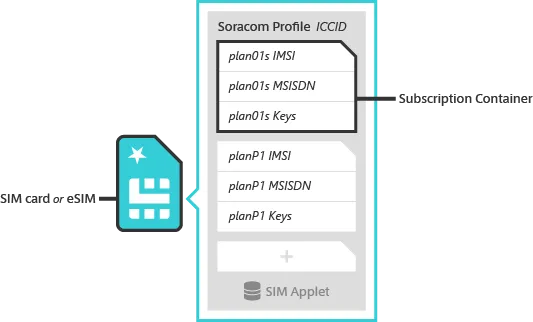
In addition to the primary subscription, the Soracom profile is capable of storing additional subscriptions. Adding more subscriptions means that your SIM will have additional sets of IMSIs and their corresponding keys, which will allow your device to connect to more networks in more countries, or access cheaper data rates.
Switching between subscription plans is handled automatically by an applet built into the Soracom profile. Here too, your device does not need any special configuration. The SIM will automatically pick a subscription based on the country where your device is located. Refer to Subscription Priority for the exact rules, as the selected subscription depends on the combination of subscriptions on the SIM.
The data for each subscription (IMSI, authentication keys, etc.) is packaged into a subscription container, which can then be securely sent to your device and installed on the SIM through a simple Over-The-Air (OTA) update.
Delivery
Additional subscriptions are delivered wirelessly to the SIM through an OTA update. As long as your device is connected using a SIM that supports subscription containers, you can add additional subscriptions to it regardless of the device’s location.
Depending on your device's cellular network compatibility, adding an additional subscription may cause connectivity problems when connecting to a cellular network. Refer to the Requirements and Limitations sections below.
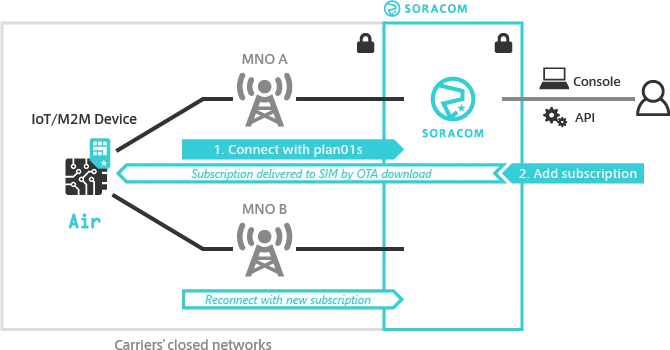
Subscriptions can be added by signing in to the Soracom User Console, selecting a SIM that supports subscription containers, and adding a subscription. Soracom takes care of packaging subscription details (such as IMSI and authentication keys) into a subscription container and sending the additional subscription to your device.
Once your device receives the additional subscription, it is automatically added to the SIM's Soracom profile. The profile applet will then evaluate the subscription selection rules stored on the SIM and, if applicable, switch to the new subscription automatically. Refer to Subscription Priority for details.
Application Compatibility
To reduce the complexity of managing multiple subscriptions, Soracom automatically synchronizes subscription settings across all subscriptions associated with a SIM. For example, if you give your SIM a Name, change its Speed Class, or add custom Tags, these settings are also applied to any additional subscriptions on the SIM. As a result, you do not need to update settings for each subscription separately.
This synchronization also applies to Group assignments and any settings that you configure in the group. If your SIM is added to a group where Custom DNS, Metadata Service, or another option is enabled, your device will also receive those settings when it connects to a network using additional subscriptions.
Since groups are where you can enable other Soracom platform services, such as Beam, Funnel, Funk, and Harvest Data/Files, your device will also have access to the same service configurations when it uses additional subscriptions. That way, if you build your application using the primary subscription and later decide to add an additional subscription to expand coverage or reduce data fees, you do not need to update any of your group assignments or configurations.
Some Soracom services use or report the subscription IMSI, such as appending the IMSI to a topic name when using Beam MQTT, adding the IMSI to a request header, payload, or token claim when using Beam HTTP, Funnel, or Endorse, or capturing data and viewing it with Harvest Data and Lagoon. These capabilities allow you to uniquely identify which device the data is coming from. Although the SIM will use a different IMSI when it connects to a network using an additional subscription, Soracom will automatically find the IMSI of the primary subscription and use this primary IMSI instead. Regardless of which subscription your device is currently using to connect, it will always be identified by its primary IMSI, so you do not need to re-associate your data.
If your application uses the subscription IMSI independently of Soracom services, such as configuring your device to check and report the IMSI directly to your server, the primary IMSI association will not occur.
Available Subscriptions
The following subscriptions are available and can be added to any 01s SIM:
| Available Subscriptions | ||||||
|---|---|---|---|---|---|---|
| Plan | P1 | X1 | X2 | X3 | US-max | NT1 |
| Pricing | Pay-As-You-Go | Pay-As-You-Go with bundled data | Pay-As-You-Go | |||
| Bundled Data | 5MB | |||||
| Coverage *1 | Over 60 countries | Japan | Over 100 countries | United States | Satellite coverage in United States, Canada, Brazil, Australia, New Zealand, and multiple European countries & cellular coverage in over 90 countries | |
| Connectivity *2 | 2G, 3G, 4G/LTE | 4G/LTE, LTE Cat-M1 | 4G/LTE, 5G | 2G, 3G, 4G/LTE, 5G, LTE Cat-M1, NB-IoT | 4G/LTE | Satellite-based NB-IoT (NTN R17) connectivity via Skylo, 2G, 3G, 4G/LTE, LTE Cat-M1, NB-IoT *5 |
| Form Factors | Over-The-Air (OTA) update | |||||
| Data | ✓ | ✓ | ✓ | ✓ | ✓ | ✓ |
| SMS | MT-SMS only *3 | ✓ | ✓ | ✓ | Limited *4 | |
| USSD | ✓ | |||||
| Voice | ||||||
**\*2** - Actual network availability varies by country and local operator.
**\*3** - Mobile Terminated SMS (SMS delivered from Soracom to a device).
**\*4** - Supports both MT‑SMS (Mobile Terminated SMS) and MO‑SMS (Mobile Originated SMS). MO‑SMS can only be sent to Unified Endpoint. Specifying any other destination is not supported.
**\*5** - Additional countries will be added as coverage becomes available. Refer to [Skylo’s coverage map](https://www.skylo.tech/resources/geographical-coverage) or [contact us](https://www.soracom.io/contact/) for current regional availability.
The following subscriptions are available and can be added to any US SIM:
| Available Subscriptions | |||
|---|---|---|---|
| Plan | US-max | US-NA | NT1 |
| Pricing | Pay-As-You-Go with bundled data | Pay-As-You-Go | |
| Bundled Data | Same as US | ||
| Coverage *1 | United States | Canada & Mexico | Satellite coverage in United States, Canada, Brazil, Australia, New Zealand, and multiple European countries & cellular coverage in over 90 countries |
| Connectivity *2 | 4G/LTE | 2G, 3G, 4G/LTE | Satellite-based NB-IoT (NTN R17) connectivity via Skylo, 2G, 3G, 4G/LTE, LTE Cat-M1, NB-IoT *5 |
| Form Factors | Over-The-Air (OTA) update | ||
| Data | ✓ | ✓ | ✓ |
| SMS | Limited *3 | MT-SMS only *4 | |
| USSD | |||
| Voice | |||
**\*2** - Actual network availability varies by country and local operator.
**\*3** - Supports both MT‑SMS (Mobile Terminated SMS) and MO‑SMS (Mobile Originated SMS). MO‑SMS can only be sent to Unified Endpoint. Specifying any other destination is not supported.
**\*4** - Mobile Terminated SMS (SMS delivered from Soracom to a device).
**\*5** - Additional countries will be added as coverage becomes available. Refer to [Skylo's coverage map](https://www.skylo.tech/resources/geographical-coverage) or [contact us](https://www.soracom.io/contact/) for current regional availability.
The following subscriptions are available and can be added to any P1 SIM. Note that a P1 primary SIM can only have one secondary subscription:
| Available Subscriptions | ||
|---|---|---|
| Plan | X1 | X3 |
| Pricing | Pay-As-You-Go | Pay-As-You-Go with bundled data |
| Bundled Data | 5MB | |
| Coverage *1 | Japan | Over 100 countries |
| Connectivity *2 | 4G/LTE, LTE Cat-M1 | 2G, 3G, 4G/LTE, 5G, LTE Cat-M1, NB-IoT |
| Form Factors | Over-The-Air (OTA) update | |
| Data | ✓ | ✓ |
| SMS | ✓ | ✓ |
| USSD | ✓ | |
| Voice | ||
**\*2** - Actual network availability varies by country and local operator.
Subscription Priority
NT1 must be manually selected by using AT commands on your module. Once selected, it will take precedence over other subscriptions on the SIM card.
The built-in Soracom profile applet uses a PLMN mapping table loaded onto the SIM to decide which subscription to use. The table consists of swap rules: each rule says "when the modem attaches to a carrier matching this MCC/MNC, swap to subscription X." Between swaps, the SIM stays on whichever subscription it is currently using. The general priority, from most preferred to least, is:
US-max > X3 > X2 > X1 > P1 > 01s
The two behaviors that most often surprise users are:
- X3 changes the 01s default. When X3 is added to a 01s SIM, X3 becomes the default subscription. The SIM only swaps back to 01s when the modem attaches to a carrier in Canada or China Mainland. A SIM currently on X3 will not automatically pick 01s in countries where X3 has no coverage. See Example: planX3 Added below.
- P1 only activates in the countries defined by the PLMN rule table, even though its underlying carrier partners may have broader coverage. See Example: planP1 Added below.
plan01s SIM Subscription Priority
The table below describes which subscription is activated for common 01s SIM combinations. For X3 combinations, refer to the examples below the table.
| Device Location | ||||
|---|---|---|---|---|
| Subscriptions in SIM | APAC *1 | Japan *2, *3 | United States | Rest of World |
| 01s only | 01s | 01s | 01s | 01s |
| 01s + US-max | 01s | 01s | 01s or US-max *4 | 01s |
| 01s + P1 | P1 | P1 | P1 | 01s |
| 01s + P1 + US-max | P1 | P1 | US-max | 01s |
| 01s + X1 | 01s | X1 | 01s | 01s |
| 01s + X2 | 01s | X2 | 01s | 01s |
| 01s + P1 + X1 | P1 | X1 | P1 | 01s |
| 01s + P1 + X2 | P1 | X2 | P1 | 01s |
*1 - Actual coverage in APAC depends on which subscription is activated; refer to the Supported Carriers documentation for carrier information.
*2 - Connectivity in Japan is provided by NTT Docomo and SoftBank for 01s; by SoftBank only for P1; by SoftBank and au/KDDI (plus NTT Docomo by request) for X1; by au/KDDI only for X2; and by SoftBank and NTT Docomo for X3.
*3 - Configurations that include both X1 and X2 subscriptions are not shown. If your SIM includes both of these subscriptions, X2 will be prioritized.
*4 - SIMs provisioned after November 2025 will use US-max when connecting to Verizon and 01s when connecting to other carriers. SIMs provisioned before November 2025 will use US-max for all carriers.
Example: planP1 Added
When P1 is added to a 01s SIM, P1 is used in the countries defined by the PLMN rule table. 01s is used everywhere else.
| Subscription Used | Device Location |
|---|---|
| P1 | Countries defined for P1, including Japan, Australia, Bangladesh, Cambodia, China Mainland, Hong Kong, India, Indonesia, Laos, Macau, Myanmar, New Zealand, Philippines, Singapore, South Korea, Sri Lanka, Taiwan, Thailand, Vietnam, United States, and Mexico. |
| 01s | Everywhere else, including Canada and most of Europe, Africa, and South America. Some of these countries may have P1 carrier coverage but are not included in the P1 PLMN rules. |
| (none) | Countries without 01s or P1 coverage. |
Example: planX3 Added
When X3 is added to a 01s SIM, X3 becomes the default subscription. The SIM only swaps back to 01s when the modem attaches to a carrier in Canada or China Mainland. In a country where X3 has no coverage, a SIM currently on X3 will be unable to connect. It does not automatically pick 01s. Review the Supported Carriers documentation before adding X3.
The table below describes the typical case, where the SIM is on X3 after the initial subscription is added:
| Subscription Used | Device Location |
|---|---|
| X3 | Any country with X3 coverage, including Japan, Australia, most of Europe, and Burkina Faso. |
| 01s | Canada and China Mainland (the two regions with explicit 01s swap rules). A SIM that attached in one of these regions stays on 01s until the next rule swaps it back to X3 (for example, attaching to a Japanese carrier). |
| (none) | Countries where X3 has no coverage (for example Brazil, Myanmar, Turkey, the United States). A SIM currently on X3 cannot connect here even if 01s has carrier coverage. |
Example: planX3 + Additional Subscriptions
When other subscriptions are added alongside X3, each adds its own swap rules for specific carriers but X3 remains the default. P1 in particular extends coverage into several countries that would otherwise have no service. The table below describes the typical case, where the SIM is on X3 after the initial subscription is added.
| Subscription Used | Device Location |
|---|---|
| X3 | Default for any country with X3 coverage, including Japan (except where P1 overrides below). |
| US-max | United States (when US-max is added). |
| P1 | China Mainland, India, Bangladesh, Laos, Myanmar, and Sri Lanka (when P1 is added). In this combination, P1 only activates in this reduced set of countries, not the full P1 list. |
| 01s | Canada (the only explicit 01s swap rule in this configuration; China Mainland uses P1 when P1 is also added, otherwise 01s). |
| (none) | Countries where none of the added subscriptions have coverage. A SIM currently on X3 cannot connect here. |
plan-US SIM Subscription Priority
When a US SIM has US-NA or US-max subscriptions added, the subscription used depends on the carrier and country:
| Device Network/Location | ||||||
|---|---|---|---|---|---|---|
| United States | Canada & Mexico | |||||
| Subscriptions in SIM | US Cellular, AT&T, and regional carriers | Verizon | T-Mobile | Rogers or AT&T Mexico | ||
| US only | US | |||||
| US + US-max | US | US-max | ||||
| US + US-NA | US | US-NA | ||||
| US + US-max + US-NA | US | US-max | US-NA | |||
planP1 SIM Subscription Priority
When using a P1 SIM with X1 and X3 subscriptions, the plan that is being used will differ based on country and region.
| Device Location | ||||
|---|---|---|---|---|
| Subscriptions in SIM | APAC *1 | Japan *2 | United States | Rest Of World *3 |
| P1 only | P1 | P1 | P1 | — |
| P1 + X1 | P1 | X1 | P1 | — |
| P1 + X3 | X3 or P1 | X3 | X3 | X3 |
*1 - Actual coverage in APAC depends on which subscription is activated; Refer to the Supported Carriers documentation for carrier information.
*2 - Connectivity in Japan is provided by SoftBank only for P1; by SoftBank and au/KDDI (plus NTT Docomo by request) for X1; and by SoftBank and NTT Docomo for X3.
*3 - P1 does not provide coverage outside of the APAC region, Japan, or the United States. When X3 is added, X3 will be prioritized wherever coverage is available. In some cases, X3 may have access to fewer networks compared to P1, which may result in reduced carrier coverage in APAC.
Requirements
To use the Subscription Container feature, your device must meet the following requirements:
-
SMS functionality (MO-SMS and MT-SMS)
As the NB-IoT network does not support SMS, SIM cards in NB-IoT devices will be unable to receive additional subscriptions.
-
SIM Toolkit (STK) commands
-
Network type (such as 2G, 3G, and LTE) and frequency bands for both the primary subscription as well as the additional subscription
If your device does not support the network type or frequency bands of a particular country or network, it will not automatically revert to the primary subscription, and you may experience trouble connecting to a network.
For example, if your 3G-only device is located in Japan and currently connected to NTT Docomo's 3G network, and you add a X2 subscription to your SIM, your device will automatically attempt to switch to the au/KDDI network. Since au/KDDI only provides LTE and 5G coverage for X2, your device will no longer be able to connect to a network.
If you have any concerns about compatibility, feel free to contact Soracom Support.
-
Your SIM card is in Active status and in a data session (✓ Active Online).
- It is possible to order an additional subscription for a SIM when it is in Active status but not in a data session (Active Offline), but the OTA process will not occur until the device creates a new data session (Online).
Limitations
Before adding a subscription to your SIM, note the following limitations:
- Once an additional subscription is added to a SIM, it cannot be removed. To terminate a subscription, you must terminate the SIM.
- When one or more additional subscriptions are added to a 01s SIM, the SIM will no longer incur the 01s daily basic fees. However, the SIM will continue to incur the monthly basic fee for each additional subscription as follows:
- For X1 and X2, the additional subscription monthly basic fee will still be charged even if the SIM is set to Standby or Suspended status.
- For P1, X3, and US-max the additional subscription monthly basic fee will be charged when the SIM is set to Active or Inactive status. The monthly basic fee will not be charged when the SIM is in Ready, Standby, or Suspended status.
- When one or more additional subscriptions are added to a US SIM, an additional subscription fee will be added to the monthly basic fee.
- When one or more additional subscriptions are added to a P1 SIM, the SIM will no longer incur the P1 basic fees. However, the SIM will continue to incur the monthly basic fee for each additional subscription as follows:
- For X1, the additional subscription monthly basic fee will still be charged even if the SIM is set to Standby or Suspended status.
- For X3, the additional subscription monthly basic fee will be charged when the SIM is set to Active or Inactive status. The monthly basic fee will not be charged when the SIM is in Ready, Standby, or Suspended status.
- Currently, P1 subscriptions do not support MO-SMS functionality. Your device will not be able to send SMS to the network while it is connected using this subscription; however, you can send MT-SMS to your device. Full SMS functionality will still work in countries or regions where the device is connected using a subscription that supports MO-SMS.
- Currently, US-max does not support SMS with SIMs using different plans. Full SMS functionality will still work in other countries when the device is connected using the 01s subscription.
- Similarly, P1, X1, and X2 subscriptions do not support USSD functionality, and your device will not be able to send USSD while using these subscriptions. USSD functionality will still work in other countries when the device is connected using the 01s subscription. There is no support for USSD on US or any of its additional subscriptions.
- When a X3 subscription is added to a 01s or P1 SIM, the X3 subscription will be prioritized wherever coverage is available. In some cases, X3 may have access to fewer networks compared to 01s or P1, which may result in reduced carrier coverage.
- Subscription priorities cannot be changed from their default configuration.
Adding a Subscription
Adding a subscription will incur fees. Refer to the Pricing & Fee Schedule for more information.
Before getting started, ensure that your device meets the requirements for Subscription Container delivery.
To add a subscription to a SIM:
-
Sign in to the User Console . From the Menu, open the SIM Management screen.
-
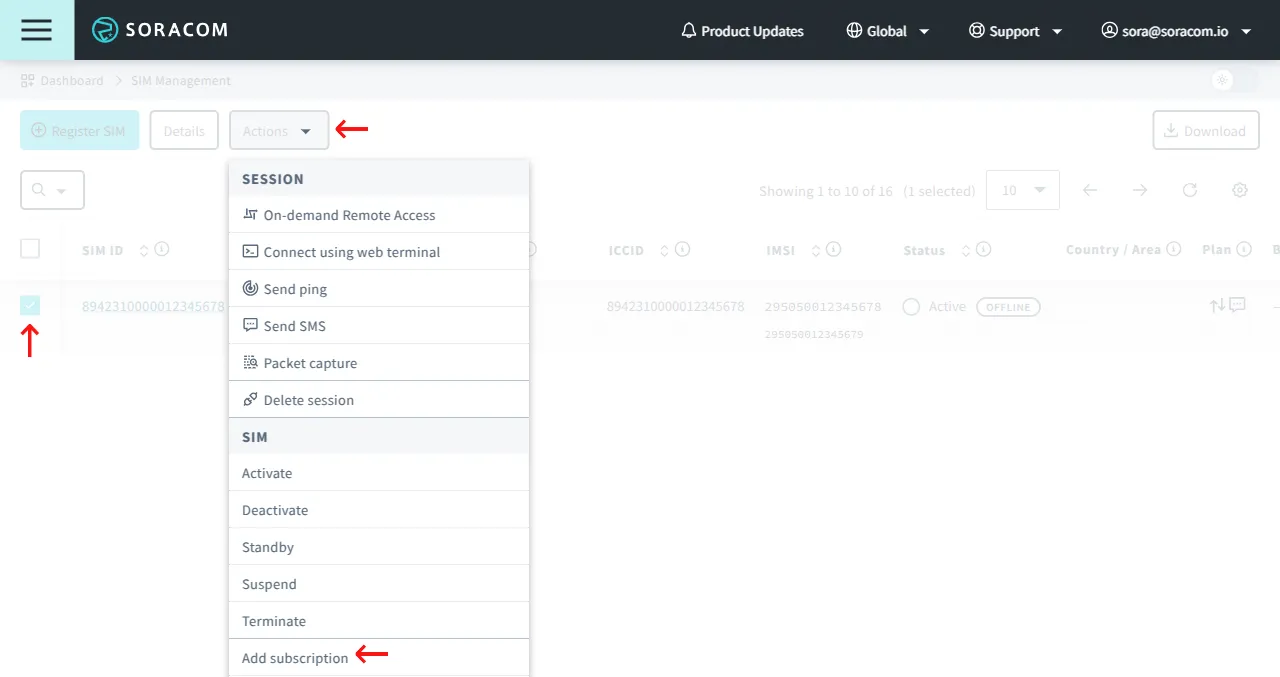
From the list of subscribers, click the ✓ for the SIM you want to manage.
-
Click the **Actions ** menu, then select Add subscription.
-
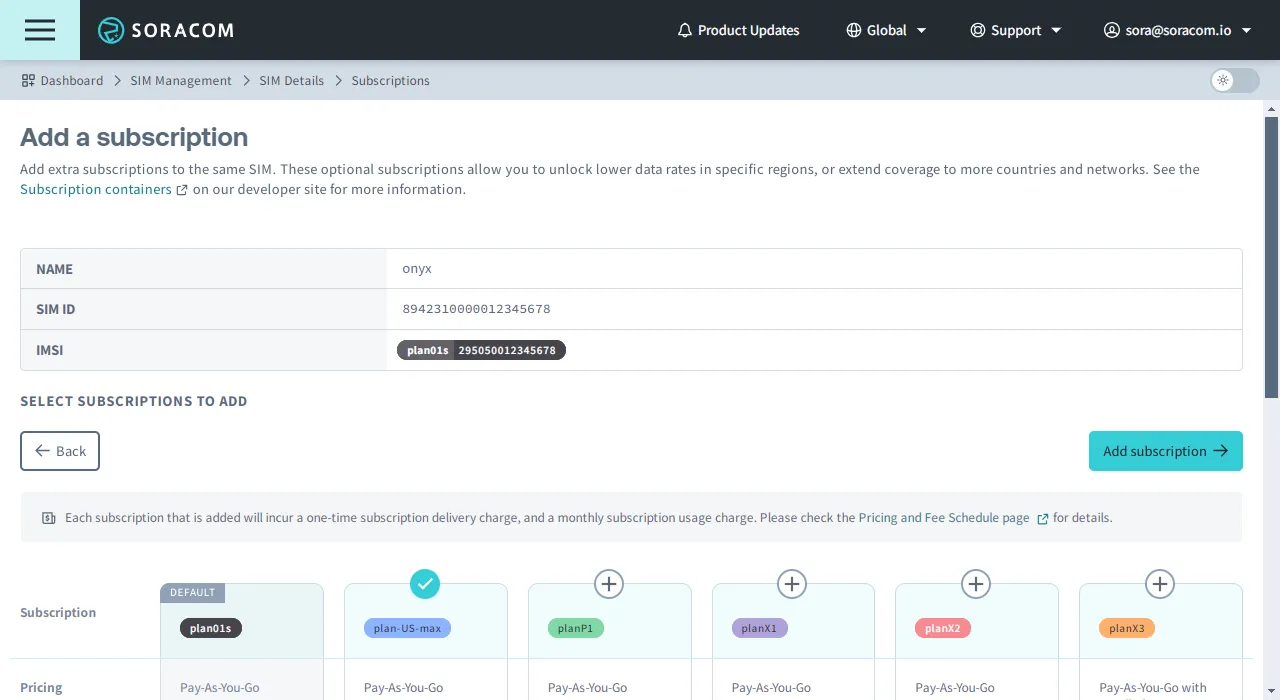
Click the **** for the subscription you want to add, then click Add subscription.
-
A dialog box will appear asking you to confirm your choice. Read and acknowledge the warnings associated with adding an additional subscription, then click Add subscription.
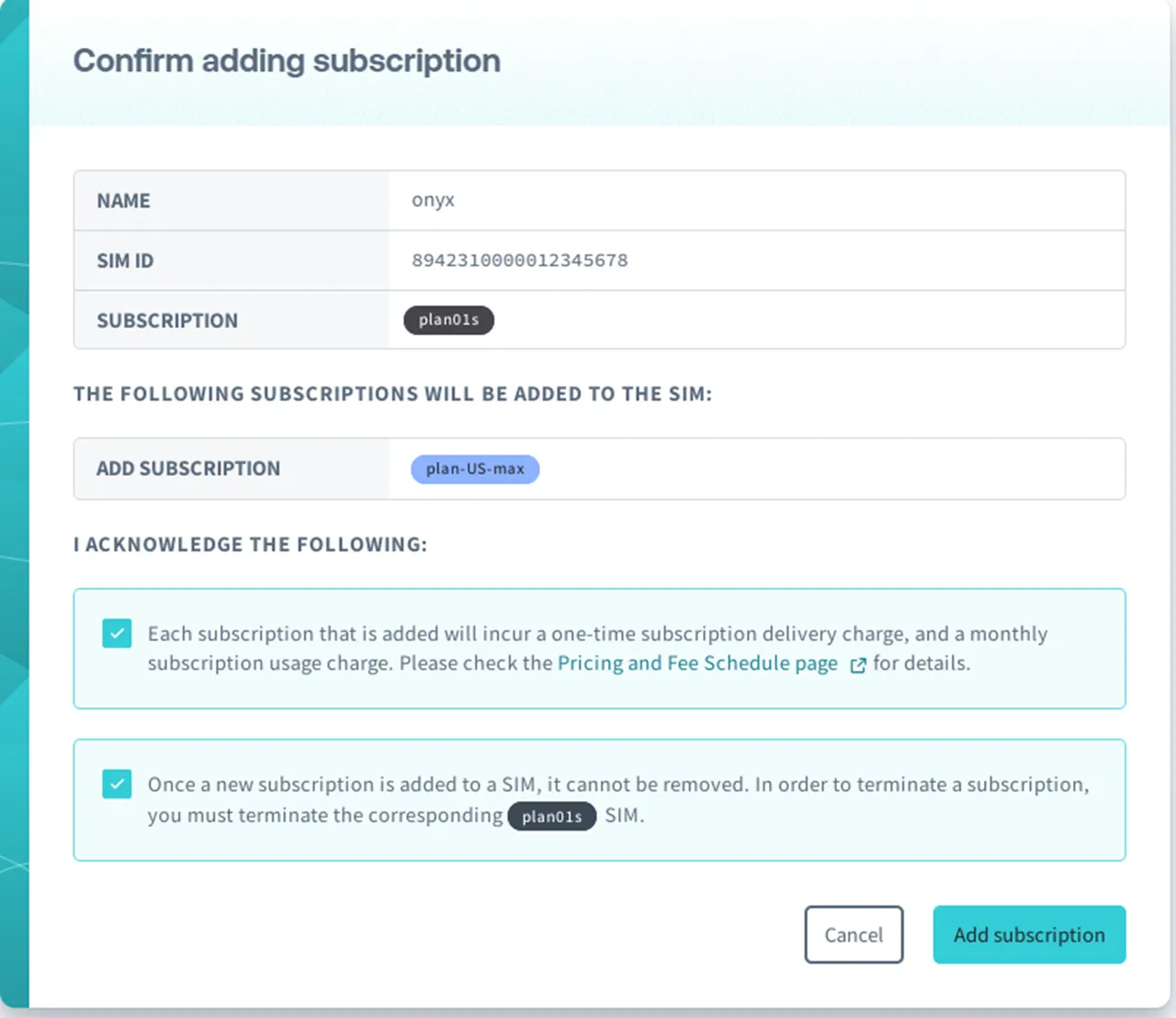
Soracom will then begin the OTA update process.
In most cases, delivery and activation of an additional subscription will be completed in less than 10 minutes from the time the device comes online.
Delivery Status
While using the SIM Management screen, each SIM will display which additional subscriptions have been added:
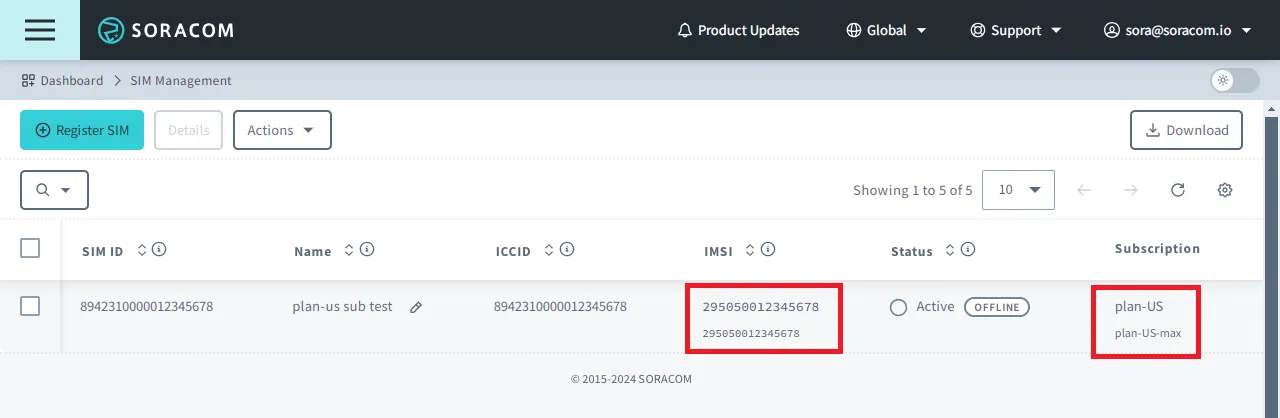
For each SIM, the IMSI column will contain the primary IMSI, as well as the IMSIs of the additional subscriptions below it. Similarly, the Subscription column will indicate the names of the subscriptions that have been added to the SIM.
When adding a P1, X1, X2, X3, US-max, or US-NA subscription to a SIM, a subscription delivery status may appear in parentheses next to the subscription name.
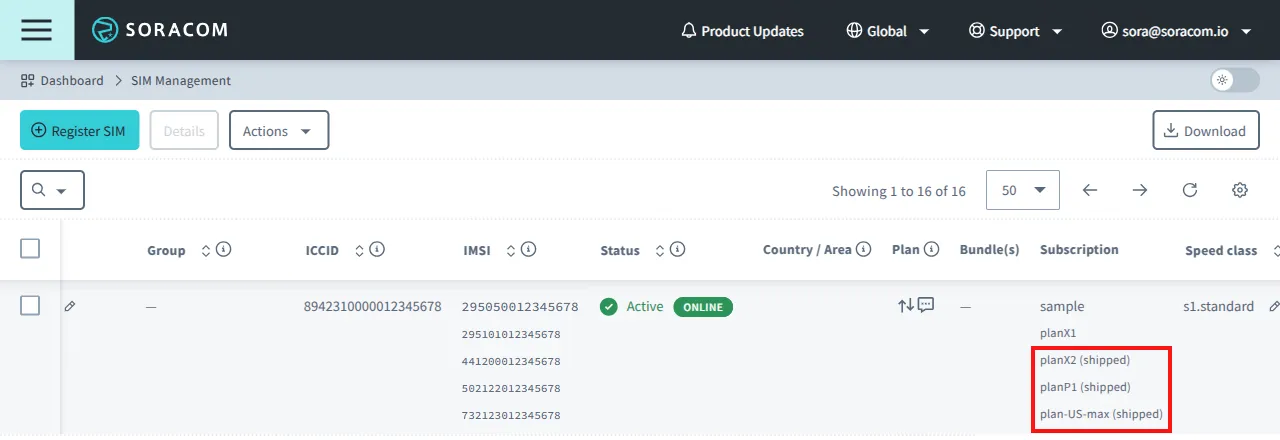
The following table describes the meaning of each status:
| Status | Meaning |
|---|---|
shipped | Soracom has prepared the additional subscription and is waiting for your device to come online to start the OTA update, or Soracom has sent the OTA update and is waiting for the SIM to confirm its receipt. The status changes to shipped once the request for an additional subscription is processed. |
delivered | The SIM has confirmed receiving the OTA update; Soracom is now waiting for the SIM to install the additional subscription. During this process, Soracom sends the necessary subscription information such as the IMSI and authentication data to the SIM to enable its functionality. |
ready | The additional subscription was successfully installed, and your device can now use it. |
| (no status) | Your device has successfully connected to a network using the new additional subscription. |
Subscription Delivery Failures
The delivery of an additional subscription occurs via an Over-The-Air (OTA) update utilizing several SMS messages. If a cellular session becomes unstable or is ended while an OTA update is in progress, the OTA update will be interrupted. This can potentially result in the subscription delivery being stuck in a shipped or delivered status.
To manually initiate a retry of the OTA update process, perform either of the following actions at least 15 minutes after the OTA becomes stuck in shipped or delivered status:
- Delete the device's session from the User Console.
- Reboot the device in a location with good reception.
Up to 12 retries will be performed for each additional subscription.
If your SIM becomes stuck in the shipped or delivered status for an extended period, you can retrigger the OTA update from the OTA Updates tab on the SIM Details page.
Managing OTA Updates
From the OTA Updates tab on the SIM Details page, you can check the status of OTA updates and retrigger (re-execute) failed updates.
This feature is only available for Global coverage IoT SIMs. The OTA Updates tab is not displayed for Japan coverage SIMs.
Checking OTA Update Status
-
Sign in to the User Console . From the Menu, open the SIM Management screen.
-
Click the target SIM to open the SIM Details page.
-
Click the OTA Updates tab.
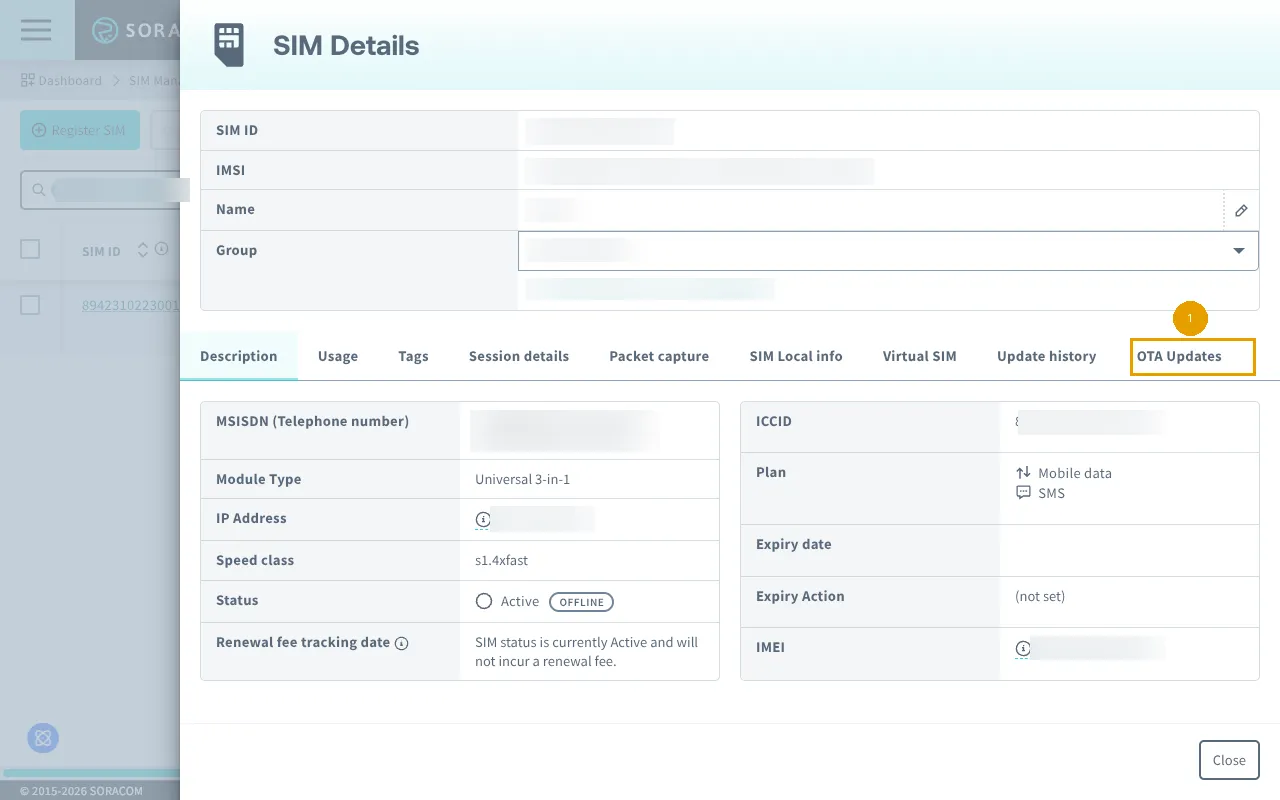
-
The OTA updates list will be displayed.
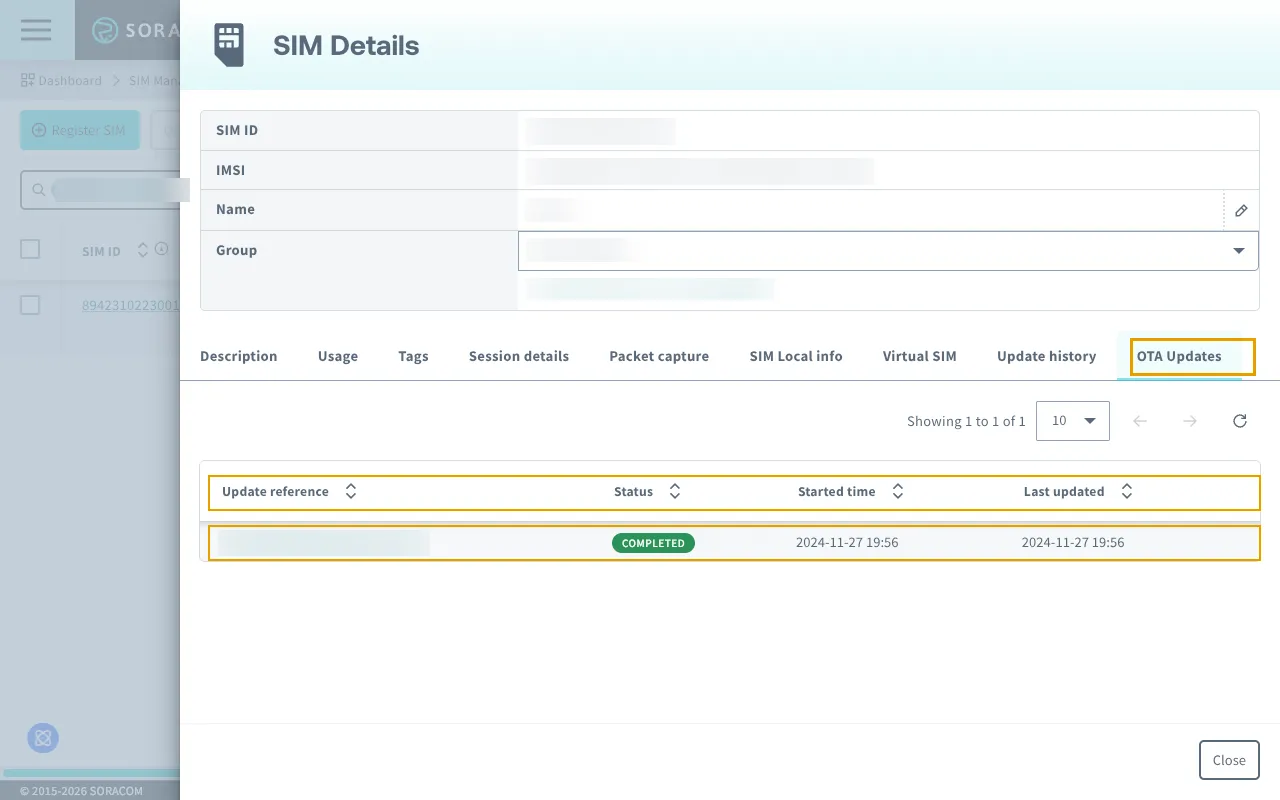
The table displays the following information:
Column Description Update reference An identification tag for the update. Click to view details. Status The overall progress status of the update, displayed with color coding. Started time The date and time the update started. Last updated The date and time of the last update.
Viewing OTA Update Details
-
In the OTA updates list, click the Update reference for the update you want to view.
-
Review each item.
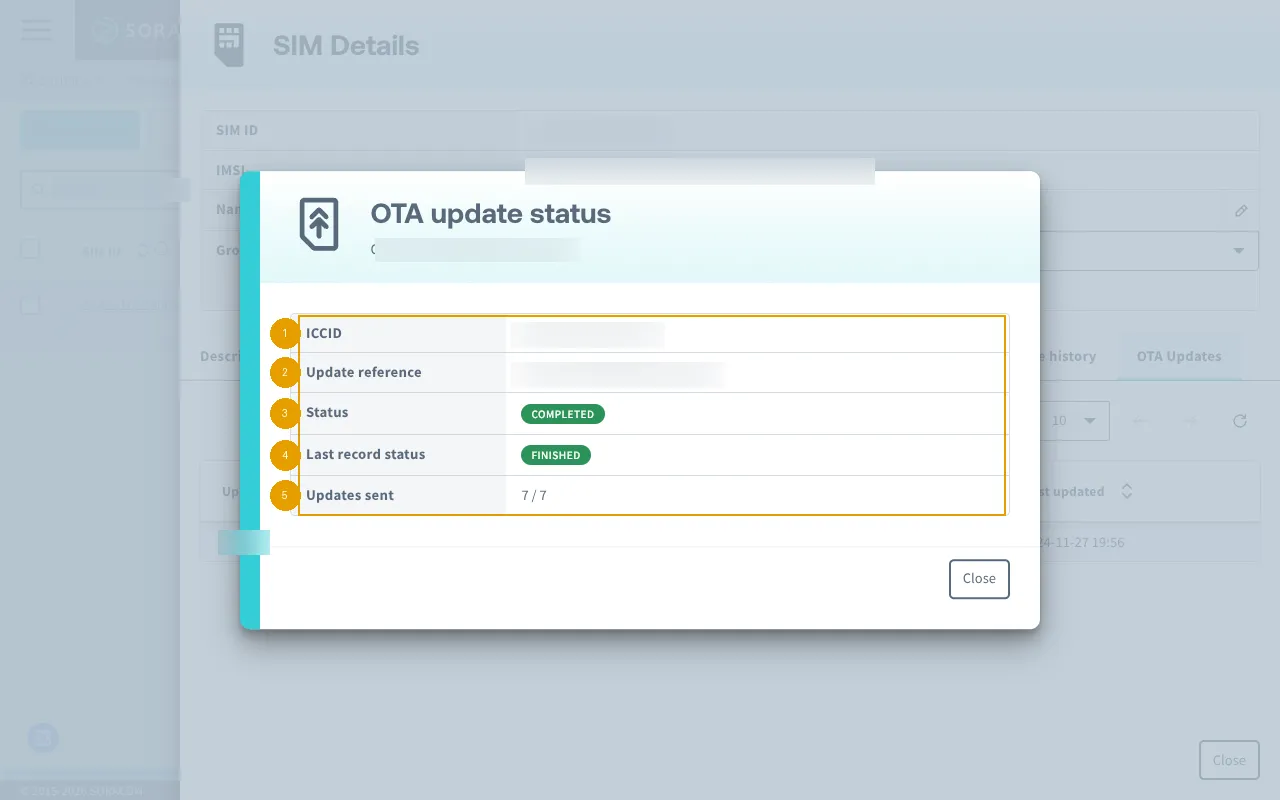
No. Item Description ① ICCID The ICCID of the SIM. ② Update reference An identification tag for the update. ③ Status The overall progress status of the update. ④ Last record status The status of the latest OTA record. ⑤ Updates sent The number of scripts sent / total number of scripts.
Retriggering a Failed OTA Update
You can retrigger updates with a FAILED status.
Retriggering applies only to the selected IoT SIM. Batch retriggering for multiple SIMs is not supported.
-
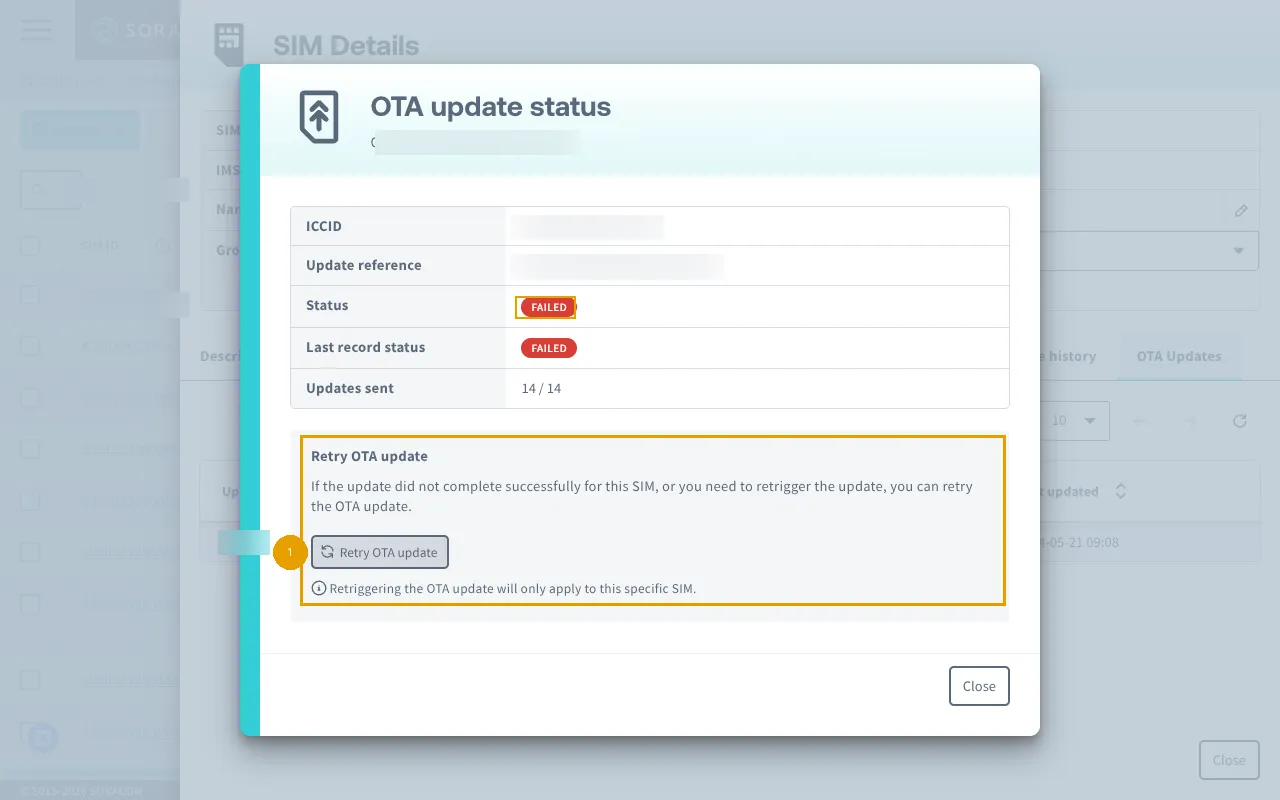
In the OTA updates list, click the Update reference for an update with a FAILED status. This will display the update details modal with the Retry OTA update section at the bottom.
-
Click Retry OTA update.
If the IoT SIM is offline, a warning message will be displayed and the OTA will be automatically retriggered when the device next comes online.
If the IoT SIM is online, the OTA update is re-executed immediately.
- On the result screen, click Back to OTA update details to check the latest status, or click Close to close the modal and return to the updates list.
Understanding Statuses
Update Status
The update status represents the overall progress of the update.
| Status | Color | Description |
|---|---|---|
| COMPLETED | Green | All scripts completed successfully. |
| IN PROGRESS | Blue | The update is in progress. |
| FAILED | Red | The update failed. Retrigger is available. |
| NOT STARTED | Default | The update has not started yet. |
Last Record Status
The last record status represents the status of the latest OTA record. This value is independent of the update status.
Even when the update status is COMPLETED, the last record status may show a different value such as FINISHED or DELIVERED. Check the update status for the final result of the update.
Programmatic Usage
In addition to adding an additional subscription from the User Console, you can also perform the same configuration programmatically, allowing you to integrate automated control of your SIM's Subscription Containers into your application.
Soracom API
To access the Soracom API, first use the auth API to obtain an API Key and Token. Refer to the API Usage Guide for instructions on how to use the API Key and Token in API requests.
Then, use the addSubscription API to add an additional subscription to an IoT SIM or Arc Virtual SIM:
curl -X POST \
|  -H 'X-Soracom-API-Key: <MY-API-KEY>' \
|  -H 'X-Soracom-Token: <MY-TOKEN>' \
|  -H 'Content-Type: application/json' \
|  -d '{
|        "enable": true,
|        "subscription": "plan-US-NA",
|        "type": "cellular"
|      }' \
|  https://g.api.soracom.io/v1/sims/<SIM_ID>/profiles/<ICCID>/add_subscription
curl -X POST \
| -H 'X-Soracom-API-Key: <MY-API-KEY>' \
| -H 'X-Soracom-Token: <MY-TOKEN>' \
| -H 'Content-Type: application/json' \
| -d '{
| "enable": true,
| "subscription": "planArc01",
| "type": "virtual"
| }' \
| https://jp.api.soracom.io/v1/sims/<SIM_ID>/profiles/<ICCID>/add_subscriptionSoracom CLI
To use the Soracom CLI, you must first configure it to authenticate with your account information, authorization key, or SAM user credentials.
Then, run the following command to add an additional subscription to an IoT SIM or Arc Virtual SIM:
soracom sims add-subscription --sim-id <SIM-ID> --iccid <ICCID> --body '<SUBSCRIPTION-DETAILS>' --coverage-type gsoracom sims add-subscription --sim-id <SIM-ID> --iccid <ICCID> --body '<SUBSCRIPTION-DETAILS>' --coverage-type jpHere, the JSON object of the request body from the API example above should be passed in to the --body parameter.