


Overview
Soracom Flux is a low-code IoT application builder designed for advanced automation. Applications built with Flux are called Flux Apps.
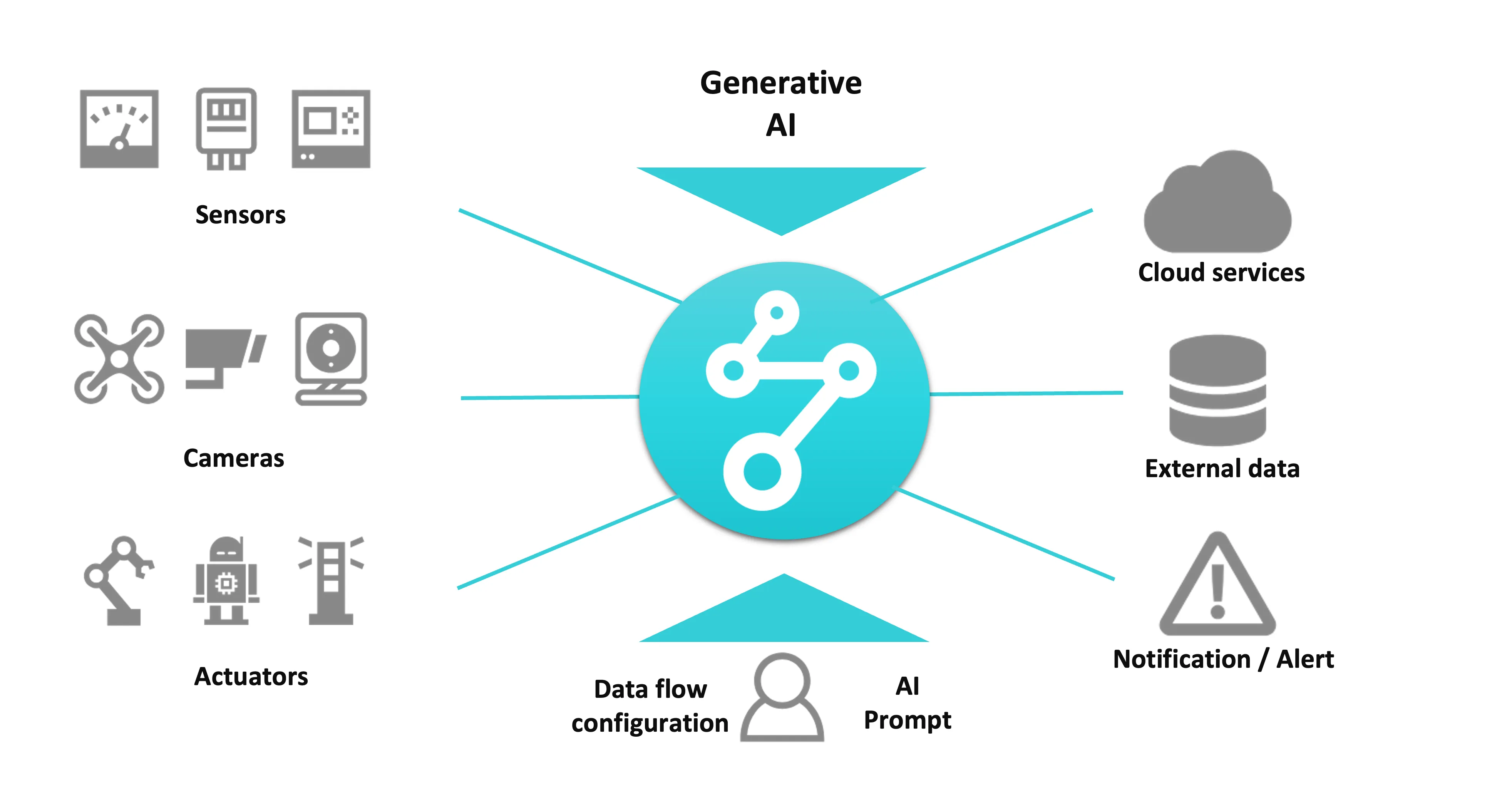
The input data to a Flux App can take various forms, such as sensor data or camera images. In a Flux App, you can process or analyze this input data using AI and cloud services to generate output data. The output data can be used to directly control IoT devices via webhooks or send notifications via Slack, email or as input for additional Flux App components.
Use Cases
Flux can be utilized in a variety of ways across different industries. Examples include:
- Leveraging the Soracom API to automate actions such as monitoring devices, sending billing reports, and performing numerous functions by accessing your Soracom account.
- Capturing images of analog sensors with a camera, analyzing them with generative AI to digitize the data, and sending an alert if the threshold is exceeded.
- Analyzing images captured by cameras with generative AI to detect anomalies in warehouses or factories.
- Monitoring household electricity usage from sensors and sending notifications when power interruptions occur.
Use Case: Warehouse Monitoring
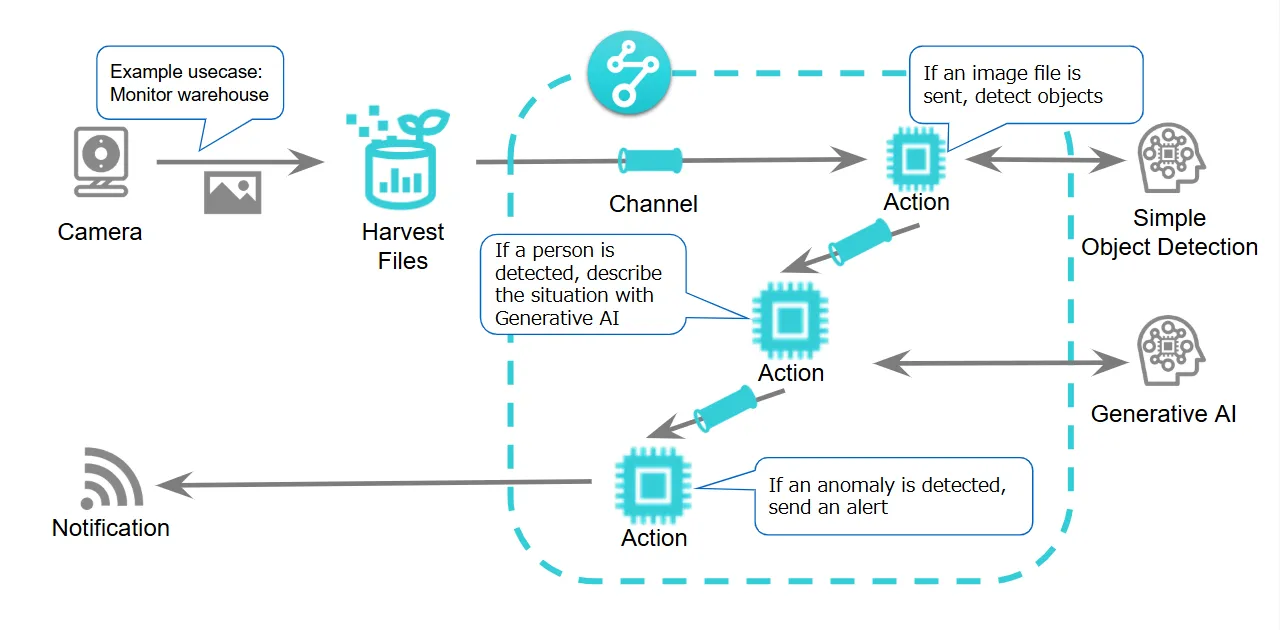
In this example, a camera detects motion and uploads a still image to Harvest Files. The Flux App is triggered by the image upload, analyzes the image using generative AI and simple object detection, and if an anomaly is detected, it can send an alert or trigger a Webhook.
Components
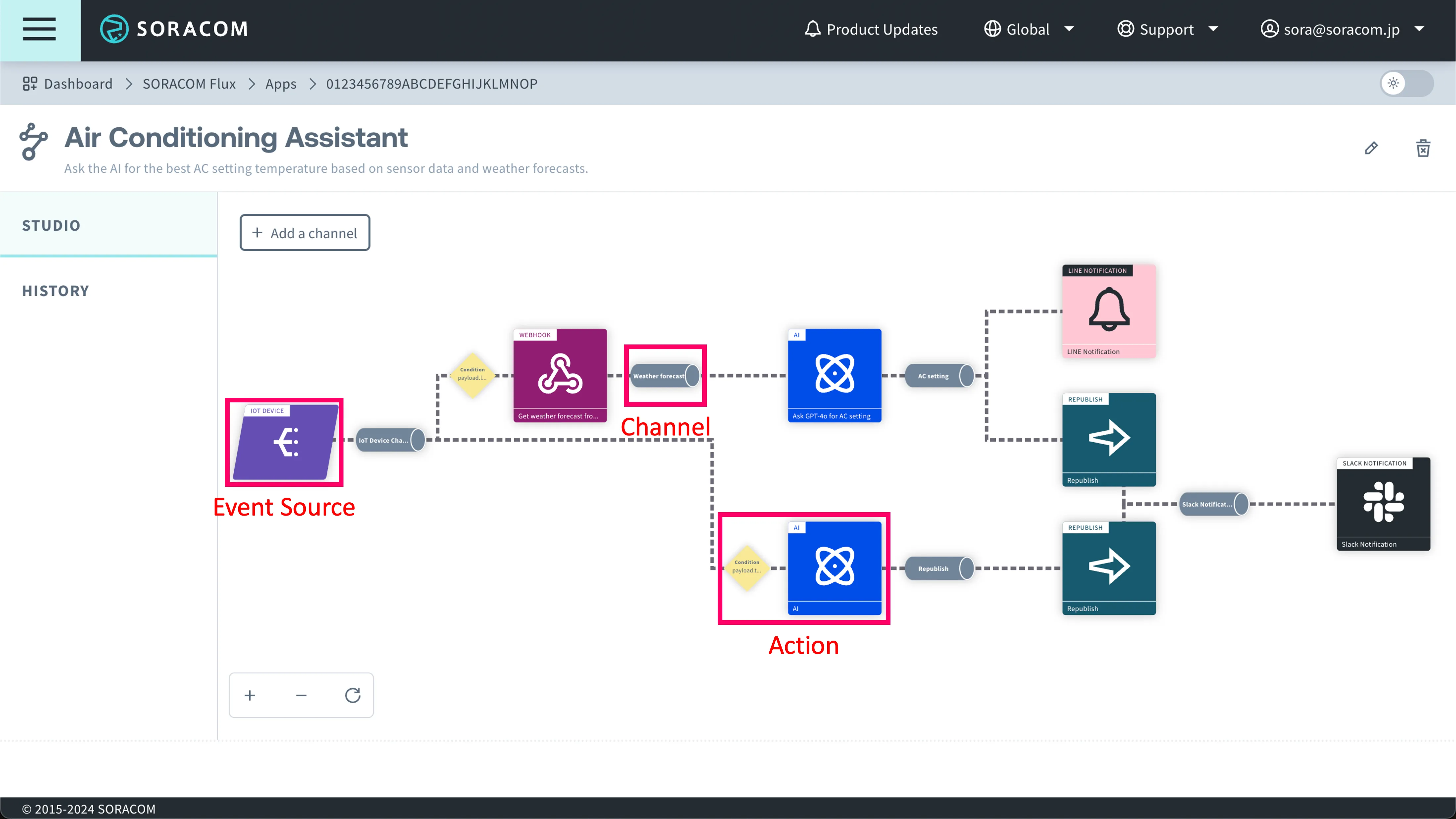
A Flux App typically consists of one or more Channel components that connect an Event Source component to one or more Action components. Event Sources define what events should trigger the Flux App to run and Actions define if and how to process these events. Using Channels you can further connect the output of one component to another to begin building more advanced Flux Apps. When data is sent to the channel, either by the Event Source or by an Incoming Webhook, the Flux app is executed. This sequence of actions is called an Event.
Channel
A Channel is a component that connects an Event Source to one or more Actions. Multiple Actions can be set in a Channel, allowing the same data to serve as input for multiple Actions. For more details, see Create a Channel and Select an Event Source and Enable Republishing of Action Output.
Data is sent to the channel via an event source or Incoming Webhook and is counted as an event when the Flux app is launched.
Event Source
An Event Source is a component that defines what events will trigger a Flux App to run. Event Sources include:
- IoT device: The Flux App is triggered when an IoT device sends data to the Unified Endpoint.
- Soracom Harvest Files: The Flux App is triggered when a file is uploaded (saved, updated) or deleted in Soracom Harvest Files.
- Interval Timer: The Flux App is triggered at fixed, regular intervals defined by the user.
- Scheduled Timer: The Flux App is triggered based on a flexible schedule defined by the user.
- API/Manual Execution: The Flux App is triggered when a request is sent to the API endpoint representing the Channel linked to the Event Source.
- Incoming Webhook: The Flux App is triggered when a request is sent to the Incoming Webhook Event Source.
Note that all channels can be assigned an Incoming Webhook to complement the existing Event Source.
Action
An action is a component that processes the data and executes specific operations. It can use an expression to determine if it should execute and analyze input data using generative AI or simple object detection. Additionally, notifications via Slack or email are also performed by actions. The following Actions are available:
- AI Action: Specify an AI model and prompt to instruct or ask questions in natural language about the input data.
- Soracom API Action: Use the Soracom API to automate actions in your account or monitor your devices.
- Republish Action: Transform the input data and send it to another Channel.
- Simple Object Detection Action: Perform simple object detection in a still image and extract objected-related information.
- Webhook Action: Send an HTTP request to a specified URL.
- Slack Notification Action: Send a message to the specified Slack Incoming Webhook URL.
- Email Notification Action: Send an email to the specified email address.
- Email Notification Action (Advanced): Send an email with support for image attachments.
- RTSP camera image Action: Acquires a still image from an RTSP (Real Time Streaming Protocol) enabled camera.
- Bounding Box Action: Sets bounding boxes on an image from a specified URL.
- Collect Messages Action: Aggregates actions that branch within a Flux app.
The output of each Action can also be sent to another Channel.
Message and Context
The event sent to a Channel by an Event Source consists of a Message and Context. Refer to individual Event Source documentation for details on the structure of the Message and Context. The Message and Context can also be viewed under the Execution History of a Flux App.
Execution History
You can view the execution history of a Flux App, the message history of Channels, and the run history of Actions. For more details, see View Logs.
Flux Plans
Soracom Flux offers three flexible plans—Developer, Standard, and Enterprise—so you can choose the one that best fits your needs. Each plan has different usage limits and capabilities to support everything from experimenting with Flux Apps to running large-scale IoT automation.
For details on available plans, see Plans page.