


View Logs
In this document we explain how to view the execution history of a Flux App, including the message history of channels and the run history of actions.
Soracom Flux retains the execution history of Flux Apps based on your subscription plan.
| Plan | Retention Period |
|---|---|
| Developer | 7 days |
| Standard | 40 days |
| Enterprise | Contact us |
See Plans for an overview of Soracom Flux subscription plans.
Check the Execution History of a Flux App
To check the execution history of a Flux App in Soracom Flux Studio, follow these steps:
-
Open the Studio tab of the Flux App.
-
Click on the History tab.
- Click Copy to copy the logs to your clipboard.
- Click Format JSON to format the logs.
From the execution history of the Flux App, you can check the the event source events which triggered the Flux App, the message and context of the event, and the input and output of the actions.
Check the Message History of a Channel
To check the message history of a channel in Soracom Flux Studio, follow these steps:
-
Open the Studio tab of the Flux App.
-
Click on the channel.
-
Click on the Messages tab.
- Click Copy to copy the logs to your clipboard.
- Click Format JSON to format the logs.
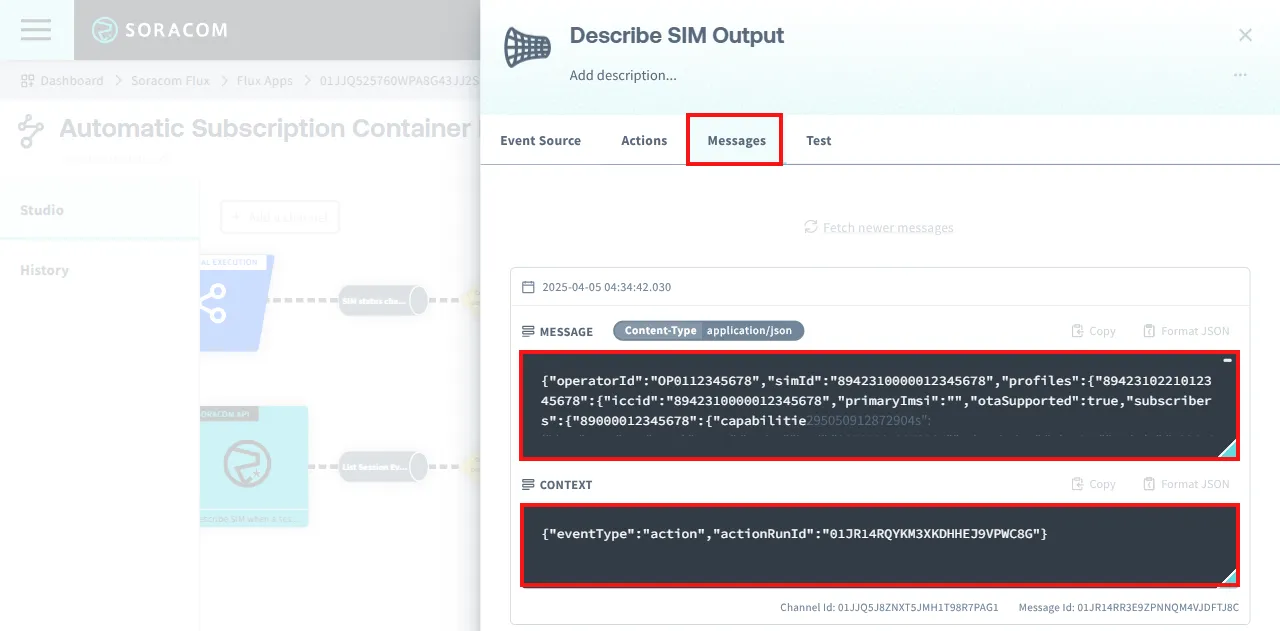
From the message history of the channel, you can check the message and context.
Check the Run History of an Action
To check the run history of an action in Soracom Flux Studio, follow these steps:
-
Open the Studio tab of the Flux App.
-
Click on the action.
-
Click on the Run History tab to view the log of each run of the action.
- Click Copy to copy the logs to your clipboard.
- Click Format JSON to format the logs.
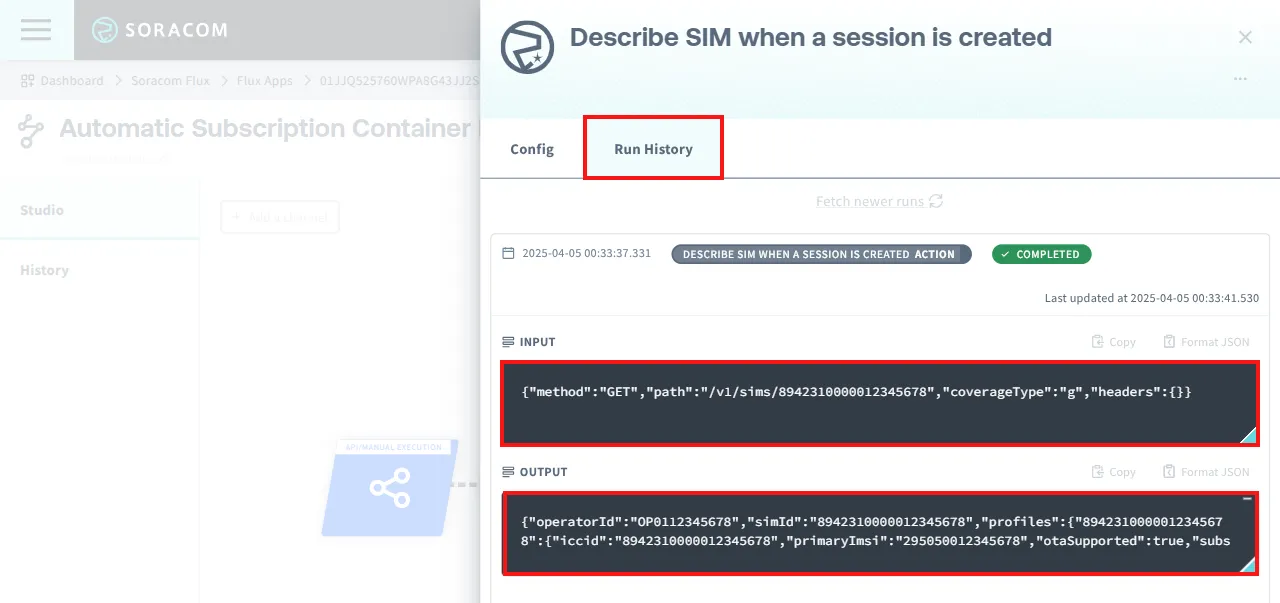
From the run history of the action, you can check the input and output data, and the execution status.