


Billing Information
Overview
Soracom platform services are postpaid. All data usage charges, connection fees (such as Custom DNS), network services (VPG, Canal, etc.), and application services (Beam, Funnel, Funk, Harvest, etc.) within a given month are aggregated at the end of each month.
Soracom provides a Billing Alert function that allows you to receive a notification if your current monthly bill exceeds a specific amount. By configuring an alert, you can be notified of unexpected charges that may occur due to unexpected data usage or other billable services, and proactively take control.
Soracom also provides two methods for viewing your account charges:
- Monthly Invoices - A PDF report summarizing your total account charges, broken down by each Soracom service or option.
- Detailed Billing CSV - A CSV file containing the full list of account charges, broken down by each day in a given month, and further categorized by device, service, or option.
Billing Dashboard
You can see an overview of your usage charges for the last four months, including the current month, from the User Console.
Billing information is not calculated in real time. It may take 12–24 hours to update.
To access the Billing Dashboard:
-
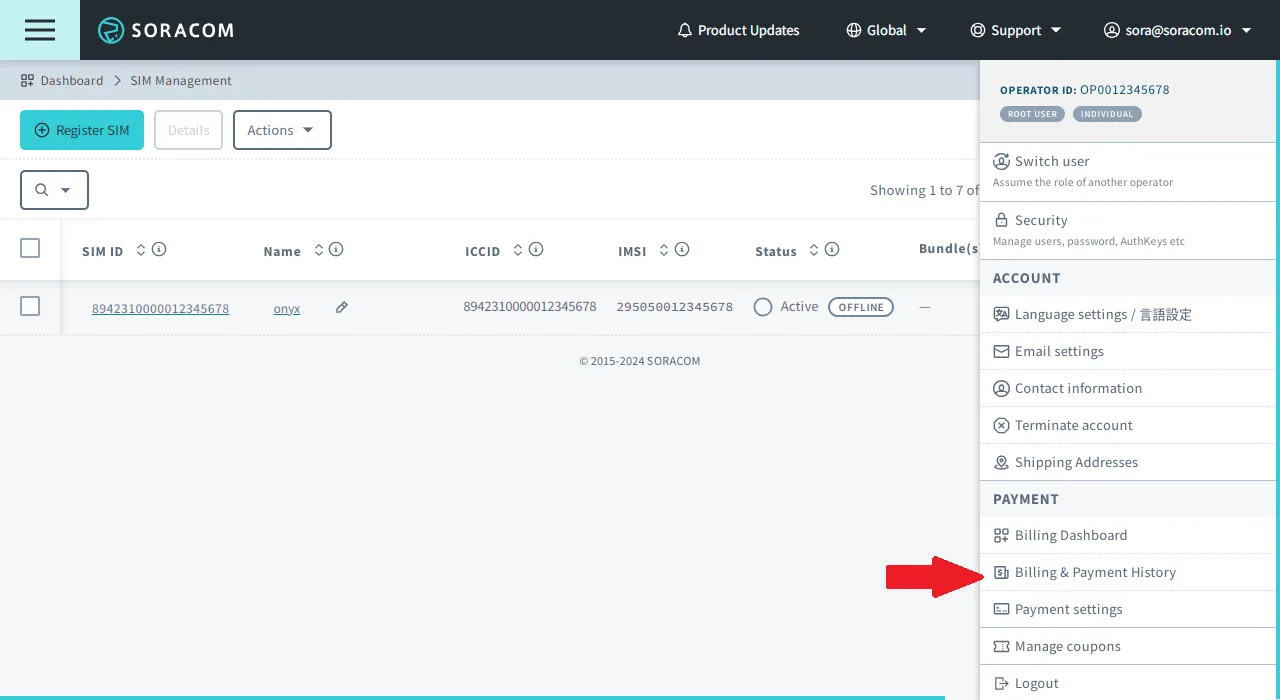
Sign in to the User Console . Click your account menu, then select Billing Dashboard.
-
Click Billing Dashboard.
The following panels are displayed:
| Panel | Explanation |
|---|---|
| Recent Billing | Displays the total charges for each of the last four months, including the current month. The amounts include tax and any applicable discounts or coupons. |
| Costs by Service | Displays usage charges for each service for the selected month, sorted in descending order by charge amount. These amounts do not include tax. |
| Costs per SIM (Top 100) | Displays usage charges for the top 100 SIMs for the selected month, sorted in descending order by charge amount. These amounts do not include tax. |
| Service Billing | Displays usage charges for each service for the selected month, sorted alphabetically. Some services are grouped together under the Others panel. |
Billing Alerts
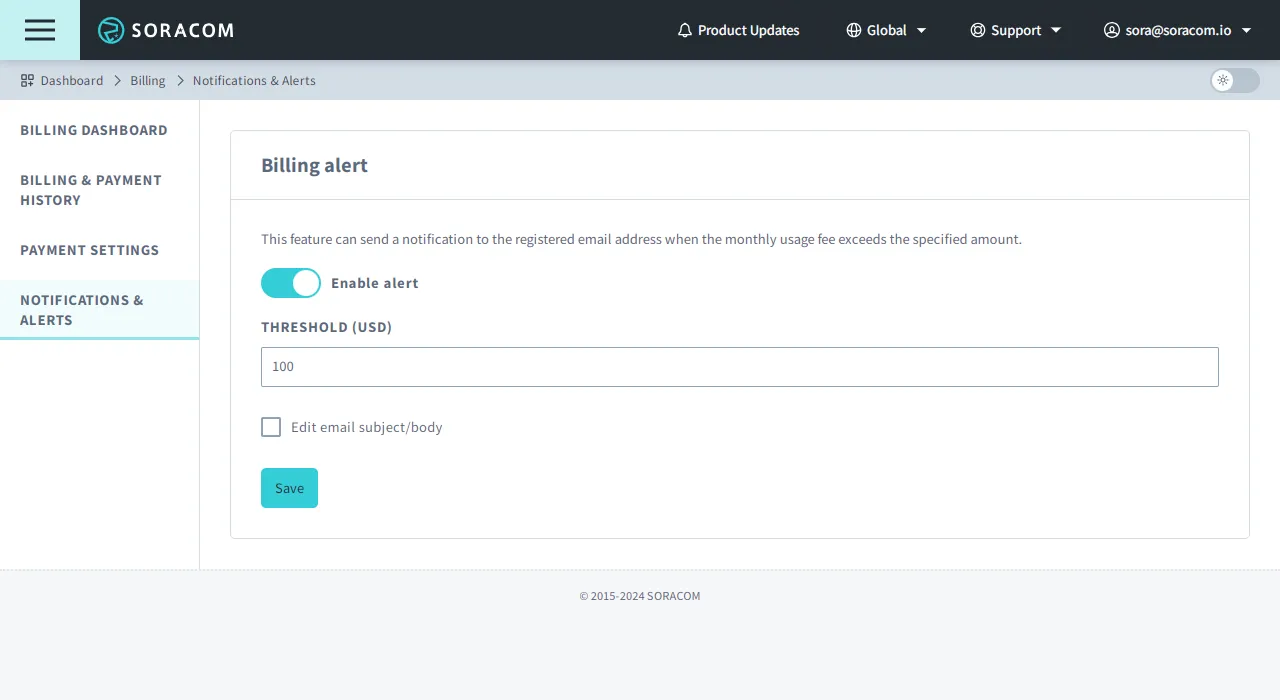
By default, Soracom will regularly update your current month's bill total so that you can easily check your service usage as service charges accrue. When the Billing Alert function is enabled, Soracom will also check if the monthly bill total exceeds a threshold that you set, and if so, send an email notification to the root account email address.
The Billing Alert function only sends an email notification when triggered and does not make any changes to your SIMs or any configured services. Your Soracom services will continue to operate normally without interruption.
Note that the monthly bill total is not calculated in real time. As a result, there may be up to a 24 hour delay between the time when your service usage actually exceeds the threshold, and when the monthly bill total is updated and the billing alert is triggered. You may wish to set a slightly lower threshold in order to receive an alert earlier, in case additional charges accrue before the alert is triggered. !!!! Additionally, because the Billing Alert function only provides a notification and does not make any changes, your account will continue to incur charges for services used.
To set up a billing alert:
-
Sign in to the User Console . Click your account menu, then select Billing Dashboard.
!!! Because billing is processed separately for Global and Japan coverage types, Billing Alerts must also be configured separately. If you are using both coverage types, make sure to set up a Billing Alert for each coverage.
-
Click Notifications & Alerts.
-
Click Enable Alert, then configure the following items:
-
Threshold (required) - The bill amount that will trigger an alert notification. When your monthly bill exceeds this amount, a notification will be sent to the root account email address.
-
Edit email subject/body (optional) - The alert notification sent to your root account email address will provide basic information by default. If you want to customize the email subject or body (such as to match specific filters in your email service provider), check this box to modify the email.
! The following placeholder variables can also be used inside the email subject and body. If a billing alert is sent, the variables will be replaced by their corresponding actual values. ! ! -
${operatorId}- The Operator ID of the account. This may be useful if you have multiple Soracom accounts and want to know from which account the Billing Alert occurred. ! -${coverage}- The coverage type from which coverage the Billing Alert occurred. This will be replaced withgfor Global Coverage orjpfor Japan Coverage. ! -${limitTotalAmount}- The threshold value specified above. ! -${currentTotalAmount}- The actual current monthly bill amount, at the time the Billing Alert was triggered.
-
-
Click Save.
The Billing Alert function uses Event Handler to create its alerts. You can create your own custom Event Handler using the Monthly bill amount rule in order to send notifications to additional email addresses, execute a webhook, invoke an AWS Lambda function, or perform other actions when your monthly bill total exceeds the threshold. For more information, refer to the Event Handler documentation.
Monthly Invoices
Downloading Invoices
Monthly invoices containing the summary of your account charges are prepared at the end of each month and available for download from the User Console.
PDF invoices are available only for months where the total monthly account charges have been finalized, and are not available for ongoing billing periods. A billing period begins on the first day of each month at 00:00
UTC, and ends on the last day of the same month at 23:59 UTC. ! If you would like to find detailed information of your account usage for the current month, you can download the Detailed Billing CSV following the instructions below. ! If you have terminated your account, invoices can still be retrieved. Refer to our Account Termination documentation for additional information.
Invoice history is only available for the past 18 months.
To download a past invoice:
-
Sign in to the User Console . Click your account menu, then select Billing Dashboard.
-
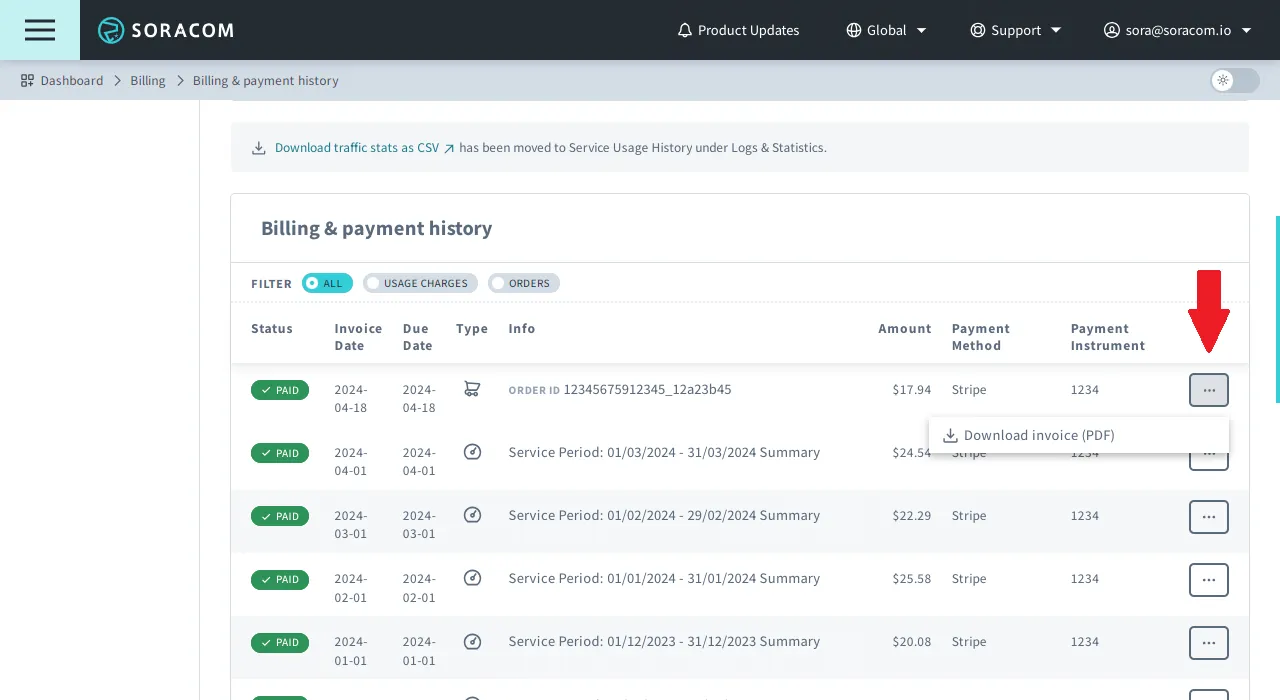
Click the Billing & Payment History tab.
-
Click the button next to the month you want to view and select Download Invoice. This is available as a PDF.
Receiving Invoices by Email
When a monthly invoice has been finalized, an email notification will be sent to notify you that the invoice is ready for download from the User Console. You can additionally opt in to receive the invoice directly via email. When this option is enabled, the PDF invoice will be attached directly to the email notification.
Monthly invoice email notifications (including PDF invoice attachments, if enabled) are sent to your Primary Email address, as well as any additional email addresses that are configured as Billing Email addresses. This may be useful in a multi-user organization where you would like monthly invoices to be sent to an accounting or finance department for record keeping. ! To configure Billing Email addresses, refer to the Email Settings documentation.
To enable receiving monthly invoices via email:
-
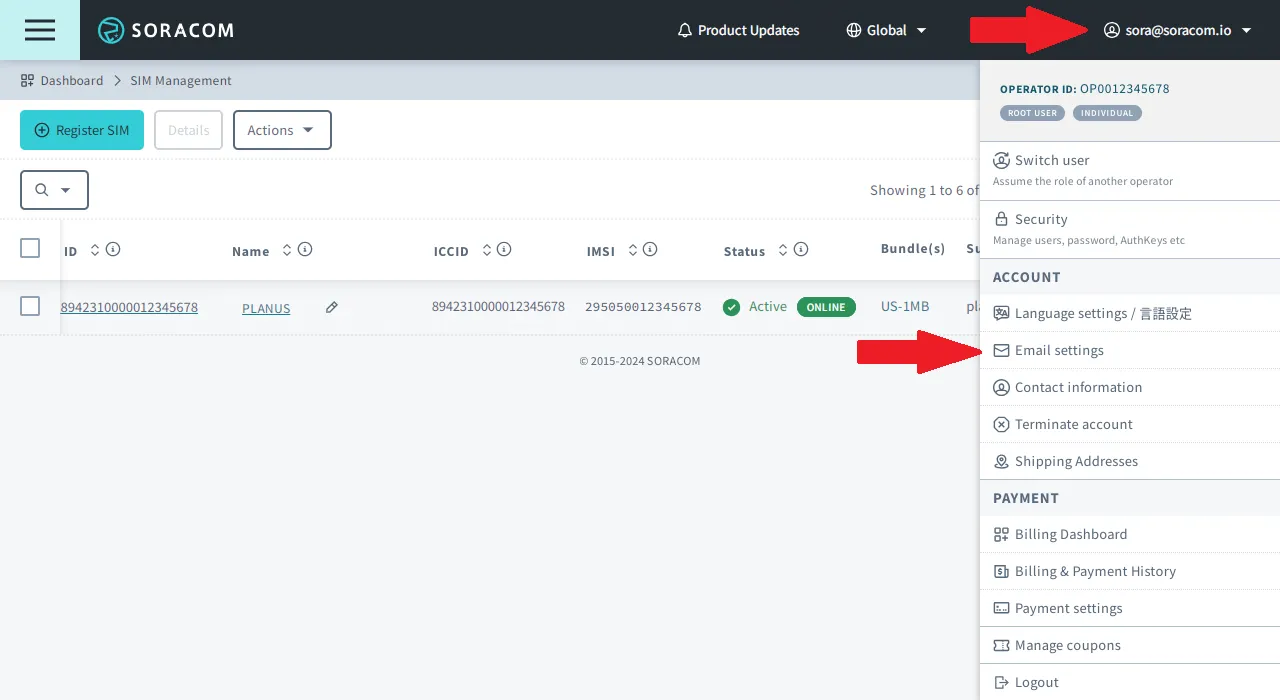
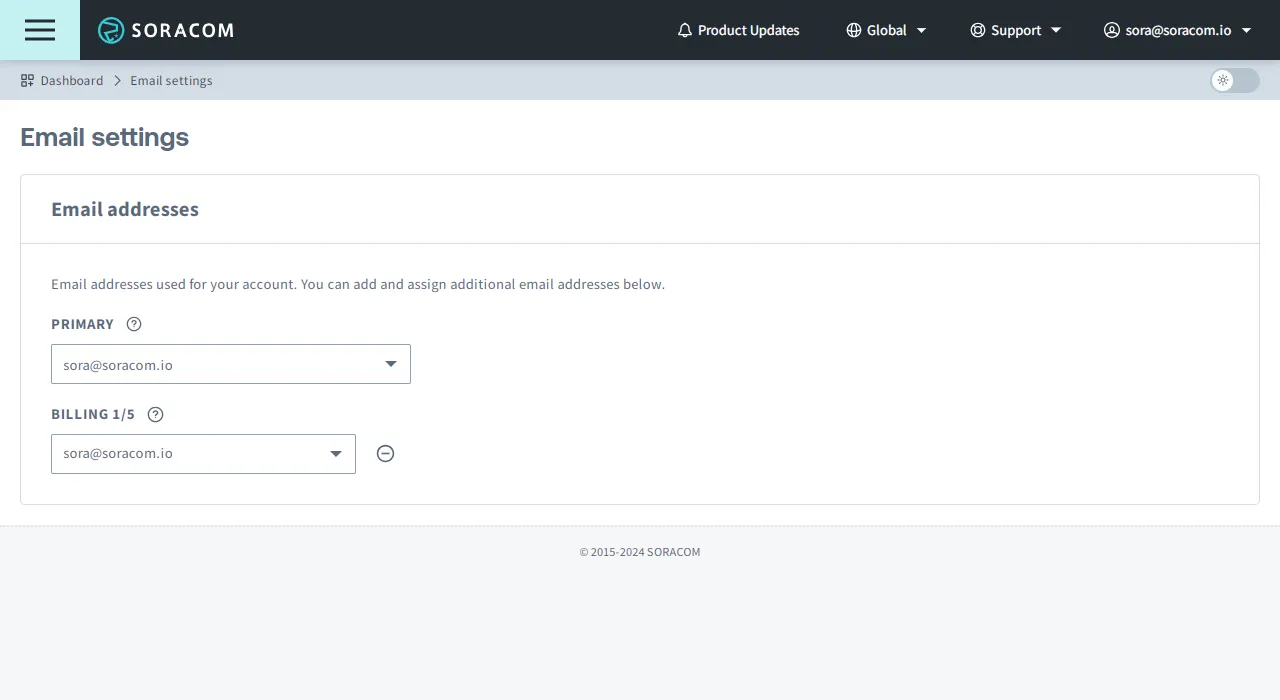
Sign in to the User Console . Click your account menu, then select Email settings.
-
In the Email Addresses section, add an email address under the Billing option.
-
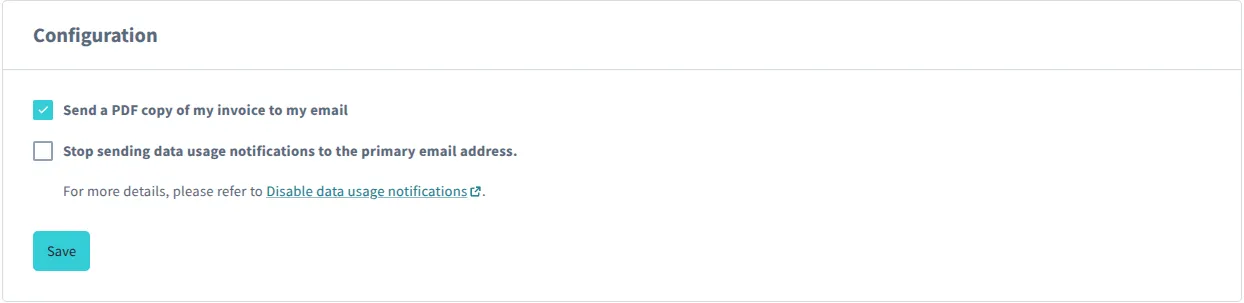
To enable receiving invoices directly by email, check the Send a PDF copy of my invoice to my email checkbox in the Configuration section at the bottom of the page.
Payment Statuses
When viewing the Billing & Payment History tab, each monthly invoice displays a payment status that reflects the current processing state of that invoice.
Payment statuses generally follow this progression:
Aggregating → In preparation → Charging → Processing → Paid
If a payment fails, the status will show Error instead of Paid. In some cases, additional statuses related to refunds or third-party collections may also appear.
Payment Status Definitions
The following table describes each payment status and its meaning:
| Payment Status | Meaning |
|---|---|
| Aggregating | Usage for the current month is being calculated. This amount increases as usage accumulates. |
| In preparation | The end-of-month closing process has been completed and the billing amount is finalized. The invoice is being prepared for charging. |
| Charging | The billing charge is being submitted to your payment method. |
| Processing | The payment is actively being processed. |
| Paid | The payment has been successfully completed via credit card, or a coupon has been applied to cover the cost. |
| To be paid next month or later | The total usage fee is less than the minimum billing amount. The current month's fee will be carried over and added to the billing for the following month or later. The status will update to Deferred once the combined payment is processed. |
| Deferred | The total usage fee was less than the minimum billing amount. This month's fee was carried over and added to the billing for the following month or later. |
| Error | The payment failed. Refer to Error Details below for possible causes. |
| Refunding | A refund is currently being processed for this billing period. |
| Refunded | A refund has been successfully completed. |
| Refund fail | The refund attempt was unsuccessful. Contact Soracom Support for assistance. |
| Delegating to 3rd party | The outstanding balance is in the process of being transferred to a third party. |
| Delegated to 3rd party | The outstanding balance has been transferred to a third party. Contact Soracom Support for further information. |
Error Details
If a payment status shows Error, the payment for that billing period was unsuccessful. Common causes include:
- Expired credit card
- Insufficient funds or credit limit reached
- Card issuer declined the transaction
- Incorrect or outdated payment information
To resolve a payment error, verify your payment method in the Payment Settings and update your information if needed. If the issue persists, contact Soracom Support for assistance.
Detailed Billing CSV
For the full itemized list of charges incurred on your Soracom account, you can download a CSV file which contains the full breakdown of all usage, service, and option charges.
Detailed billing CSV files are available for each past month of usage, as well as for the current month.
Downloading a CSV
-
Sign in to the User Console . Click your account menu, then select Billing Dashboard.
-
Click the Billing & Payment History tab.
-
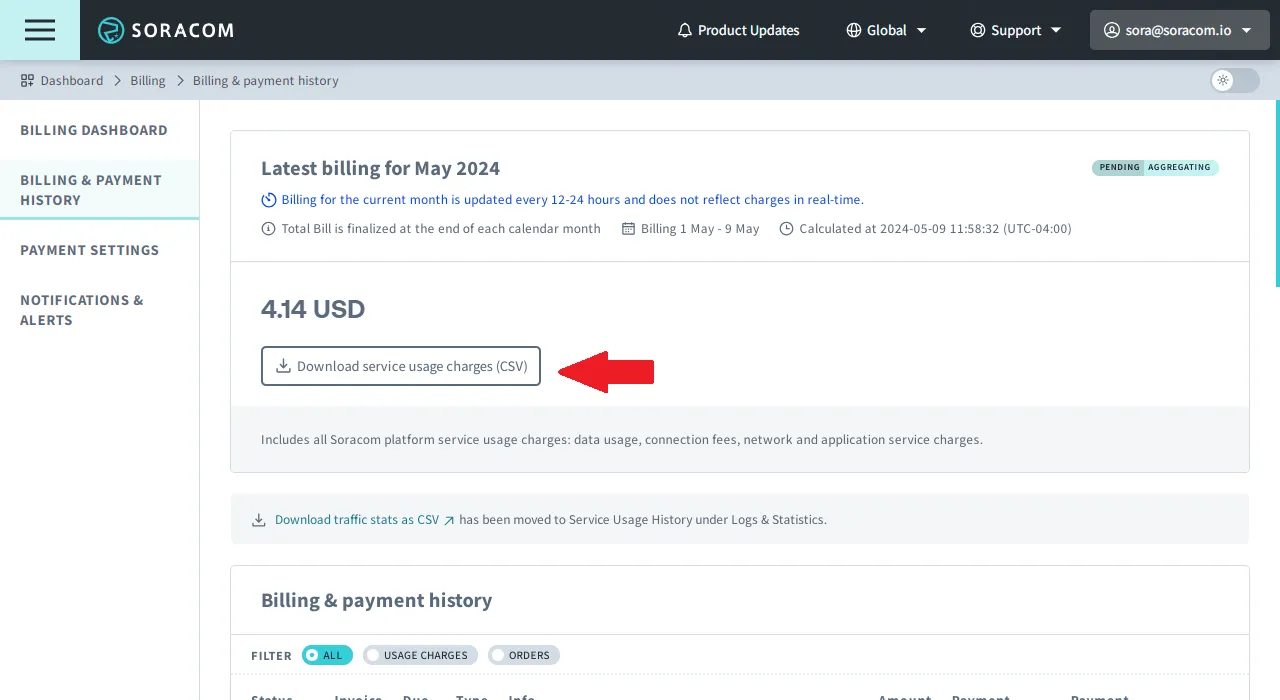
To download the CSV for the current month, click the Download service usage charges button at the top of the page.
-
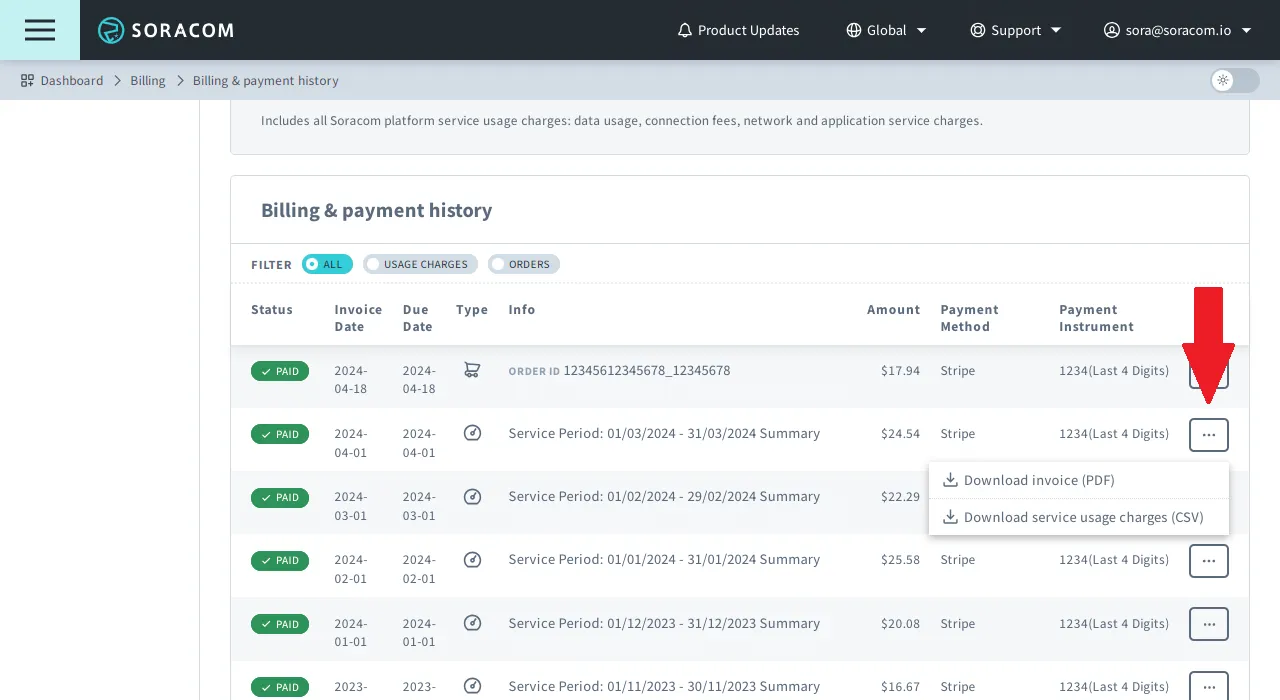
To download a CSV for a previous month, locate the invoice within the Billing & Payment History list. Then click the button to the right and select Download service usage charges.
! Each CSV file may take a minute to generate, depending on the number of devices, services, or options active during the given month.
CSV files for the current month are updated once per day.
{#
Opening the CSV File
Most modern spreadsheet applications should have no trouble opening the CSV file. However, in Microsoft Excel 2013 or earlier, non-alphanumeric text may not be recognized properly. Depending on the billing region (Global or Japan), this may cause formatting errors when opening CSV files.
If you encounter any errors, such as invalid characters or misaligned data, you can follow these steps to manually import the CSV data into your spreadsheet application (Microsoft Office demonstrated below).
-
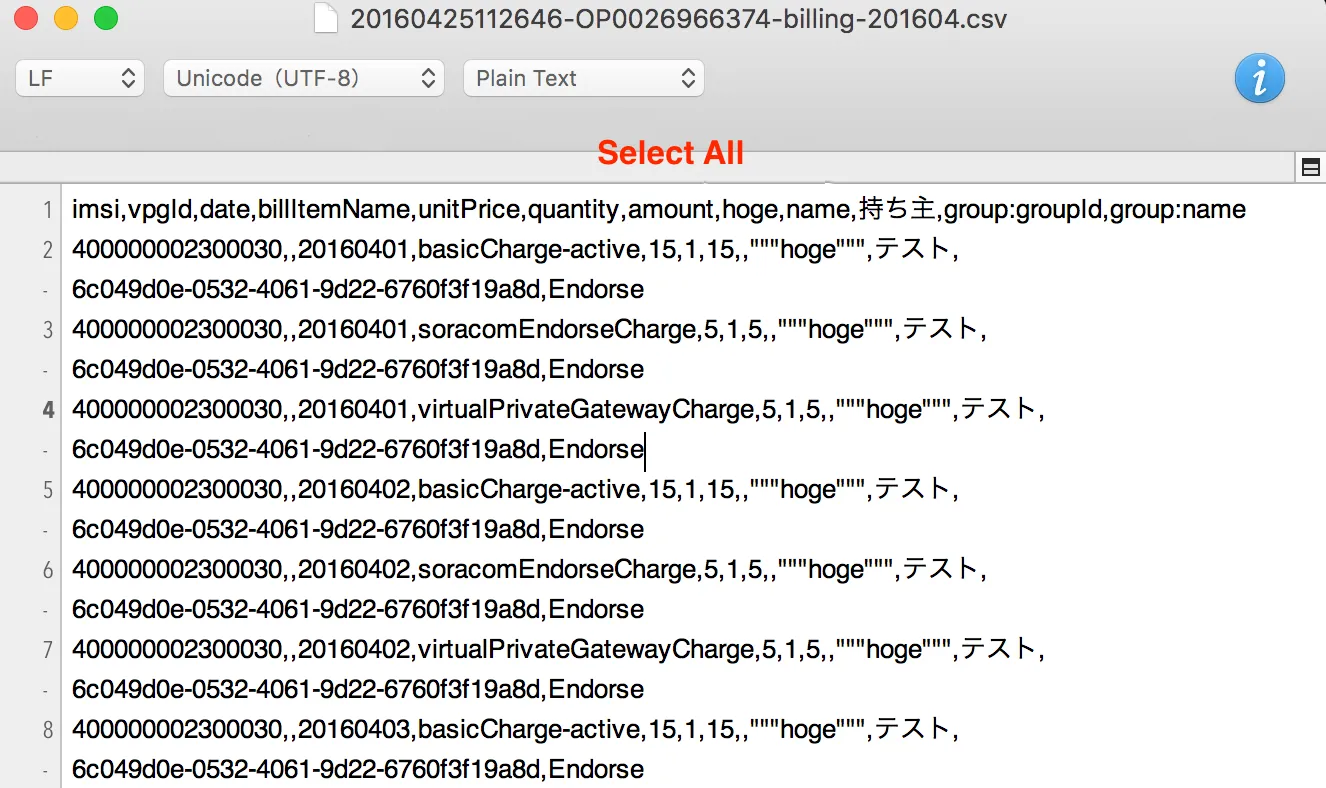
Open the CSV file using a text editor which supports UTF-8 character encoding.
-
Select the entire text and copy it.
-
Open your spreadsheet application and create a new worksheet.
-
Paste the text into the first cell.
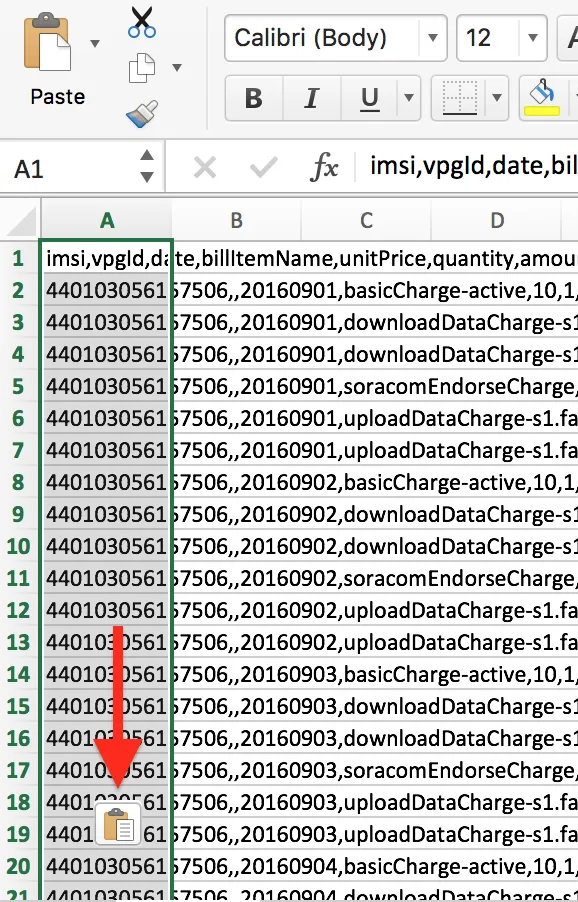
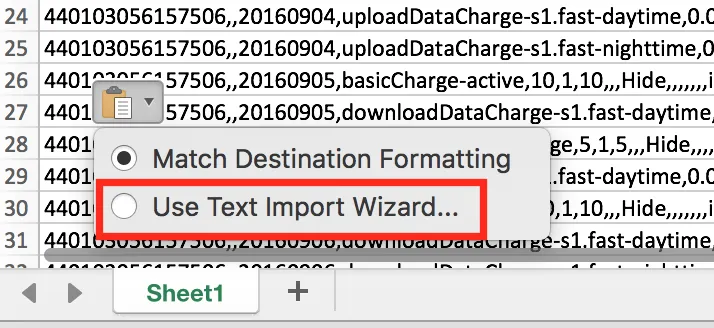
- A Paste helper icon should appear. Click it and select Use Text Import wizard....
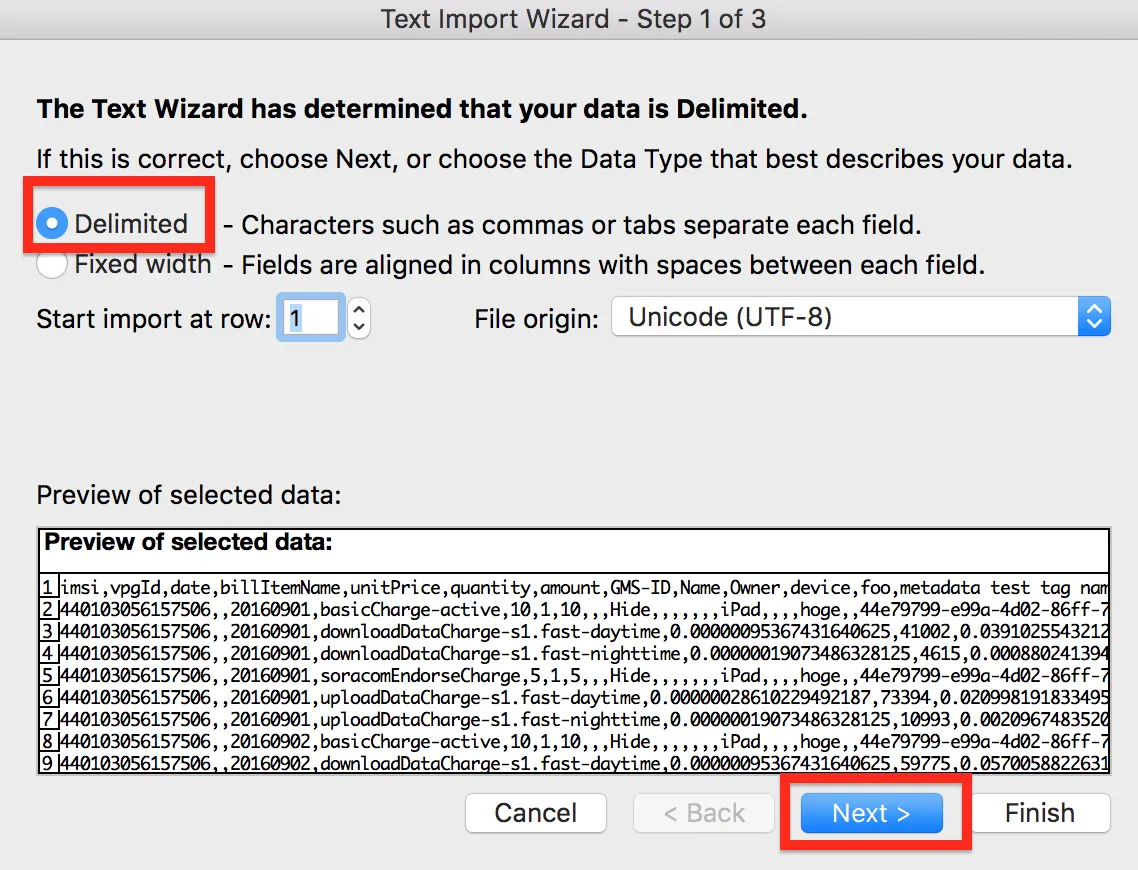
- In the wizard, choose Delimited and click Next.
- Select comma as a delimiter, uncheck Treat consecutive delimiters as one, and click Next.
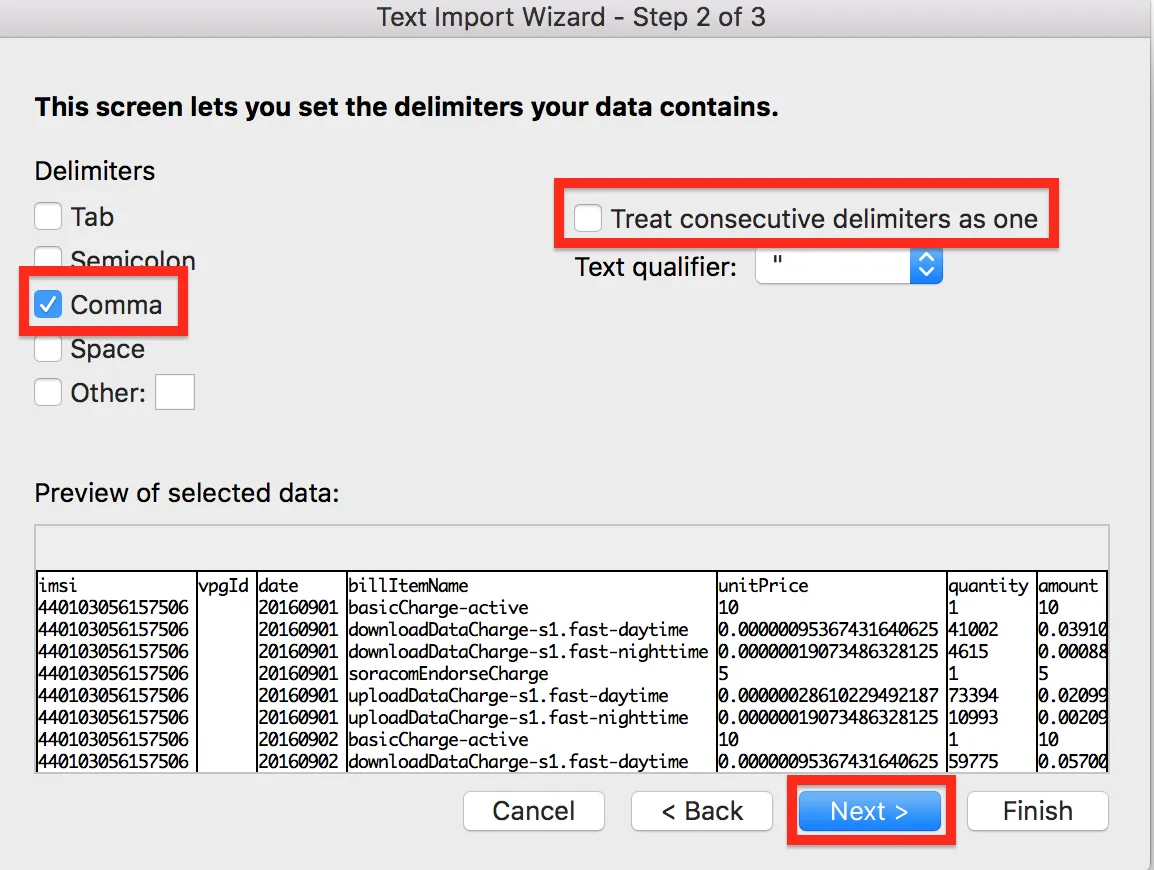
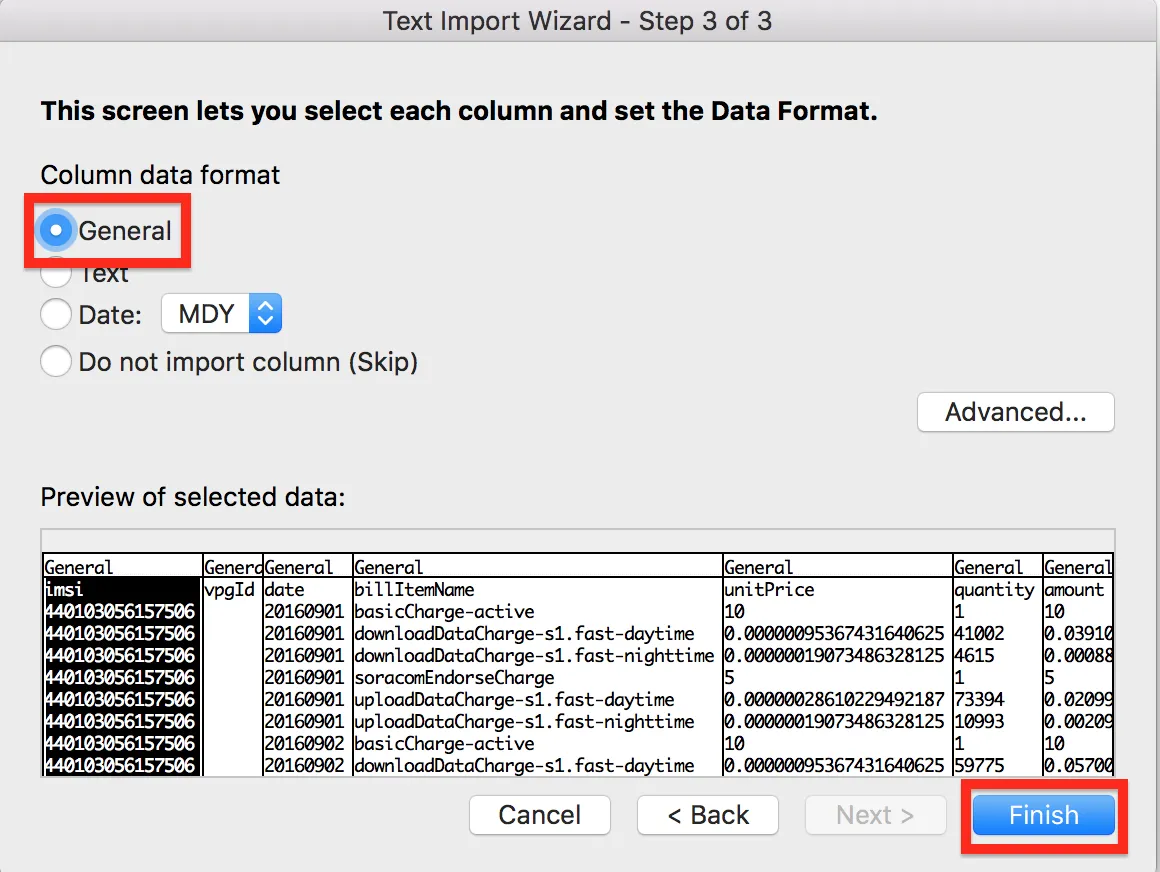
- Finally, set the data format for each column to General and click Finish.
 #}
#}
Understanding the CSV Format
The detailed billing CSV file provides a complete breakdown of every device, service, or option charge incurred in your Soracom account for a given month.
Once you have downloaded a detailed billing CSV file, you can open it with a suitable spreadsheet application. The data should look something like this:

- First Row - Header information. These items help identify or classify the content below. This section is broadly separated into the following:
- Amount Data Items - Data that corresponds to a specific billable item (Includes IMSI, VPGID, Date, etc.).
- Supplemental Information Items - Additional data used to help identify the corresponding billable item, including any device or group name associated with the item (Includes Tag, Group Name, etc.).
- Second Row Onward - Data record rows. These rows contain the actual billing information for the given month. This section is broadly separated into the following:
- Billing Records - Billable device, service, or option charges.
- Discount Records - Discounts applicable to the billable records, including free tier allowances, volume discounts, and coupons.
Billing Record Breakdown
A billing record is created for each subscriber or VPG in your account, for each day and for each billing data item. For example, if you have 1 active SIM card in your account which has consumed data during the given month, you will see at a minimum the following billing records:
basicCharge- The daily basic fee for the SIM card, for a specific day in the given month.dataTrafficCharge- The data usage charge for the SIM card, for a specific day in the given month.
Any additional options, such as Custom DNS, sending or receiving SMS, and application services such as Harvest Data, will also be listed as separate billing records.
Each billing record line will contain either the IMSI or VPG ID which the billing record corresponds to, the raw unit price, quantity, and billing record amount. The units used for each billing record vary depending on the billing record type, and therefore are omitted from the CSV data. Information on the units used for each record type are listed in the table below.
Billing records are calculated for each day, beginning at 00:00
UTC and ending at 23:59 UTC. The dates listed in the CSV data are written usingYYYYMMDD format. For certain discounts which apply to any usage within a given month, the date will be indicated using YYYYMM format instead.
These rules also apply to other device types, as well as to billable platform services such as Virtual Private Gateways.
Discount records also follow the same rules, with the amount represented as a negative number in order to indicate reduction of cost.
Taxable amounts are not included in the CSV data. In order to calculate any applicable taxes, simply add all of the values in the amount column to determine the billing total, then apply any taxation rules as needed using this total amount.
CSV Item Name Reference
The following items appear when your account is billed for a particular device, service, or option.
| Billing Record Item Name | Is billed when... | Unit | Applicable Region |
|---|---|---|---|
| basicCharge-ready | Subscriber status is Ready | Days | All |
| basicCharge-active | Subscriber status is Active | Days | All |
| basicCharge-inactive | Subscriber status is Inactive | Days | All |
| basicCharge-suspended | Subscriber status is Suspended or Standby | Days | All |
| basicMonthlyCharge-plan | Subscriber with monthly plan is Active or Inactive | Months | All |
| subscriberActivationCharge | Subscriber status changes from Suspended or Standby to Active or Inactive | Each | Global |
| subscriberSuspensionCharge | Subscriber status is set to Suspended | Each | Japan |
| subscriberContractRenewalCharge | Subscriber remains in Ready, Standby, or Suspended status for more than one year | Years | All |
| subscriptionDeliveryCharge-plan | , , , , , , or subscription container is added to a subscriber | Each | Global |
| subscriptionUsageCharge-plan | , , , , , , or subscription container is Active | Months | Global |
| subscriptionContractRenewalCharge-plan | , , , , , , or subscription container is renewed | Years | Global |
| esimProfileInitialCharge-plan | , , , , , or eSIM profile is ordered | Each | Global |
| basicMonthlyChargeForPlanKM1 | subscriber status is Active or Inactive | Months | Japan |
| subscriberActivationChargeForPlanKM1 | subscriber is changed from Ready or Suspended status to Active | Each | Japan |
| contractRenewalChargeForPlanKM1 | subscriber remains in Suspended status for more than one year | Years | Japan |
| planKM1LocationOptionCharge | subscriber Simple Location Service option is enabled | Months | Japan |
| planKM1LocationOptionRequestCharge | subscriber Simple Location Service information is requested | Each | Japan |
| readyStatusChargeForPlanDU | subscriber status is Ready | Months | Japan |
| bundleChargeForPlanDU-bundle | subscriber status is Active or Inactive | Months | Japan |
| additionalDataCapacityChargeForPlanDU | data capacity is added | Each | Japan |
| dataTrafficCharge-country-plan | Data is uploaded or downloaded, categorized by country and subscription plan | Bytes | Global |
| dataTrafficRoundedUpCharge-country-plan | The corresponding dataTrafficCharge is rounded to the next minimum billing unit | Bytes | Global |
| uploadDataCharge-speed-time | Data is uploaded from a subscriber, categorized by upload speed class (s1.fast, etc.) and the time of day (daytime or nighttime) | Bytes | Japan |
| downloadDataCharge-speed-time | Data is downloaded to a subscriber, categorized by download speed class (s1.fast, etc.) and the time of day (daytime or nighttime) | Bytes | Japan |
| dataTrafficChargeForPlanKM1 | Data is uploaded or downloaded by subscribers | Bytes | Japan |
| docomoSMSCharge | Domestic SMS is sent to/from a subscriber | Each | Japan |
| docomoInternationalSMSCharge | International SMS is sent to/from a subscriber | Each | Japan |
| kddiSMSCharge-date | Domestic SMS is sent to/from a subscriber | Each | Japan |
| kddiInternationalSMSCharge-date | International SMS is sent to/from a subscriber | Each | Japan |
| soracomSmsDeliveryCharge | SMS is sent to a subscriber | Each | Global |
| soracomSmsSubmitCharge | SMS is sent from a subscriber | Each | Global |
| ussdRequestCharge | USSD request is sent from a subscriber | Each | Global |
| customDNSCharge | Custom DNS option is enabled | Days, per subscriber | All |
| inVPGCustomDNSCharge | Same as above while subscriber is attached to a VPG | Days, per subscriber | All |
| chapAuthenticationCharge | CHAP Authentication option is enabled | Days, per subscriber | All |
| inVPGChapAuthenticationCharge | Same as above while subscriber is attached to a VPG | Days, per subscriber | All |
| virtualPrivateGatewayCharge | VPG option is enabled | Days, per subscriber | All |
| sigfoxDeviceRegistrationCharge | Sigfox device is registered | Each | All |
| sigfoxAnnualConnectivityCharge | Sigfox device registration is renewed | Years, per device | All |
| sigfoxMessageCharge-contract-country | Device sends message (exceeding allowance) | Requests | All |
| loRaGatewayOwnedModelFirstUnitMonthlyCharge | First LoRa gateway is registered to an account | Months | Japan |
| loRaGatewayOwnedModelAdditionalUnitMonthlyCharge | Additional LoRa gateways are registered to an account | Months, per gateway | Japan |
| loRaGatewaySharedServiceModelMonthlyCharge | Shared LoRa gateways are registered to an account | Months, per gateway | Japan |
| soracomBeamRequestCharge-protocol | Device sends Beam request, categorized by in/out protocol | Requests | All |
| inVPGSoracomBeamRequestCharge-protocol | Same as above while subscriber is attached to a VPG | Requests | All |
| soracomFluxMonthlyCharge-xxx-plan | Soracom Flux monthly charge | Months | All |
| soracomFluxEventCharge-xxx-plan | Soracom Flux event charge | Requests | All |
| soracomFluxCreditCharge-xxx-plan | Soracom Flux credit charge | Requests | All |
| soracomFunnelRequestCharge-protocol | Device sends Funnel request, categorized by in/out protocol | Requests | All |
| inVPGSoracomFunnelRequestCharge-protocol | Same as above while subscriber is attached to a VPG | Requests | All |
| soracomFunkRequestCharge-protocol | Device sends Funk request, categorized by in/out protocol | Requests | All |
| inVPGSoracomFunkRequestCharge-protocol | Same as above while subscriber is attached to a VPG | Requests | All |
| soracomHarvestCharge | Harvest Data is enabled | Days, per device | All |
| soracomHarvestRequestCharge | Device sends Harvest Data request (exceeding allowance) | Requests | All |
| soracomHarvestTermExtensionCharge | Harvest Data Extended Retention option is enabled | Months | All |
| soracomHarvestDataExportCharge | Harvest Data is exported (exceeding allowance) | Each, per 1GB | All |
| soracomHarvestFilesStoreCharge | Files are uploaded to Harvest Files | Per GB | All |
| soracomHarvestFilesExportCharge | Files are downloaded from Harvest Files | Per GB | All |
| soracomLagoonMonthlyCharge-plan | Lagoon is enabled | Months | All |
| soracomLagoonLicensePackCharge-license | Lagoon license pack is added, categorized by license pack | Packs | All |
| soracomEndorseCharge | Endorse is enabled | Days, per subscriber | All |
| soracomKryptonInitialProvisioningCharge | Krypton is enabled and subscriber is provisioned (first month) | Months, per subscriber | All |
| soracomKryptonMonthlyProvisioningCharge | Krypton is enabled and subscriber is provisioned | Months, per subscriber | All |
| soracomInventoryDeviceRegistrationCharge | Device is registered to Inventory | Each | All |
| soracomInventoryMonthlyCharge | Device has one or more management events | Months, per device | All |
| virtualPrivateGatewaySetupCharge | VPG is created (before May 2016) | Each | Japan |
| virtualPrivateGatewayTypeESetupCharge | VPG Type-E is created | Each | All |
| virtualPrivateGatewayTypeFSetupCharge | VPG Type-F is created | Each | All |
| virtualPrivateGatewayTypeECharge | VPG Type-E is running | Hour | All |
| virtualPrivateGatewayTypeFCharge | VPG Type-F is running | Hour | All |
| soracomCanalVPCPeeringCharge | VPG has a VPC Peering Connection | Hours, per connection | All |
| soracomDirectVirtualInterfaceCharge | VPG has a Virtual Interface | Hours, per interface | All |
| soracomDoorVPNConnectionCharge | VPG has a VPN connection | Hours, per connection | All |
| virtualPrivateGatewayFixedGlobalIpAddressOptionCharge | VPG Fixed Global IP Address option is enabled | Hours | All |
| soracomJunctionCharge | VPG Junction option is enabled | Hours | All |
| soracomJunctionInspectionCharge | VPG Junction Inspection option is enabled | Hours | All |
| soracomNapterCharge | Napter on-demand remote access is enabled once or more | Months, per subscriber | All |
| soracomNapterAuditLogCharge | Napter audit log is enabled | Months | All |
| soracomNapterAuditLogExportCharge | Napter audit log is exported (exceeding allowance) | Each, per 1GB | All |
| soracomOrbitCharge | Orbit is enabled | Months, per subscriber | All |
| soracomOrbitRequestCharge | Device sends or receives Orbit request | Requests | All |
| soracomPeekChargeForVPG | Peek on-demand packet capture is used once or more | Days, per VPG | All |
| soracomPeekDataStoreChargeForVPG | Peek packet capture data is stored (exceeding allowance) | Each, per 1GB | All |
| soracomPeekDataExportCharge | Peek packet capture data is exported (exceeding allowance) | Each, per 1GB | All |
| supportFee-enterprise-esm | Enterprise Support Plan is active | Months, per Soracom account | Global |
The following items appear when an allowance, discount, or coupon is applicable to one or more of the billable items:
| Discount Record Item Name | Is applied when... | Unit | Region |
|---|---|---|---|
| dataTrafficFreeTier | Device includes free data allowance | Bytes | All |
| soracomBeamRequestFreeTier | Device includes free Beam request allowance | Requests | All |
| soracomFunnelRequestFreeTier | Device includes free Funnel request allowance | Requests | All |
| soracomEndorseFreeTier | Device includes free Endorse request allowance | Requests | All |
| soracomAirBasicChargeVolumeDiscount | Long Term Discount is approved for account | Subscribers | Japan |
| soracomAirDataChargeTieredVolumeDiscount | Data usage meets tiered volume discount requirement | Bytes | Global |
| soracomAirBasicChargeTieredVolumeDiscount | Active/Inactive subscribers that meet the tiered volume discount requirement | Subscribers | Global |
| dataTrafficCoupon | Coupon for data usage is available in account | Amount | All |
| soracomBeamRequestCoupon | Coupon for Beam usage is available in account | Amount | All |
| soracomEndorseCoupon | Coupon for Endorse usage is available in account | Amount | All |
| soracomFunnelRequestCoupon | Coupon for Funnel usage is available in account | Amount | All |
| chargeCoupon | Coupon for any Soracom fees is available in account | Amount | All |
Tags and Groups
The Tag/Group Data Items section includes the tags and group names configured for each SIM. For example, if a SIM in your account has the following configuration:
- Name - MySIM
- Tags
- MyCustomTag1 - MyCustomValue1
- MyCustomTag2 - MyCustomValue2
- Group -
abcdef00-0000-0000-0000-000012345678(MyGroup)
The following data will be appended to the CSV header (first line), as well as to any line items for the SIM:
name,MyCustomTag1,MyCustomTag2,group:groupId,group:name
MySIM,MyCustomValue1,MyCustomValue2,abcdef00-0000-0000-0000-000012345678,MyGroup
You can use tags to quickly group or filter the CSV to make calculations based on custom tag value or group name.
Programmatic Usage
You can also access the detailed billing information programmatically in order to integrate information on Soracom platform usage within your application.
Soracom API
You can download the current month's most recent billing information using the exportLatestBilling API:
curl -X POST \
|  -H 'X-Soracom-API-Key: <MY-API-KEY>' \
|  -H 'X-Soracom-Token: <MY-TOKEN>' \
|  https://g.api.soracom.io/v1/bills/latest/export
curl -X POST \
| -H 'X-Soracom-API-Key: <MY-API-KEY>' \
| -H 'X-Soracom-Token: <MY-TOKEN>' \
| https://jp.api.soracom.io/v1/bills/latest/exportSimilarly, you can use the exportBilling API to download the corresponding data for a particular month, instead specifying the YYYYMM in the query path:
curl -X POST \
|  -H 'X-Soracom-API-Key: <MY-API-KEY>' \
|  -H 'X-Soracom-Token: <MY-TOKEN>' \
|  https://g.api.soracom.io/v1/bills/201901/export
curl -X POST \
| -H 'X-Soracom-API-Key: <MY-API-KEY>' \
| -H 'X-Soracom-Token: <MY-TOKEN>' \
| https://jp.api.soracom.io/v1/bills/201901/exportWhile each monthly billing period ends on the last day of the given month at 23:59
UTC, the CSV may not be immediately available for download via the exportBilling API using theYYYYMMquery path format. Billing calculations for the most recent completed month are generally completed within 1 to 3 business days from the start of the following month.
Notes on Parsing CSV Data
All CSV data is encoded in UTF-8 (with BOM). Ensure that you parse the data accordingly.
- If a value contains any commas
,, the entire value will be enclosed within double-quotes". - If a value contains any double-quote
", each double-quote will be escaped using two double-quotes"".
Ensure that your CSV parser is configured to correctly parse according to these rules.
In general, as the data columns are variable and may be subject to additional fields in the future, there is a possibility that a particular column may not be in the same position when parsing different CSV files. When implementing a CSV parser, ensure that you either process the first row in order to confirm the column order, or restructure the data into key/value pairs, objects, hash tables, or associative arrays using an adequate CSV parser.