


Using Funnel to Send Data to Azure Event Hubs
Introduction
Soracom Funnel allows you to transfer data from a device to specific cloud services over cellular. In this guide, we'll cover how to use Funnel in order to send data to Azure Event Hubs.
Prerequisites
- A Soracom account
- A Soracom IoT SIM
- A device that can connect to the internet using the Soracom IoT SIM, such as a Raspberry Pi and USB modem
- An Azure account
Funnel uses TLS 1.2. Ensure that you configure your cloud service to support TLS 1.2.
Configure Azure Event Hubs
1. Create an Event Hub
Follow the instructions in the following quickstart guide in order to create a Resource Group, an Event Hubs Namespace, and an Event Hub:
Azure Quickstart - Create an event hub using the Azure portal | Microsoft Docs
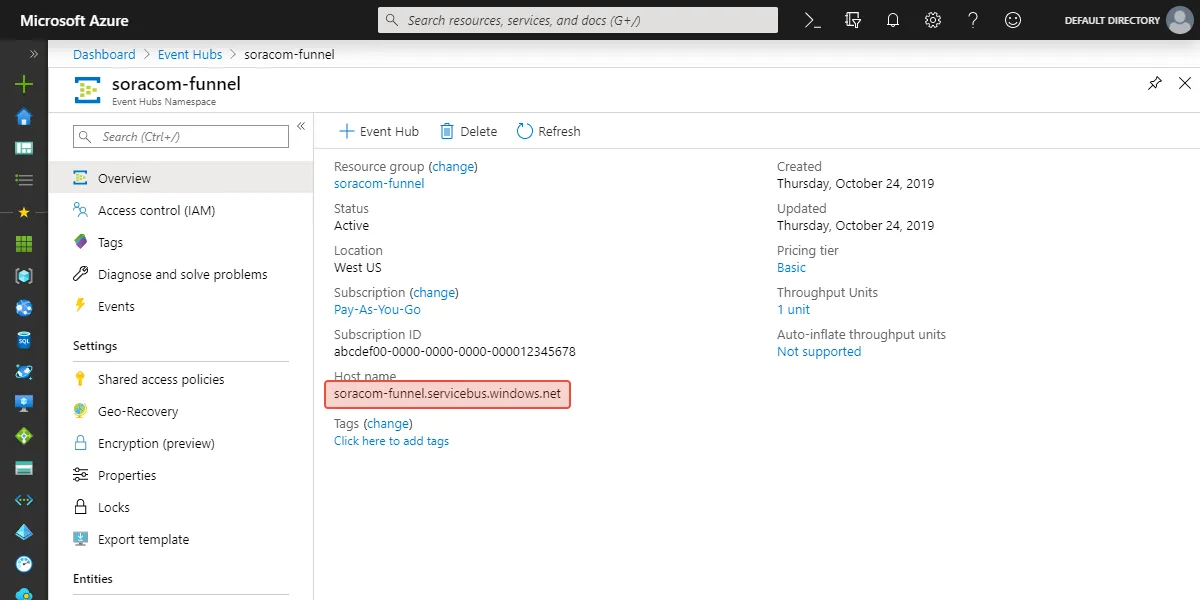
Once you have created an Event Hubs Namespace, make a note of its Host name:
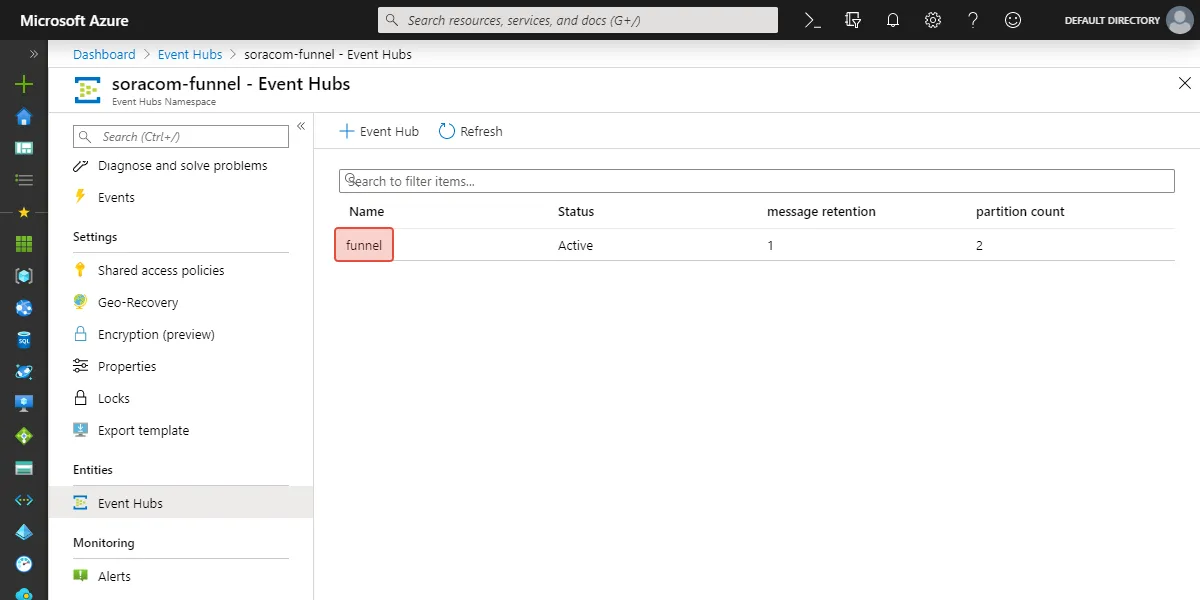
You will also need to make a note of the name of the Event Hub itself, created at the end of the quickstart guide:
2. Create a Shared Access Policy
Next, we need to create a set of credentials for Soracom Funnel to use in order to send data to the Event Hub.
-
From the Azure Event Hubs dashboard, navigate to the newly created Event Hub.
-
Click on Shared access policies under the Settings section.
-
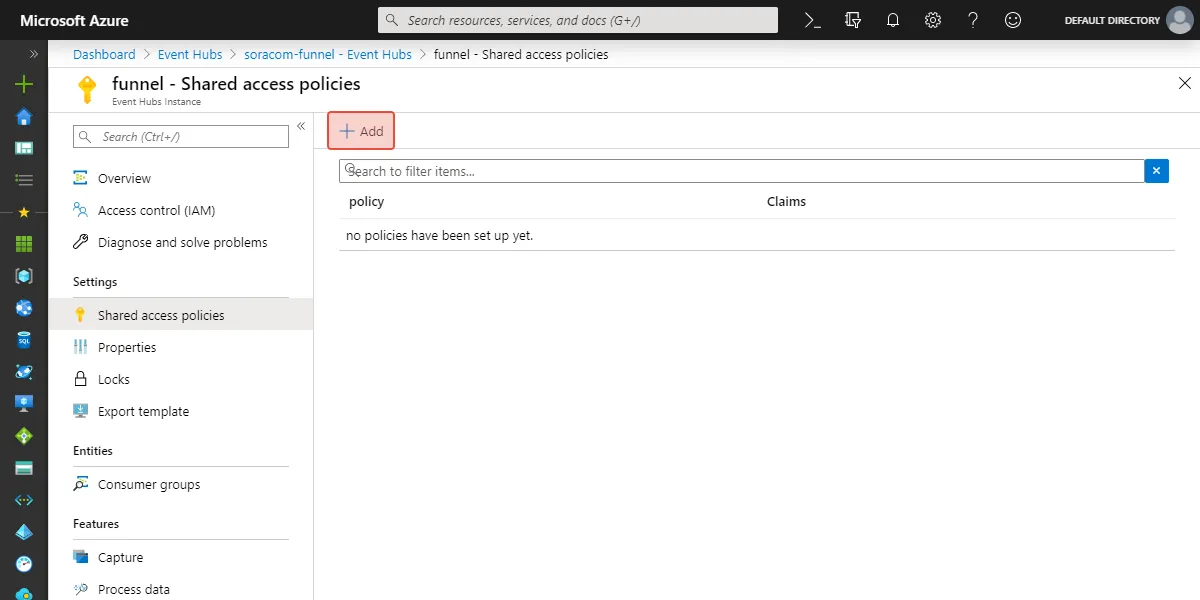
Click the Add button.
-
Enter a name for the new policy, and make a note of it. For this example, we will use the policy name
device. Then select Send from the list of permissions.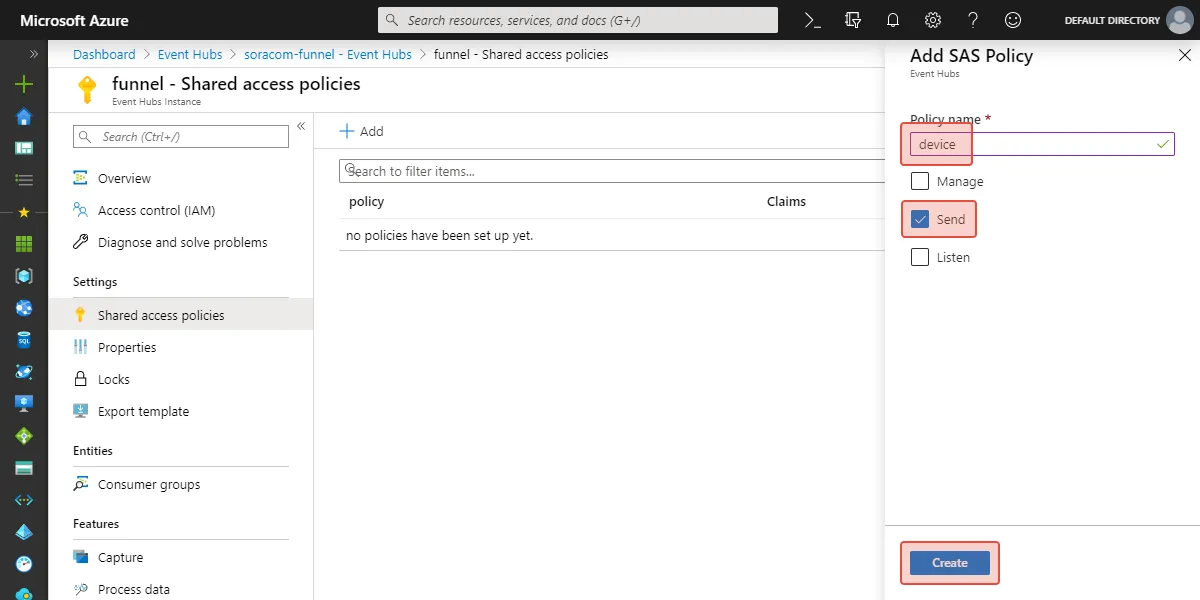
Click the Create button to create the policy.
-
Click on your policy to show its details, and take note of either the Primary key or Secondary key.
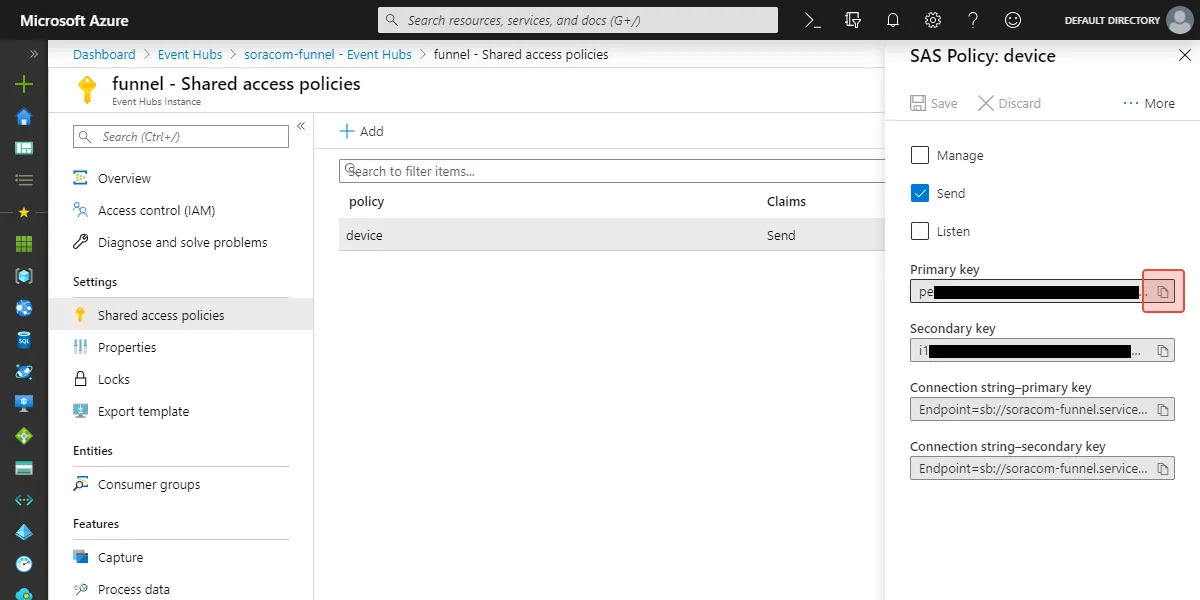
Now we are ready to configure Soracom Funnel. Before we move on, let's quickly review the settings that we set up on Azure Event Hubs:
- Host name -
soracom-funnel.servicebus.windows.net - Event Hub Name -
funnel - Policy Name -
device - Key - The Primary key or Secondary key above
Configure Soracom Funnel
Now we can head over to the Soracom User Console and set up the connection between Funnel and Event Hub.
3. Add a Funnel Configuration
Let's open the group which contains our Soracom IoT SIM in order to set up Funnel. You can either click the name of the group from the SIM Management page, or from the Groups page.
-
From the group settings page, click the SORACOM Funnel panel.
-
Click the ON button to enable Funnel.
-
Enter the following settings:
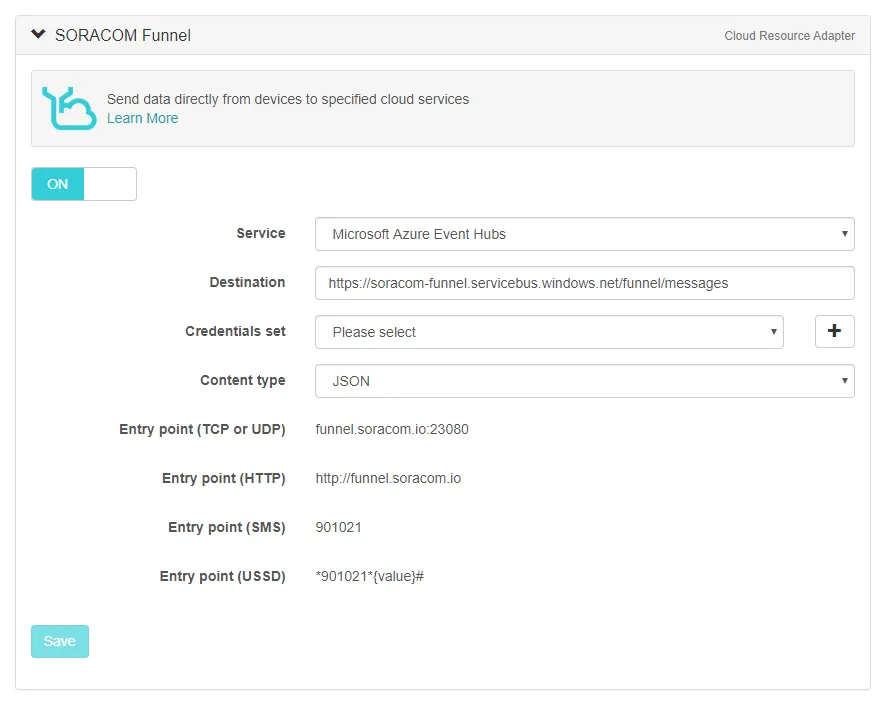
- Service - Microsoft Azure Event Hubs
- Destination -
https://soracom-funnel.servicebus.windows.net/funnel/messages
! Make sure to use the Host name (Namespace) and Event Hub name that corresponds to your Event Hubs configuration, following this format:
https://<namespace>.servicebus.windows.net/<event_hub_name>/messages -
Now we need to provide our Azure Event Hub credentials. In the Credential set option, click the **** button.
-
Enter a name for this set of credentials, then enter the Azure Event Hub credentials from earlier:
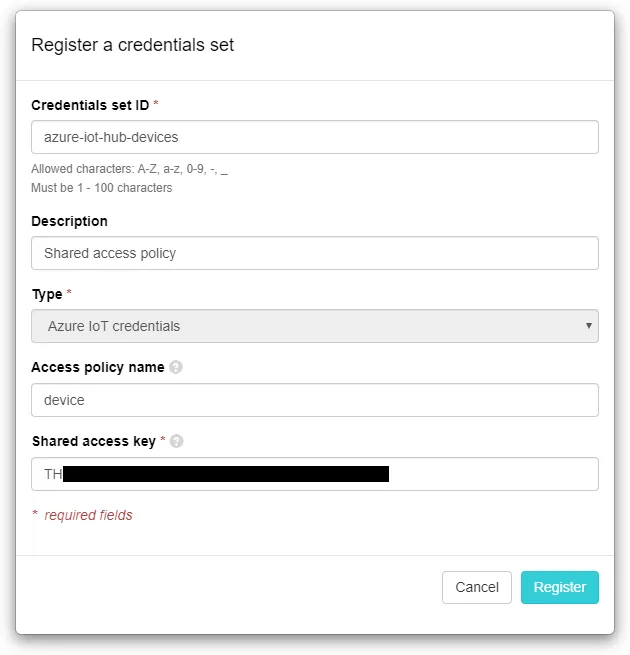
- Type - Azure credentials
- Policy name -
device - Key - The Primary key or Secondary key from earlier
! Make sure to use the policy name and corresponding primary or secondary key that you created earlier.
Click Register to save the credentials.
The credentials will automatically be selected in the Funnel configuration.
-
Finally, click the Save button to save the configuration.
Test the Connection
Now that Funnel is configured, any data that is sent from a Soracom IoT SIM device within this group to a Funnel endpoint will be forwarded to our Event Hub.
Funnel has several endpoints which can be used to send data using several different types of protocols:
- TCP or UDP -
funnel.soracom.io:23080 - HTTP -
http://funnel.soracom.io - SMS -
901021 - USSD -
*901021*{data}#
4. Send Test Data
In this example, our device with Soracom IoT SIM is running Linux. In order to send the following data to Event Hub through Funnel:
{
  "deviceid": "iot123",
  "temp" : 4.12,
  "humidity": 80.43,
  "coords": {
    "latitude": 27.9881,
    "longitude": 86.9250
  }
}
All we have to do is send it using the curl command:
curl -v \
|  -H 'Content-Type: application/json' \
|  -d '{
|        "deviceid": "iot123",
|        "temp" : 4.12,
|        "humidity": 80.43,
|        "coords": {
|          "latitude": 27.9881,
|          "longitude": 86.9250
|        }
|      }' \
|  funnel.soracom.io
Because we are running the curl command with the verbose -v flag, we can check the HTTP response from Funnel. If we see a 204 response code, then our data has been successfully sent to our Event Hub:
>* Connected to funnel.soracom.io (100.127.65.43) port 80 (#0)
>> POST / HTTP/1.1
>> Host: funnel.soracom.io
>> User-Agent: curl/7.64.0
>> Accept: */*
>> Content-Type: application/json
>> Content-Length: 181
>>
>* upload completely sent off: 181 out of 181 bytes
>< HTTP/1.1 204 No Content
>< Date: Fri, 20 Sep 2019 20:18:36 GMT
>< Connection: keep-alive
><
>* Connection #0 to host funnel.soracom.io left intact
If another HTTP response code is returned, check the format of the transmission data based on the error code.
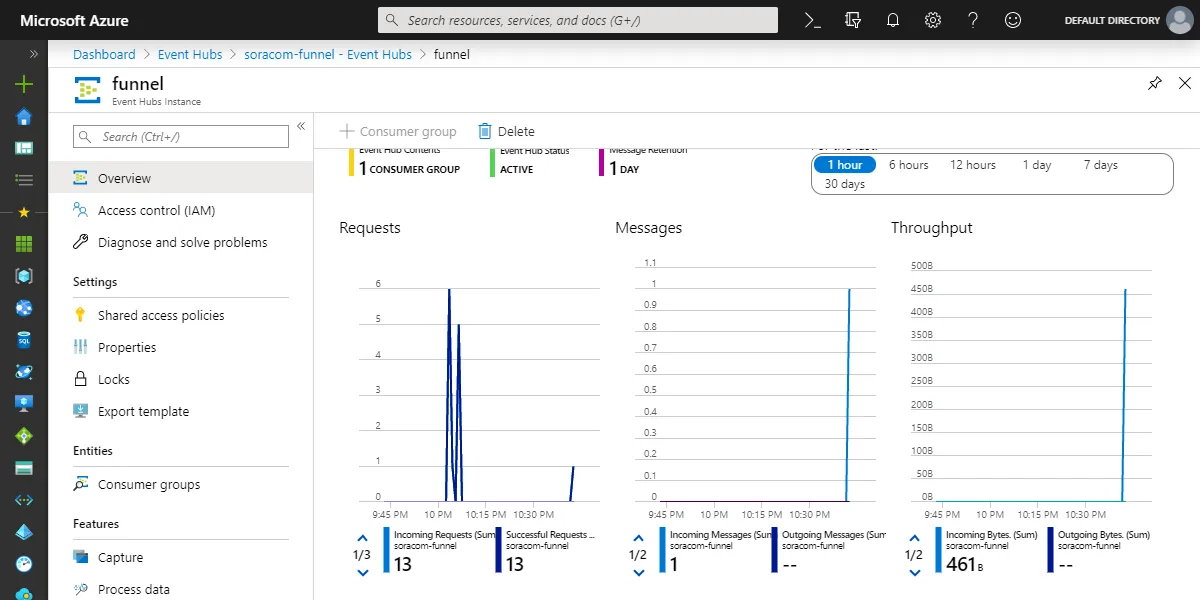
Meanwhile, if we check our Event Hub overview dashboard, we will see that our message has been received:
Conclusion
Congratulations, you've successfully sent data from a device to Azure Event Hubs through Soracom Funnel. By using Funnel, notice how we didn't need to store the event hub endpoint or the credentials on the device. Since the connection between the device and Soracom's cloud is encrypted over cellular, we just had to configure the hop between Soracom and Azure. This means that devices can be deployed at scale without having to worry about managing credentials, endpoints, or compute resources needed to manage cryptographic handshakes.