


Batch Processing
The Soracom User Console provides an easy-to-use graphical interface for all SIM management tasks, such as registration, activation and deactivation, speed class control, and configuring various SIM settings. Most of these tasks can also be performed on multiple SIMs at the same time, reducing operational overhead.
However, in some cases you may wish to perform a task for hundreds or thousands of SIMs in an automated fashion, without navigating through the User Console to find specific SIMs.
The Batch Processing feature allows you to repeat specific tasks for a large number of SIMs in an automated manner, with built-in options and tools for handling errors and reviewing the results of each task, right from the User Console.
Overview
Batch processing consists of the following components:
- Task - A single instance of an operation for a specific SIM.
- Batch Job - A list of tasks to process.
- Batch Groups - A folder-like structure for organizing multiple batch jobs.
Each batch job (or job) consists of a CSV file that you provide, where each line corresponds to a task to perform on a specific target resource, such as a SIM or VPG. For example, when using batch processing to activate a large number of SIMs, the CSV file should contain a list of the SIMs you want to activate (one SIM per line), and each task in the job performs the activation operation for the corresponding SIM.
Batch groups provide a simple way to organize multiple jobs. For example, if your organization manufactures devices in lots and you need to repeat a series of batch processing jobs for each lot, you can organize jobs by lot number using batch groups in order to easily check that each lot has been processed.
Compared to Multiple Selection
Most SIM management tasks can be performed from the User Console by simply selecting multiple SIMs and choosing the operation to perform. However, certain tasks take additional parameters, such as name when renaming a SIM, or group ID when moving a SIM to a different group:
- With multiple selection, the same parameter will be applied to all selected SIMs.
- With batch processing, the parameter can be customized for each SIM.
For example, you can prepare a CSV containing a list of SIMs, and for each SIM specify a different name to apply.
Furthermore, when performing tasks using multiple selection, you must keep the User Console open, whereas with batch processing, a job will continue processing in the background even if you sign out or close the User Console.
Compared to Programmatic Usage
You can also automate SIM management tasks by writing your own script (such as Python, NodeJS, or shell script) which uses the Soracom API or Soracom CLI directly.
When writing your own script, you can use all available Soracom APIs and implement additional logic according to your business requirements, such as conditionally activating or configuring SIMs based on a manufacturing or deployment report. However, this requires familiarity with scripting, including rate limiting and error handling, as well as additional setup for Soracom API or CLI authentication.
On the other hand, batch processing does not require technical knowledge or additional Soracom API or CLI setup, and you don't need to worry about API rate limits. However, batch processing only supports a limited number of operations.
Available Operations
The following operations are currently supported:
- Sim - Change a SIM's status to Active.
- Sim - Change a SIM's status to Inactive.
- Sim - Change a SIM's status to Suspended.
- Sim - Change a SIM's status to Standby.
- Sim - Add or update a SIM's tags.
- Sim - Add or move a SIM to a group.
- Sim - Remove a SIM from a group.
- Sim - Add a subscription to an IoT SIM profile.
- VirtualPrivateGateway - Assign a specific IP address to a SIM when it connects to a Virtual Private Gateway.
Activating, suspending, and setting SIMs to standby may incur activation or suspension fees. For more information, refer to Subscriber Status.
Similarly, adding or moving a SIM to a group may incur additional fees depending on what options or services, such as Custom DNS or Soracom Harvest, are enabled in the group.
Limitations
The following limitations apply:
- Each batch job is limited to a single operation, which will be repeated for each line of a CSV file.
- Each batch job is limited to a maximum of 10,000 tasks.
- Only one batch job per operation can be created and processed at a time.*1
- Once a batch job has been created, it will begin processing and cannot be canceled or aborted.*2
- Each task in a batch job will be processed sequentially, from top to bottom of the CSV file.
- Each task in a batch job will be processed using the permissions of the user that created the batch job.*3
- The time needed to process a batch job may vary depending on Soracom's system load.
- Batch jobs will remain visible in your account for 32 days and will be automatically deleted afterward.
*1 - For example, if you create a batch job to activate SIMs, you cannot create another batch job for activating SIMs until the first job finishes. However, you can create a batch job for a different operation during that time.
*2 - To avoid issues, ensure that the CSV file is formatted correctly and contains the correct task parameters you require. If appropriate, you can use the option to abort a job if it encounters an error to avoid having to wait for a job to finish.
*3 - The user creating the batch job should have permission to perform the operation.
Creating a Batch Group
-
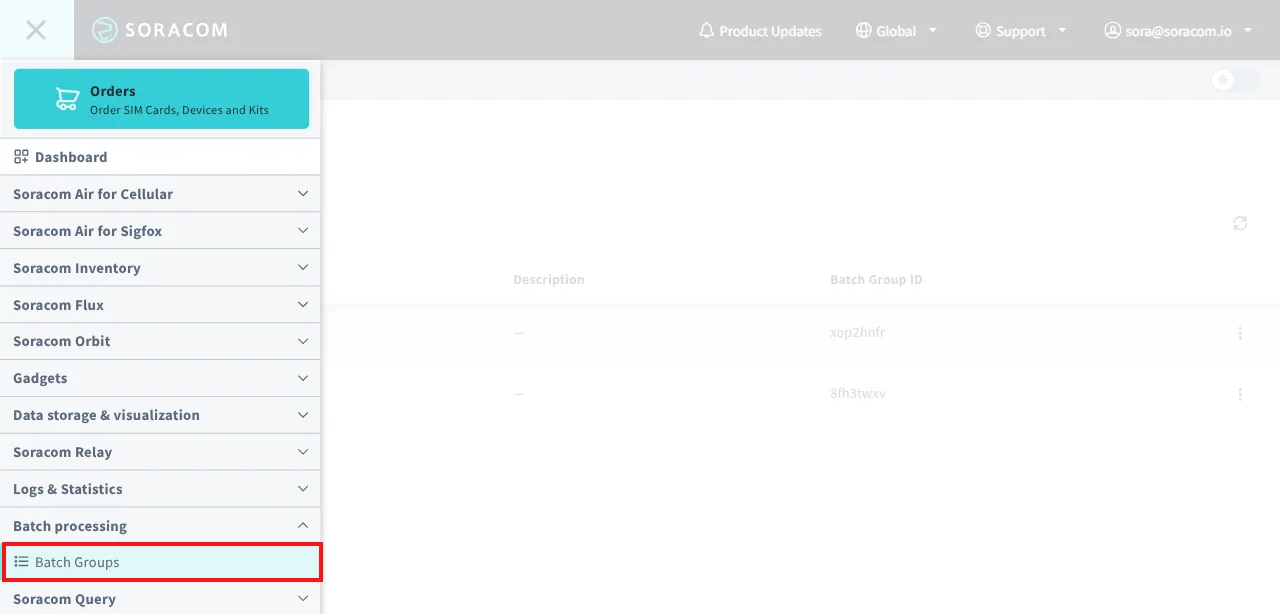
Sign in to the User Console . From the Menu, expand Batch Processing and select Batch Groups.
-
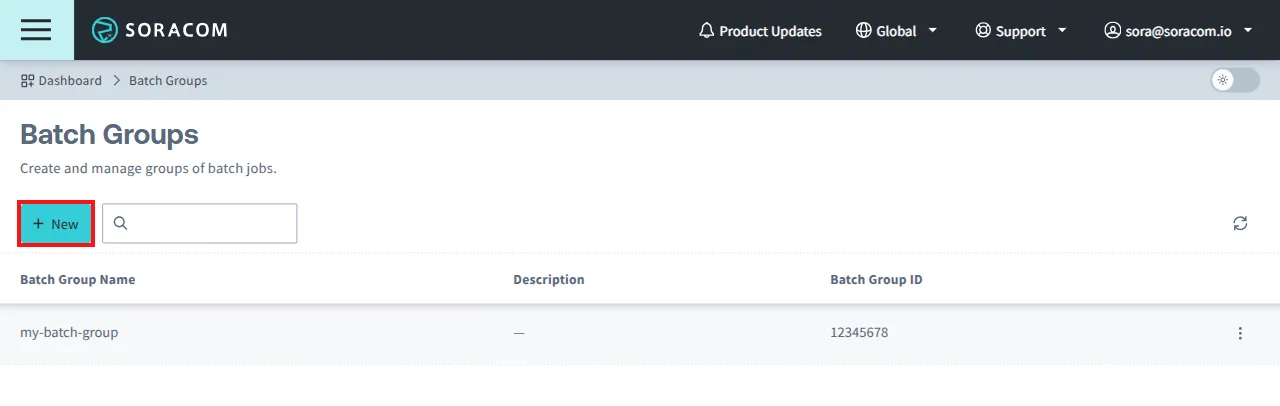
Click the New button.
-
Enter a name for your batch group and optionally a description, then click Create.
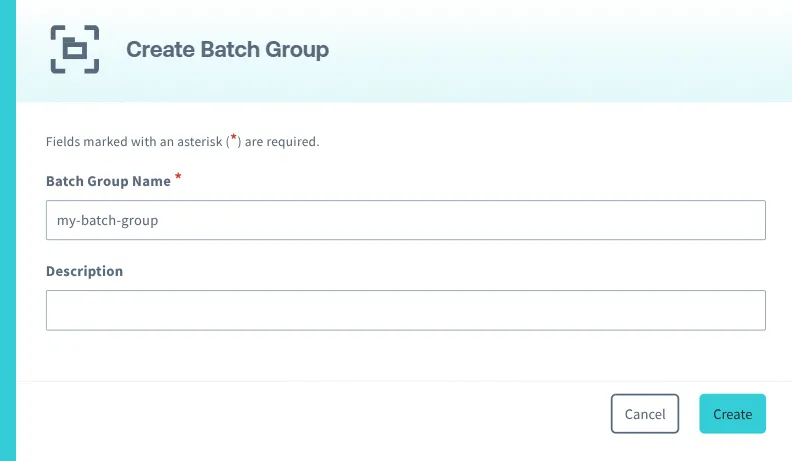
The batch group will appear in the list of batch groups.
Deleting a Batch Group
Batch groups can only be deleted once all batch jobs in the group have stopped running.
To delete a batch group:
-
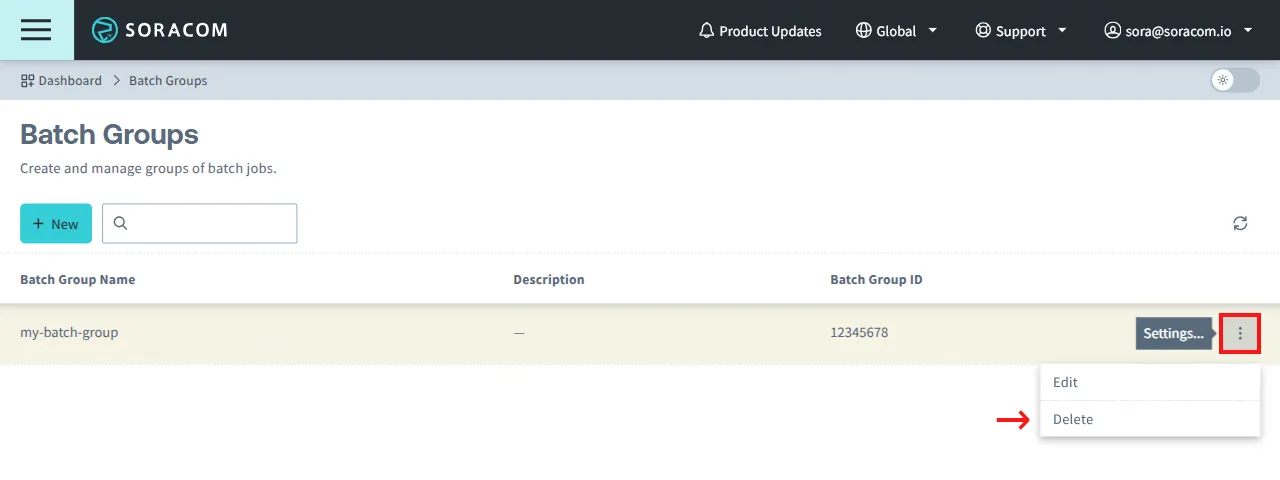
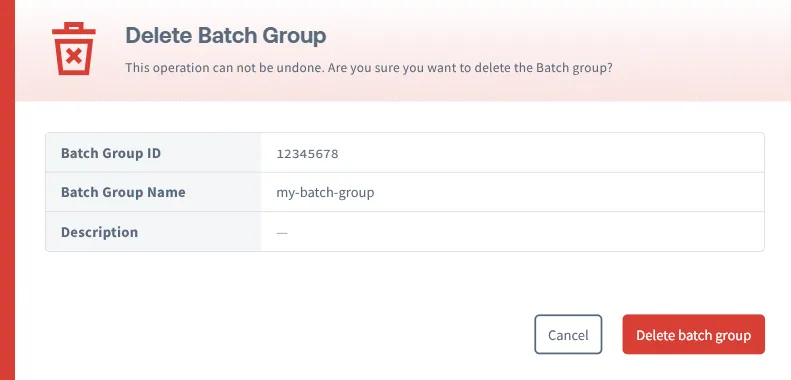
From the list of batch groups, click the ⋮ menu for the batch group you want to delete, then click Delete.
-
Confirm deleting the batch group.
Creating a Job
-
Sign in to the User Console . From the Menu, expand Batch Processing and select Batch Groups.
-
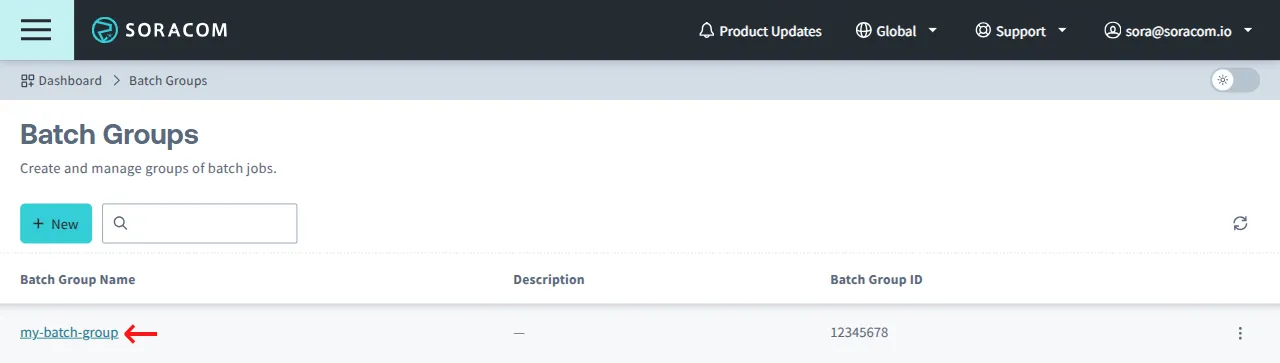
Select a batch group where you want to create a new job.
-
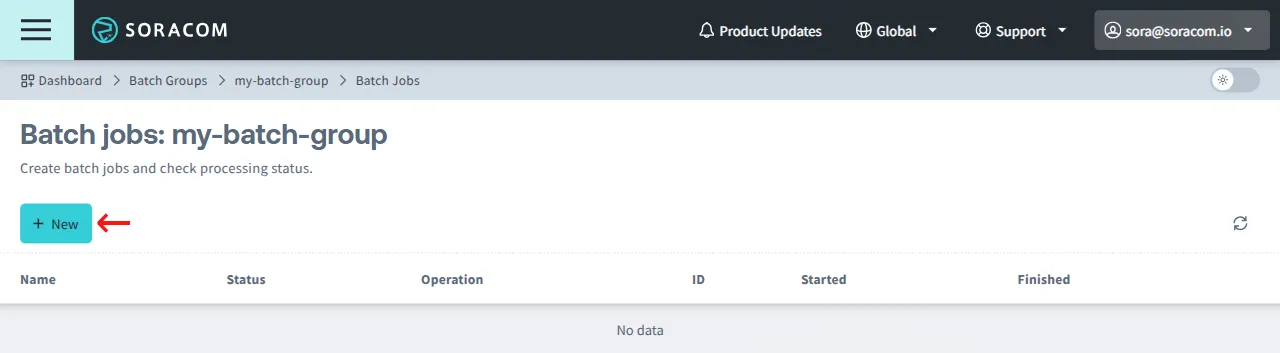
Click the New button.
-
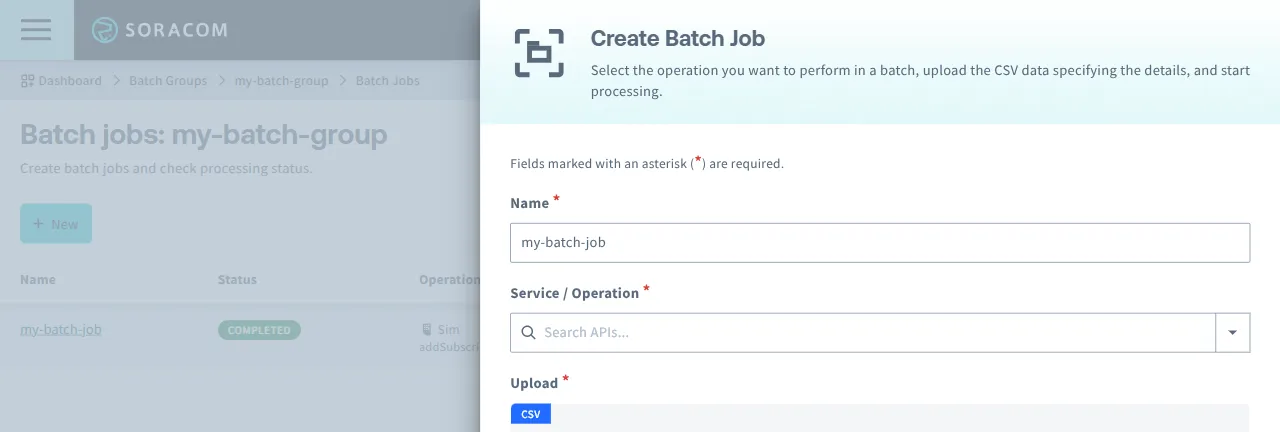
In the Create Batch Job panel, enter the following batch job settings:
- Name: A unique name to identify the batch job.
- Service / Operation: The operation for the batch job to perform.
-
Next, in the Upload section, select a CSV file containing the task details. See CSV Format Examples below.
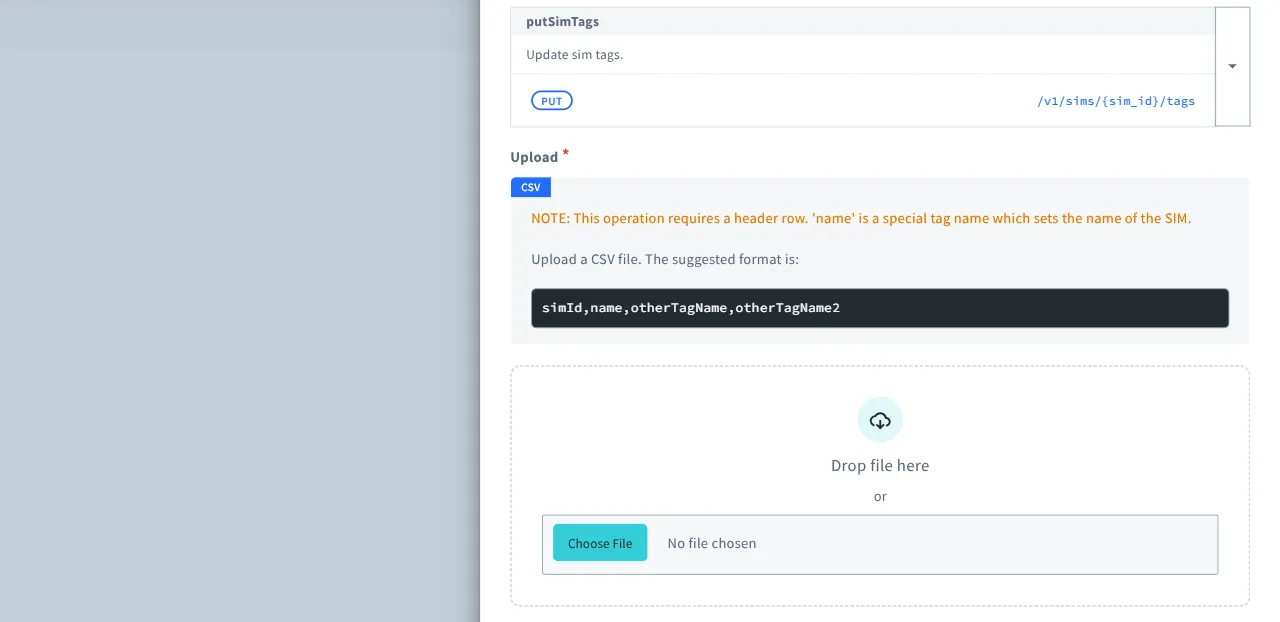
You can also use a CSV file exported from the SIM Management screen as a starting point.
-
The User Console will check the CSV file and attempt to match its contents with the required CSV format. A table will appear below showing a preview of the data that will be used for the batch job, allowing you to confirm that the task parameters are correct.
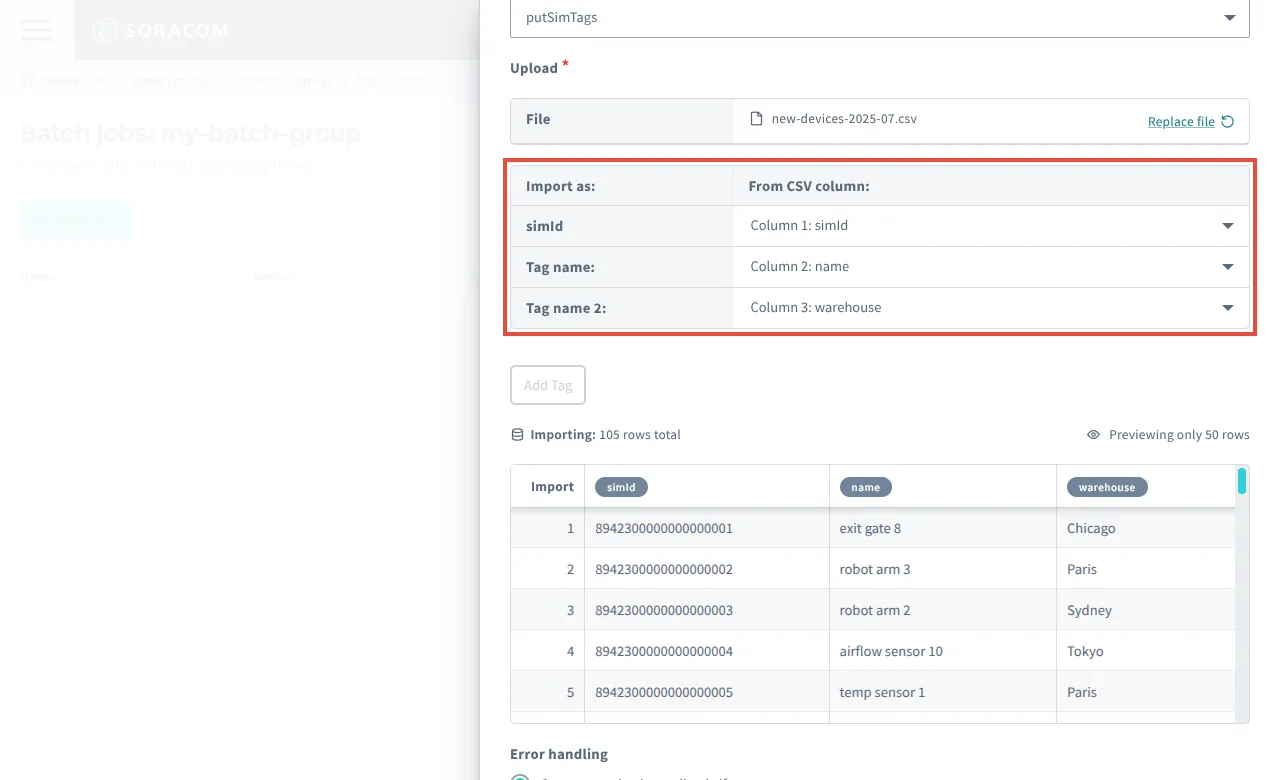
If needed, use the dropdown menus to select which columns in the CSV file correspond to the required batch job fields.
When using the Sim
(see API Reference), select each of the columns that you want added or updated as tags for each SIM. Tags will be set according to the name of the column in the CSV file. For example, if your CSV file contains a column called Location, selecting it will add or update aLocationtag for each SIM.To add more tags, click the Add Tag button. To remove a tag, select the Don't use column option.
Batch processing cannot delete tags or rename tag keys. To clear a tag value, set it to an empty value. Tags not included in the CSV file will not be modified.
-
Finally, select an Error handling option for what the batch job should do if an error occurs.
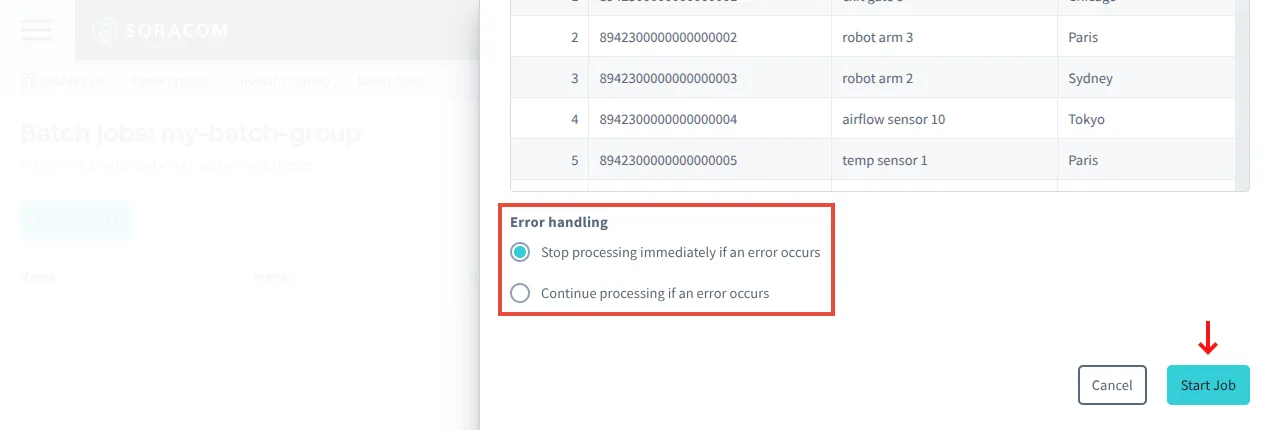
After confirming the job settings, click the Start Job button to create the batch job and begin processing.
Once a job is created, it cannot be canceled or aborted. To avoid issues, ensure that the CSV file is formatted correctly and contains the correct task settings you require.
The job will be added to the list of batch jobs.
Checking a Job Status
-
Sign in to the User Console . From the Menu, expand Batch Processing and select Batch Groups.
-
Click the batch group containing the job you want to check.
Jobs in the batch group will be listed along with their current processing status.
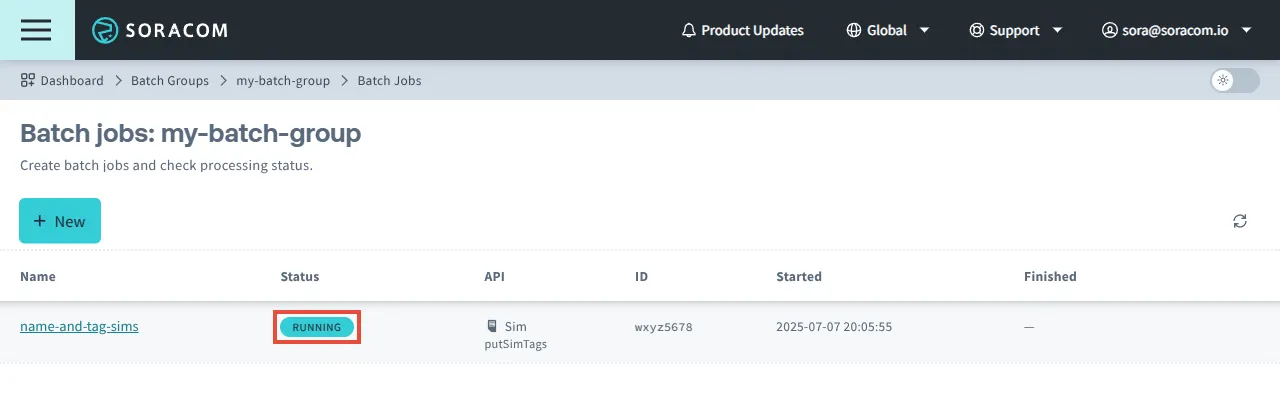
Each job will have one of the following statuses:
| Batch Job Status | Description |
|---|---|
| Pending | The batch job is currently queued and waiting to start. |
| Running | The batch job is currently in progress. |
| Completed | The batch job finished successfully without any errors. |
| Failed | The batch job finished but an error occurred with one or more tasks. |
| Aborted | An error occurred and remaining tasks were skipped. |
To view additional details for a specific job:
-
Click the name of the job you want to check.
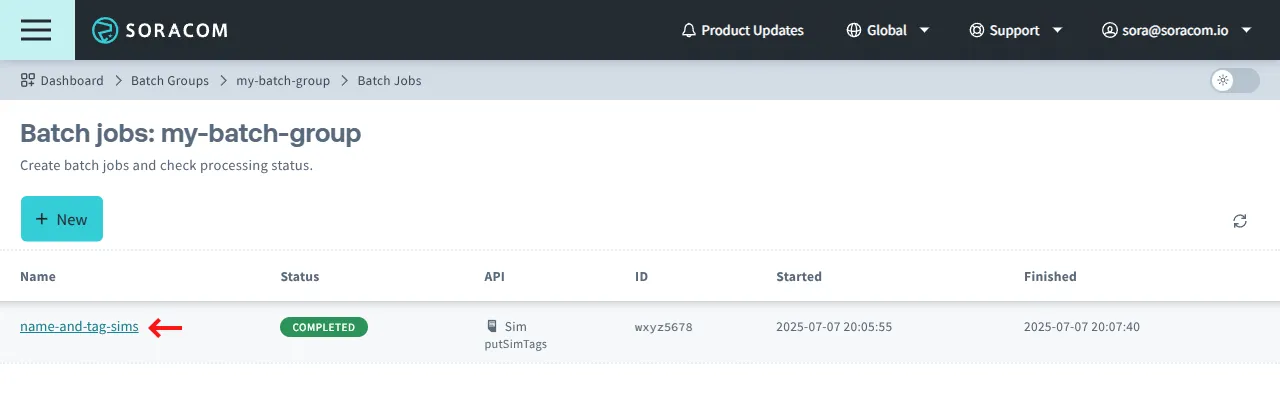
Tasks in the job will be listed along with their current processing status:
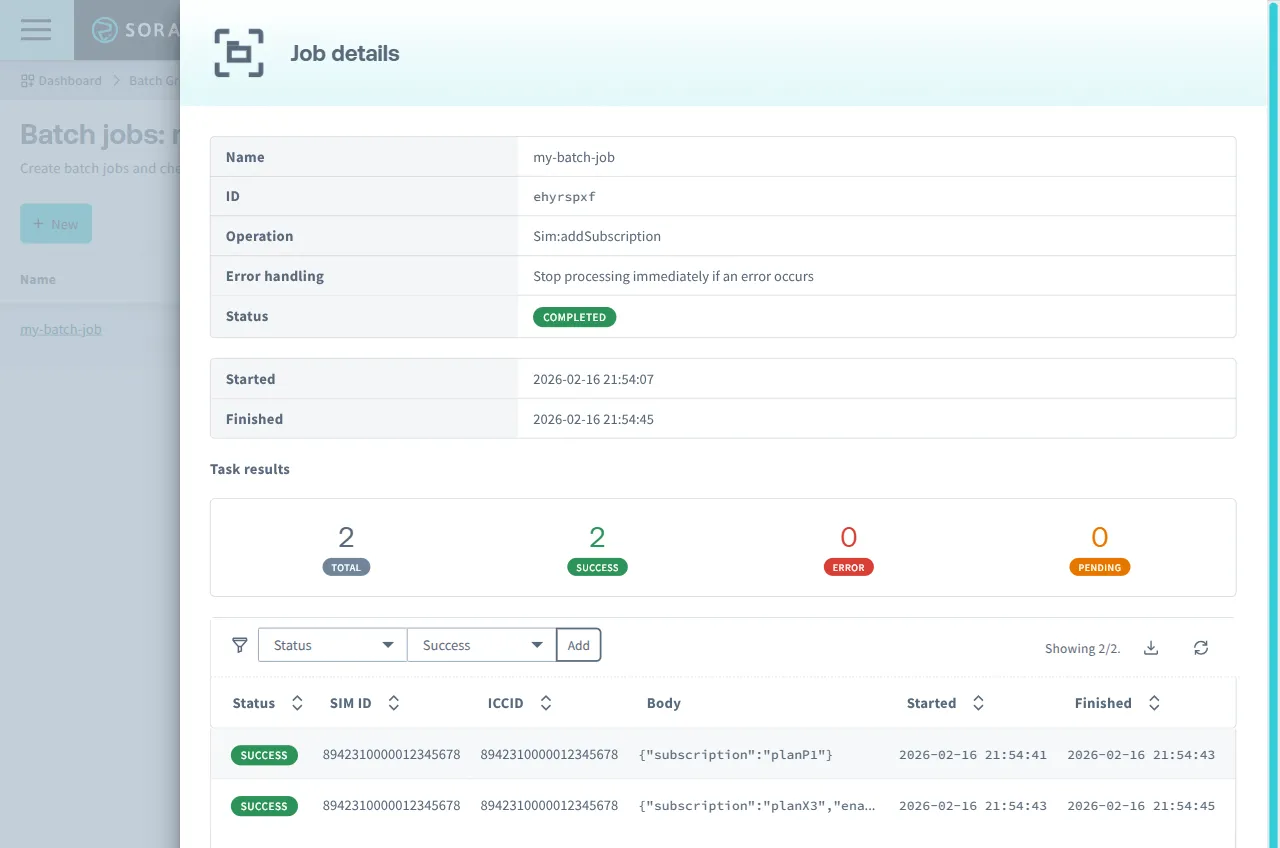
Each task will have one of the following statuses:
| Task Status | Description |
|---|---|
| Pending | The task has not been performed yet. |
| Success | The task completed successfully. |
| Error | An error occurred while performing the task. |
For convenience, you can filter the list of tasks for a specific SIM to confirm if the task completed successfully. You can also filter the list of tasks by a specific task status in order to download a corresponding CSV file for record keeping, or to create a subsequent job.
CSV Format Examples
SIM ID
To create a batch processing job to activate, deactivate, suspend, or set SIMs to standby, or to remove SIMs from their current group, create a CSV file in the following format:
simId
8942300000011111111
8942300000022222222
8942300000033333333
Where:
simIdis the SIM ID of each SIM
SIM ID and Tags
To create a batch processing job to add or update SIM tags (including SIM name), create a CSV file in the following format:
simId,name,tag1,tag2
8942300000011111111,my-sim-1,aaa,xxx
8942300000022222222,my-sim-2,bbb,yyy
8942300000033333333,my-sim-3,ccc,zzz
Where:
simIdis the SIM ID of each SIMname,tag1,tag2and so on are the tags to add or updatemy-sim-1,aaa,xxxand so on are the values to set for each tag specified above
SIM ID and Group ID
To create a batch processing job to add or move SIMs to a group, create a CSV file in the following format:
simId,groupId
8942300000011111111,abcdef00-0000-0000-0000-000011111111
8942300000022222222,abcdef00-0000-0000-0000-000011111111
8942300000033333333,abcdef00-0000-0000-0000-000022222222
Where:
simIdis the SIM ID of each SIMgroupIdis the ID of the group that the SIM should be added or moved to
VPG ID, IP Address, and Key
To create a batch processing job to assign specific IP addresses to SIMs when they connect to a VPG, create a CSV file in the following format:
vpgId,ipAddress,key
abcdef00-0000-0000-0000-000011111111,10.0.0.111,295050011111111
abcdef00-0000-0000-0000-000011111111,10.0.0.112,295050022222222
abcdef00-0000-0000-0000-000011111111,10.0.0.113,295050033333333
Where:
vpgIdis the ID of the Virtual Private Gateway where you want to assign device IP addressesipAddressis the IP address you want to assign to a SIMkeyis the IMSI of the SIM
SIM ID, ICCID, and Subscription
To create a batch processing job to add subscriptions to IoT SIM profiles, create a CSV file in the following format:
simId,iccid,subscription,type,enable
8942300000011111111,89012345678901234567,planP1,,
8942300000022222222,89012345678901234568,planX3,cellular,true
8942300000033333333,89012345678901234569,plan-US-max,cellular,true
8942300000044444444,89012345678901234570,planArc01,virtual,
Where:
simIdis the SIM ID of each SIMiccidis the ICCID of the target IoT SIM profile (for IoT SIMs that do not support eUICC, the ICCID and SIM ID are the same)subscriptionis the name of the subscription to add (planP1,planX1,planX2,planX3,plan-US-max, orplanArc01)type(optional) iscellularfor additional subscriptions, orvirtualforplanArc01(Virtual SIM/Subscriber). Defaults tocellular.enable(optional) istrueto activate immediately, orfalseto keep inactive until the next network registration. Defaults totrue. Ignored forplanArc01.
For more information about additional subscriptions, refer to Subscription Containers.