


SIM Management
The SIM Management screen is where you'll find most SIM management functions.
You can view the details of IoT SIMs registered to your Soracom account, search for SIMs, change their status, adjust their speed class (maximum communication speed), and more.
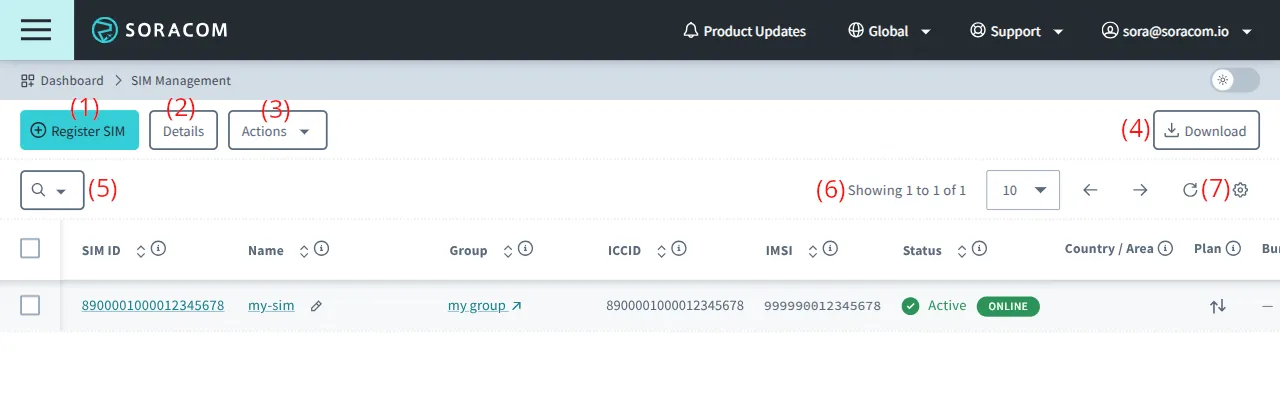
To access the SIM Management screen:
Sign in to the User Console . From the Menu, open the SIM Management screen.
SAM users need the
Query:searchSimsandGroup:listGroupspermissions to access the SIM Management screen. Ask your administrator to grant these privileges if needed.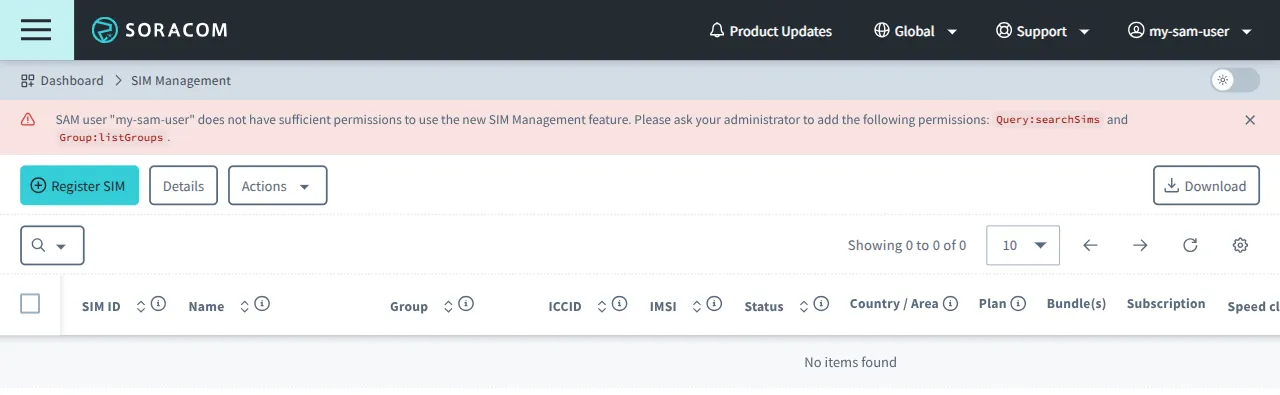
Common Actions
1. Register SIM
Displays the SIM Registration dialog for manual registration. For further information on registering Soracom IoT SIM cards, refer to the Registration page.
2. Details
Display the SIM Details dialog of a selected SIM. To show additional details for a SIM, first click the ✓ next to a SIM, then click the Details button. Alternatively, you can access the same information by clicking the SIM ID or Name of a SIM.
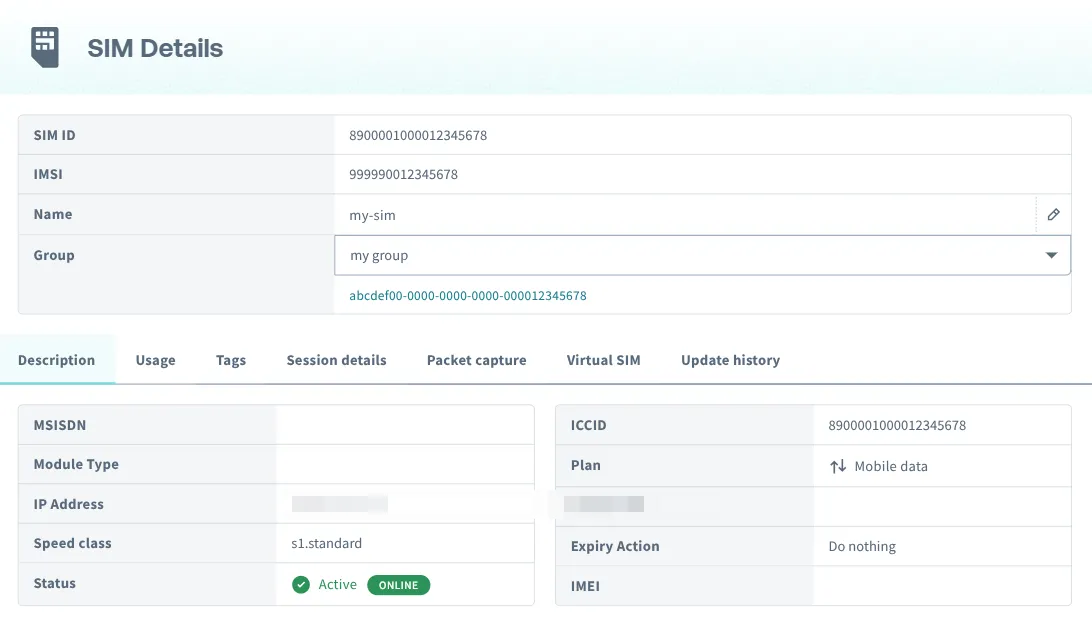
Note that if you have hidden the SIM ID and Name columns in the table, you can display them again via the Table Settings.
3. Actions
Show actions for the selected SIM(s). - Session - On-demand Remote Access - Initiates a Napter on-demand remote access connection - Connect using web terminal - Initiates a Napter Web Terminal connection - Send ping - Sends a ping test to a device - Send SMS - Send an SMS to a device - Packet capture - Initiates a Peek packet capture - Delete session - Deletes an existing cellular connection session - SIM - Activate or Deactivate - Sets the Subscriber Status to Active or Inactive for the selected SIM(s) - Standby - Sets the Subscriber Status to Standby for the selected SIM(s) - Suspend - Sets the Subscriber Status to Suspended for the selected SIM(s) - Terminate - Terminates the selected SIM(s) - Add Subscription - Adds an additional subscription to an IoT SIM - Add Virtual SIM - Opens the Add subscription to SIM dialog for adding a virtual SIM subscription to the selected SIM - Change bundle - Changes data bundles for certain subscription plans - Transfer to another operator or Cancel transfer - Initiates or cancels a SIM transfer request - Settings - Change group - Adds, changes, or removes the selected SIM(s) from a group - Change expiration - Adds, changes, or removes the IoT SIM Expiration function for the selected SIM(s) - Change speed class - Changes the speed class for the selected SIM(s) - Enable IMEI lock or Remove IMEI lock - Adds, changes, or removes IMEI lock for the selected SIM(s) - Change termination protection - Sets or removes termination protection for the selected SIM(s) - Logs & Diagnostics - Run diagnostics - Runs connectivity diagnostics for a SIM - View Harvest Data - Shows the data in Harvest Data for the selected SIM(s) - View logs - Shows error logs for the selected SIM(s) - View data usage - Opens the SIM Details dialog on the Usage tab displaying data usage for your device
Certain actions are only available when a single SIM is selected. If you need to use one of these functions, select only one SIM.
4. Download
Download your IoT SIM data to a CSV file.
5. Search Filter
Show search and filtering options.
6. Items per Page
Set the number of items to display on a page.
7. Table Settings
Allows you to customize which columns are visible in the list.
Note that if your Soracom account has over 100 SIMs, the ability to sort columns will be disabled.
List View
The list view is the main view that is displayed when you open the SIM Management screen.
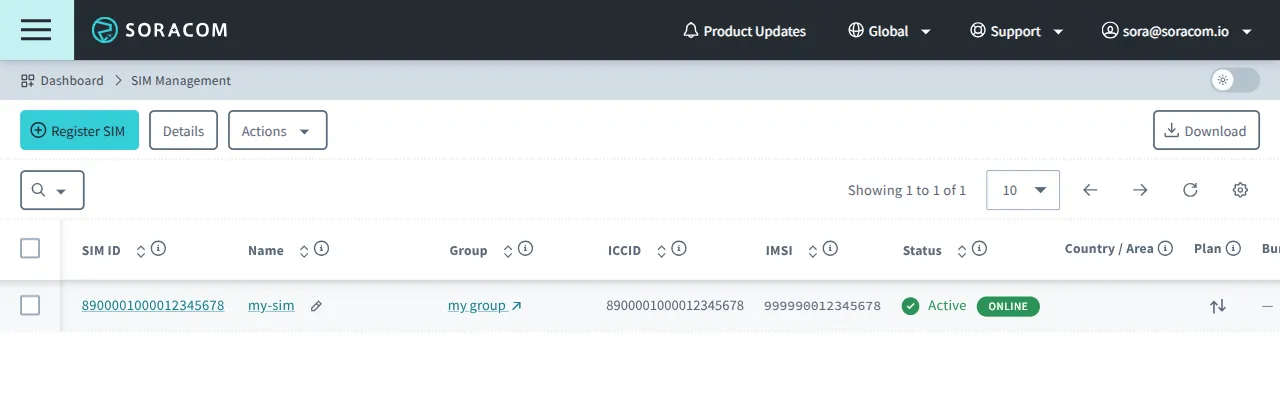
The data displayed on the SIM management screen can be sorted when there are two or more items listed.
Clicking a header on the SIM Management screen, such as Name, will sort the data in ascending or descending order.
The sorting function will be disabled if the number of SIMs exceeds 100. If the limit is exceeded, sorting will not be enabled even if you reduce the number of items displayed on one page.
Display IoT SIMs
If you don't see SIMs registered to your Soracom account on the SIM Management screen, check the details below.
-
Select the correct Coverage Type:
Ensure that you have selected the correct Coverage Type for the SIMs you want to view. If the incorrect Coverage Type has been selected for a SIM, it won't appear in the SIM Management table.
Example: For plan01s SIMs, choose Global coverage; for plan-D SIMs, choose Japan coverage.
-
Adjust your display limit and navigate pages:
By default, 10 SIMs are shown per page. Increase the items per page to 50 or 100 using the items per page selector if you need to see more. If the number of items exceeds the limit for one page, use the and buttons to navigate between pages.
-
Use the Search Filter:
The Search Filter lets you quickly find IoT SIMs by name, ID, tag, and other attributes.
Table Items
| Item | Visible by Default | Description |
|---|---|---|
| Checkbox | ✓ | The ✓ in column one of the table. Check the box to perform Actions on selected SIMs. |
| SIM ID | ✓ | SIM ID |
| Name | ✓ | IoT SIM Name. You can set any name for a SIM. |
| Group | ✓ | The Group that the IoT SIM belongs to. For more information, see Groups. |
| ICCID | ICCID (Integrated Circuit Card ID), an identifier for an IoT SIM or a virtual SIM/Subscriber. The number printed on the back of the SIM is listed here. | |
| IMSI | ✓ | IMSI (International Mobile Subscriber Identity). |
| MSISDN | MSISDN (Mobile Station International Subscriber Directory Number): a phone number assigned to a SIM that includes the country code. Note that MSISDNs are not available for virtual SIMs. | |
| IP address | A private IP address assigned by Soracom. When the session status is ✓ Active and Online, the IP address for the current session is shown. For any other status, if an IP address is shown, it corresponds to the latest session. You can connect to a SIM remotely using its IP address. | |
| Status | ✓ | IoT SIM status (e.g. ✓ Ready, ✓ Active, Inactive, etc.). |
| Last online | If the session is Offline, the date and time when it was last online. If the session is Online, no date or time is displayed. | |
| Last location update | Timestamp indicating when the device last registered with the network. A recent timestamp suggests the device is likely attached to the network. Displays - when no location update data is available. | |
| Country / Area | ✓ | The country or region of the cellular network the IoT SIM is connected to when it is Online. |
| Plan | ✓ | Data only. Data + SMS. |
| Bundle(s) | ✓ | Bundled data plans. Some subscriptions allow you to choose a bundle. For example, plan-D set to 300MB. However, plan-DU offers 10GB, 50GB, or 100GB bundles. For more information, see Changing Bundled Data Plans. |
| Subscription | ✓ | Subscription Plan. |
| Module Type | Lists the IoT SIM's form factor. For eSIM profiles, profilePackage is displayed. | |
| Speed class | ✓ | Speed class. For more information, see Speed Class. |
| Expiry Date / Time | ✓ | Expiration date. For more information, see Expiration Function. |
| IMEI Lock | ✓ | Enable/Disable IMEI lock. If enabled, the associated IMEI will also be displayed. For more information, see IMEI Lock. |
| TP | ✓ | Termination Protection. To manage this setting, see Termination Protection. |
| Last On-Demand Remote Access created time | The date and time you last created an on-demand remote access session via Napter. | |
| (Tags) | Display tag content you assigned to an IoT SIM. For more information see Using Tags with Soracom IoT SIMs. |
| Item | Visible by Default | Description |
|---|---|---|
| Checkbox | ✓ | The ✓ in column one of the table. Check the box to perform Actions on selected SIMs. |
| SIM ID | SIM ID | |
| Name | ✓ | IoT SIM Name. You can set any name for a SIM. |
| Group | ✓ | The Group that the IoT SIM belongs to. For more information, see Groups. |
| ICCID | ICCID (Integrated Circuit Card ID), an identifier for an IoT SIM or a virtual SIM/Subscriber. The number printed on the back of the SIM is listed here. | |
| IMSI | ✓ | IMSI (International Mobile Subscriber Identity). |
| MSISDN | MSISDN (Mobile Station International Subscriber Directory Number): a phone number assigned to a SIM that includes the country code. Note that MSISDNs are not available for virtual SIMs. | |
| Serial# | ✓ | The serial number printed on the back of the Japan Coverage IoT SIM. |
| IP address | A private IP address assigned by Soracom. When the session status is ✓ Active and Online, the IP address for the current session is shown. For any other status, if an IP address is shown, it corresponds to the latest session. You can connect to a SIM remotely using its IP address. | |
| Status | ✓ | IoT SIM status (e.g. ✓ Ready, ✓ Active, Inactive, etc.). |
| Last online | If the session is Offline, the date and time when it was last online. If the session is Online, no date or time is displayed. | |
| Last location update | Timestamp indicating when the device last registered with the network. A recent timestamp suggests the device is likely attached to the network. Displays - when no location update data is available. | |
| Plan | ✓ | Data only. Data + SMS. |
| Bundle(s) | ✓ | Bundled data plans. Some subscriptions allow you to choose a bundle. For example, plan-D set to 300MB. However, plan-DU offers 10GB, 50GB, or 100GB bundles. For more information, see Changing Bundled Data Plans. |
| Subscription | ✓ | Subscription Plan. |
| Module Type | Lists the IoT SIM's form factor. For eSIM profiles, profilePackage is displayed. | |
| Speed class | ✓ | Speed class. For more information, see Speed Class. |
| Expiry Date / Time | ✓ | Expiration date. For more information, see Expiration Function. |
| IMEI Lock | ✓ | Enable/Disable IMEI lock. If enabled, the associated IMEI will also be displayed. For more information, see IMEI Lock. |
| TP | ✓ | Termination Protection. To manage this setting, see Termination Protection. |
| Last On-Demand Remote Access created time | The date and time you last created an on-demand remote access section via Napter. | |
| (Tags) | Display tag content you assigned to an IoT SIM. For more information see Using Tags with Soracom IoT SIMs. |
Items marked with ✓ are displayed by default, while those marked with are hidden by default. To manage which items appear in the table, click the to open Table Settings.
List Actions
You can perform the following common tasks directly by clicking items on the list:
Change a SIM's Name
- Hover your mouse over the Name column for a particular SIM.
- A icon will appear. Click the icon.
- Press Enter to save the changes.
Change a SIM's Speed Class
- Find the Speed class column for a particular SIM.
- Click the dropdown menu, then select the new speed class for the SIM.
Change a SIM's Expiration
- Hover your mouse over the Expiry Date / Time column for a particular SIM.
- A icon will appear. Click the icon.
- A dialog will appear, allowing you to add, change, or remove expiration settings for the selected SIM.
For more information about the Expiry function, refer to the Expiration page.
Edit Group Settings
- Find the Group column for a particular SIM that belongs to a group.
- Click the name of the group to open its settings page.
Downloading SIM Data
You can download a CSV file containing a list of all SIMs registered to your account.
-
Sign in to the User Console . From the Menu, open the SIM Management screen.
-
Click the Download button on the upper right side of the screen.
The data items in the downloadable CSV file are described below:
| Column | Description |
|---|---|
| simId | The SIM ID |
| iccid | ICCID (Integrated Circuit Card ID): an identifier for a SIM or Virtual SIM |
| imsi | IMSI (International Mobile Subscriber Identity): a unique identifier associated with a subscription. In Soracom, it is used as a key to operate the SIM and as an identifier across various services |
| msisdn | MSISDN (Mobile Station International Subscriber Directory Number): a phone number assigned to the SIM. This includes the country code. Virtual SIMs/Subscribers do not have an MSISDN |
| serialNumber | Manufacturing number written on the back of the SIM. Virtual SIM does not have a manufacturing number |
| ipAddress | Private IP address assigned by Soracom. It is only output when the session is Online. To remotely access devices using IP addresses, you can use Soracom Napter for on-demand access or Soracom Gate for persistent connectivity |
| status | The status of the SIM. For more information, see Subscriber Status |
| lastOnline | If the session is Offline, this column will display the date and time when the IoT SIM was last online. If the session is Online, this column will be blank |
| lastLocationUpdateTime | Timestamp (ISO 8601) indicating when the device last registered with the network. A recent timestamp suggests the device is likely attached to the network. This field is empty when no location update data is available |
| session | The state of the SIM session. If the SIM is Online the column will read "True", if the SIM Offline it will read "False" |
| plan | This column shows whether the SIM is able to utilize SMS or is data only. "1" indicates SMS compatibility. "0" indicates the SIM is data only |
| bundles | Some Soracom IoT SIM card subscriptions include bundled data. If your SIM currently has a data bundle, the size of the bundle will be displayed in this column |
| subscription | Soracom SIMs are assigned a subscription plan that determine different levels of connectivity service. For more information, see Subscription Plan |
| moduleType | The SIM type. For example; "embedded" for iSIMs, "virtual" for virtual Arc SIMs, "integrated" for iSIMs or "trio" for trio precut cards that fit 2FF, 3FF, and 4FF SIM slots |
| speedClass | The SIM's speed class. For more information, see Speed Class |
| expiryTime | Expiration date (UNIX time in milliseconds). For more information, see Expiration |
| imeiLock | If IMEI lock is activated, the linked IMEI is listed in this column. For more information see IMEI Lock |
| terminationEnabled | This column details whether Termination Protection is enabled for the SIM. If Termination Protection is enabled, the column will read "False". If Termination Protection is disabled, this column will read "True". For more information, see Termination Protection |
| renewalFeeStatusSetTime | Start date of renewal fee (UNIX time in milliseconds). If displayed, a renewal fee will be charged after a certain period from the renewal fee start date. If not displayed, no renewal fee will be charged. For more information, see Pricing & Fee Schedule |
| currentMCC | The current Mobile Country Code if the SIM is Online |
| currentMNC | The current Mobile Network Code if the SIM is Online |
| previousMCC | The Mobile Country Code for the SIM's most recently closed session |
| previousMNC | The Mobile Network Code for the SIM's most recently closed session |
| name | The name given to the SIM in the User Console |
| (Any Tag) | Additional columns will be added here for tags assigned to your SIMs |
| group | The ID of the Group this SIM is assigned to. For more information, see Groups |
| group | The name of the Group this SIM is assigned to. For more information, see Groups |
You can obtain a list of IoT SIMs using the Soracom CLI or Soracom API.
- If you are using the Soracom CLI, use
soracom sims list.- If you are using the Soracom API, use
Sim:listSims API.For more information on this functionality, see the API Reference.
You can also download a CSV file containing a list of SIMs that belong to a specific order.
-
Sign in to the User Console . From the Menu, open the Orders screen.
-
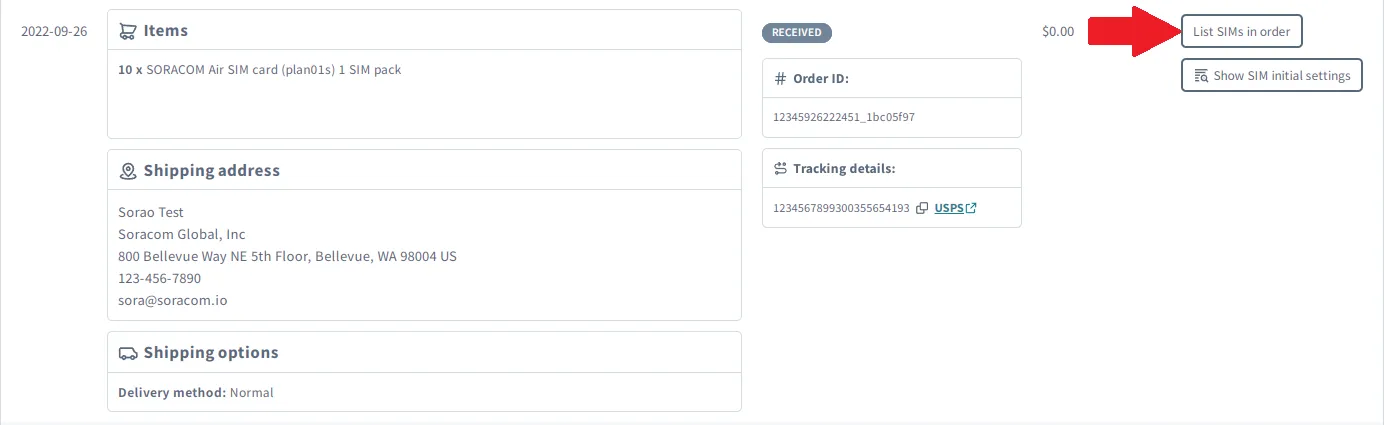
From the list of orders, find the order that contains the SIMs you want to download, and click the List SIMs in order button.
-
In the dialog window pop up, click the Download CSV button.
The columns of the downloadable CSV file are explained below:
| Column | Description |
|---|---|
| SIM ID | The SIM ID |
| IMSI | IMSI (International Mobile Subscriber Identity): a unique identifier associated with a subscription. In Soracom, it is used as a key to operate the SIM and as an identifier in various services |
| MSISDN | MSISDN (Mobile Station International Subscriber Directory Number): A phone number assigned to the SIM. This includes the country code. Virtual SIMs/Subscribers do not have an MSISDN |
| Serial Number | Manufacturing number written on the back of the SIM. Virtual SIM does not have a manufacturing number |
| ICCID | ICCID (Integrated Circuit Card ID): An identifier for a SIM or Virtual SIM |
| Bundles | Some Soracom IoT SIM card subscriptions include bundled data. If your SIM currently has a data bundle, the size of the bundle will be displayed in this column |
Searching for SIMs
In addition to performing SIM management tasks, Soracom provides several methods to quickly locate a SIM (subscriber), simplifying the management of a large number of SIMs.
When searching using the User Console, API, or CLI, be aware of the following behavior:
- String searches include partial matches.
- Search terms must contain at least two characters.
- Searches are case-insensitive.
- When searching by tag, the search API will examine all the tag values and return IoT SIMs where any tag contains the specified string.
When using the Soracom CLI or Soracom API:
- If you are using the Soracom CLI, use
soracom query sims.- If you are using the Soracom API, use the Query API.
-
Sign in to the User Console . From the Menu, open the SIM Management screen.
-
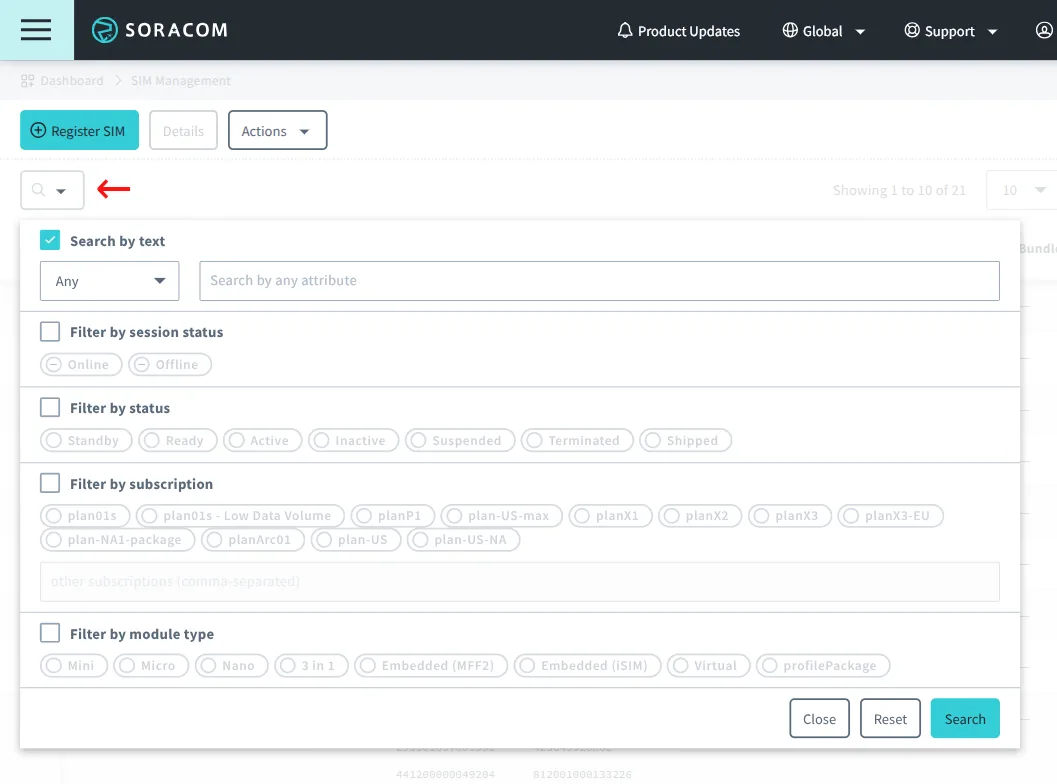
Click the button. This will bring up the following dialog.
Searching by Attributes
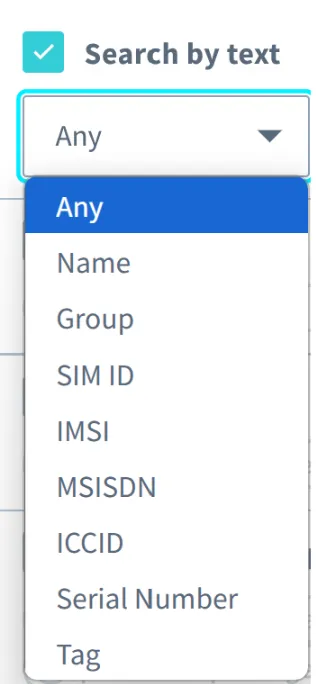
By default, the search will match any of the SIM attributes below. To target a specific attribute, click the button next to the search box and select the desired attribute.
Attributes:
- Any - Matches any of the fields below. When using Any, you can enter multiple comma-separated search terms to find SIMs that match any of the terms (OR search)
- Name - The name of the SIM
- Group - The name of the group that the SIM belongs to (if any)
- SIM ID - The ID of the SIM
- IMSI - The IMSI of the SIM
- MSISDN - The MSISDN of the SIM
- ICCID - The ICCID of the SIM
- Serial Number - The Serial Number of the SIM
- Tag - The value of any tags assigned to the SIM
Filtering by Session Status
Filter the list according to Session Status of either Online or Offline by clicking the ✓ next to Filter by session status and selecting Online or Offline.

Filtering by Status
Filter the list according to Subscriber Status. Click the ✓ next to Filter by status, then select statuses to show SIMs as needed.

Filtering by Subscription
Filter the list according to Subscription. Click the ✓ next to Filter by subscription, then select subscriptions to show SIMs as needed.

When filtering by subscription:
- If you have a custom subscription, you can search for it by typing the subscription name in the text box. This performs a case-insensitive, exact-match search.
- Selecting multiple subscriptions will show SIMs that match any of the selected subscriptions (OR search).
Filtering by Module Type
Filter the list according to Module Type. Click the ✓ next to Filter by module type, then select modules to show SIMs as needed.
