


IP Link MTU Configuration
The IP Link MTU Configuration option allows you to specify the Maximum Transmission Unit (MTU) value notified to your devices from Soracom. This sets the maximum IP packet size that devices can transmit over the network. Properly configuring the MTU can help improve network performance and reliability, especially when using cellular connections with tunneling or VPN services.
- The appropriate MTU for the network path varies depending on factors such as the carrier used and whether tunneling (like VPN) is involved. Determine the optimal value on your end by testing with tools such as
ping.- When setting or updating the IP Link MTU Configuration option, your device must fully disconnect and reconnect in order to obtain the updated MTU settings. Any existing network connections will continue to use existing MTU settings.
Some devices do not support setting the MTU based on values notified by the network and may instead operate using their default setting (typically 1500 bytes). Verify your device specifications in advance.
Configuration
The IP Link MTU Configuration option is found within Soracom Air for Cellular Group settings.
-
Sign in to the User Console . From the Menu, open the Groups screen.
-
From the list of groups, click the Name of the group you want to configure to open its settings page.
You can also open the group settings page directly from the SIM Management screen. Simply find a SIM that currently belongs to the group you want to configure, then click the group name.
-
From the Basic settings tab, click the SORACOM Air for Cellular panel to expand its settings.
-
Enable the IP Link MTU Configuration option by switching the option to ON.
-
Enter the desired MTU value in bytes.
-
Click Save at the bottom of the panel.
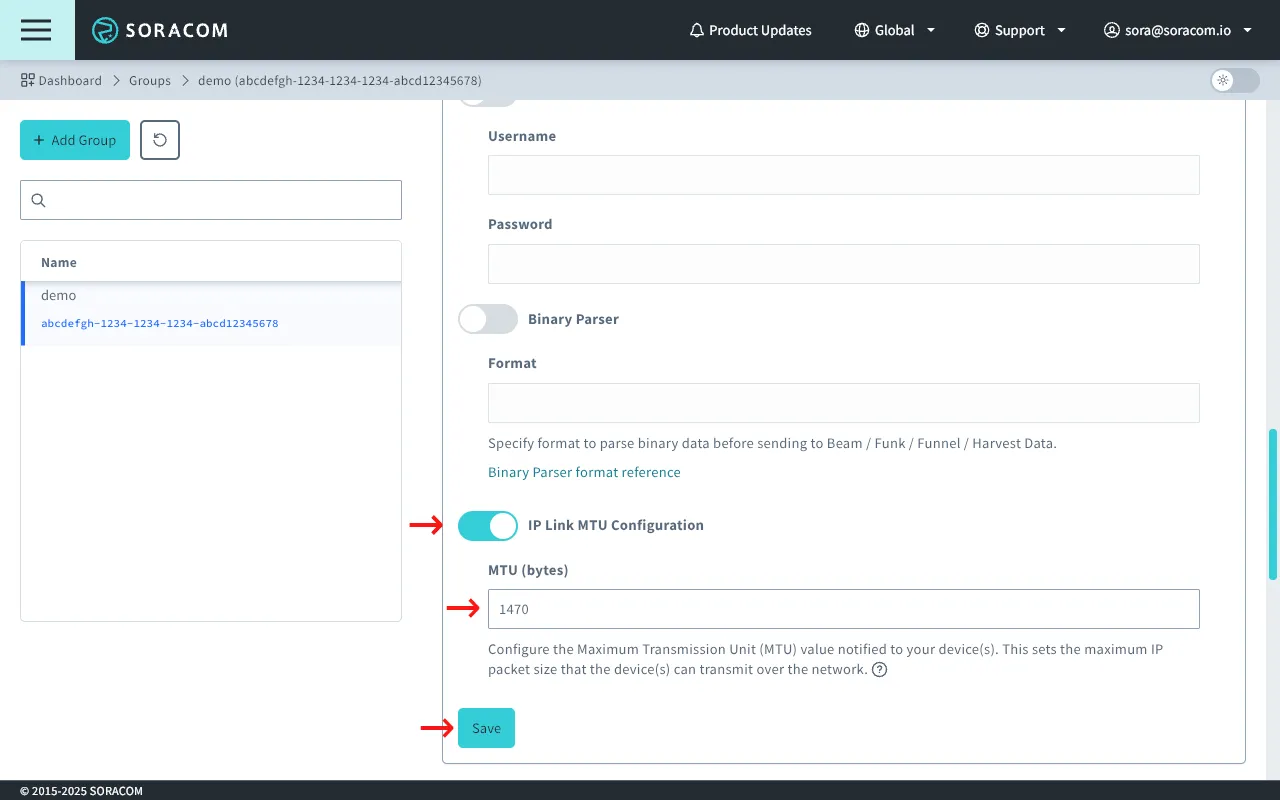
Last, add any subscribers to the group so that they will receive the new IP Link MTU settings.
Options
- MTU (bytes) - Specify the Maximum Transmission Unit value to notify to devices. The value must be within the valid range supported by the cellular network.
Advanced Configuration
IP Link MTU Configuration settings can also be configured through the Soracom API or CLI by using the SoracomAir namespace.
Configuration Structure
"SoracomAir": {
  "ipLinkMtu": 1234,
  // additional SoracomAir settings
}
Parameters
Set the MTU value:
- key -
ipLinkMtu - value (integer) - MTU value in bytes. Must be within the valid range supported by the network. Common values are between 1280 and 1500 bytes. A recommended value for cellular networks with tunneling is 1460 bytes.
Example
The following configuration will set the MTU to 1460 bytes:
[
  {
    "key": "ipLinkMtu",
    "value": 1460
  }
]
Programmatic Usage
You can use the advanced configuration structure to configure the IP Link MTU Configuration option programmatically using the Soracom API and Soracom CLI.
Soracom API
To access the Soracom API, first use the auth API to obtain an API Key and Token. Refer to the API Usage Guide for instructions on how to use the API Key and Token in API requests.
Then, use the putConfigurationParameters API with the SoracomAir namespace to set the IP Link MTU Configuration option:
curl -X PUT \
|  -H 'X-Soracom-API-Key: <MY-API-KEY>' \
|  -H 'X-Soracom-Token: <MY-TOKEN>' \
|  -H 'Content-Type: application/json' \
|  -d '[
|        {
|          "key": "ipLinkMtu",
|          "value": 1460
|        }
|      ]' \
|  https://g.api.soracom.io/v1/groups/<GROUP-ID>/configuration/SoracomAir
curl -X PUT \
| -H 'X-Soracom-API-Key: <MY-API-KEY>' \
| -H 'X-Soracom-Token: <MY-TOKEN>' \
| -H 'Content-Type: application/json' \
| -d '[
| {
| "key": "ipLinkMtu",
| "value": 1460
| }
| ]' \
| https://jp.api.soracom.io/v1/groups/<GROUP-ID>/configuration/SoracomAirSoracom CLI
To use the Soracom CLI, you must first configure it to authenticate with your account information, authorization key, or SAM user credentials.
Then, run the following command to set the IP Link MTU Configuration option:
soracom groups put-config --group-id '<GROUP-ID>' --namespace 'SoracomAir' \
|  --body '[ {"key":"ipLinkMtu","value":1460} ]' --coverage-type g
soracom groups put-config --group-id '<GROUP-ID>' --namespace 'SoracomAir' \
| --body '[ {"key":"ipLinkMtu","value":1460} ]' --coverage-type jpHere, the JSON array from the API example above should be passed in to the --body parameter.