


Virtual Private Gateway
By default, all Soracom Air subscribers will connect to the Soracom platform using a shared platform gateway. This gateway allows devices to both access Soracom services (such as Soracom Beam, Funnel, Funk, and Harvest Data/Files), as well as access the Internet.
Soracom provides additional gateway options, such as Private Garden (which disables Internet access for greater security), and Public Gate (which enables device-to-device communication), in addition to the ability to create a fully private gateway, which allows you to configure the gateway behavior as well as establish secure connections to your private network. Both Public Gate and Private Garden are free services provided by Soracom.
The Virtual Private Gateway (VPG) option allows you to specify which gateway your Air subscribers use when connecting to Soracom.
Enabling the Virtual Private Gateway option will incur additional charges, calculated daily based on the number of Air subscribers attached to the gateway. In addition, fees for any VPGs in your account may also apply.
For additional information about VPGs, refer to the Virtual Private Gateway documentation.
Configuration
Enabling the Virtual Private Gateway option will incur VPG Option fees when selecting the Private Garden or Public Gate VPGs. Refer to the Pricing & Fee Schedule for more information.
The Virtual Private Gateway option is found within Soracom Air for Cellular Group settings.
-
Sign in to the User Console . From the Menu, open the Groups screen.
-
From the list of groups, click the Name of the group you want to configure to open its settings page.
You can also open the group settings page directly from the SIM Management screen. Simply find a SIM that currently belongs to the group you want to configure, then click the group name.
-
From the Basic Settings tab, click the SORACOM Air for Cellular panel to expand its settings.
-
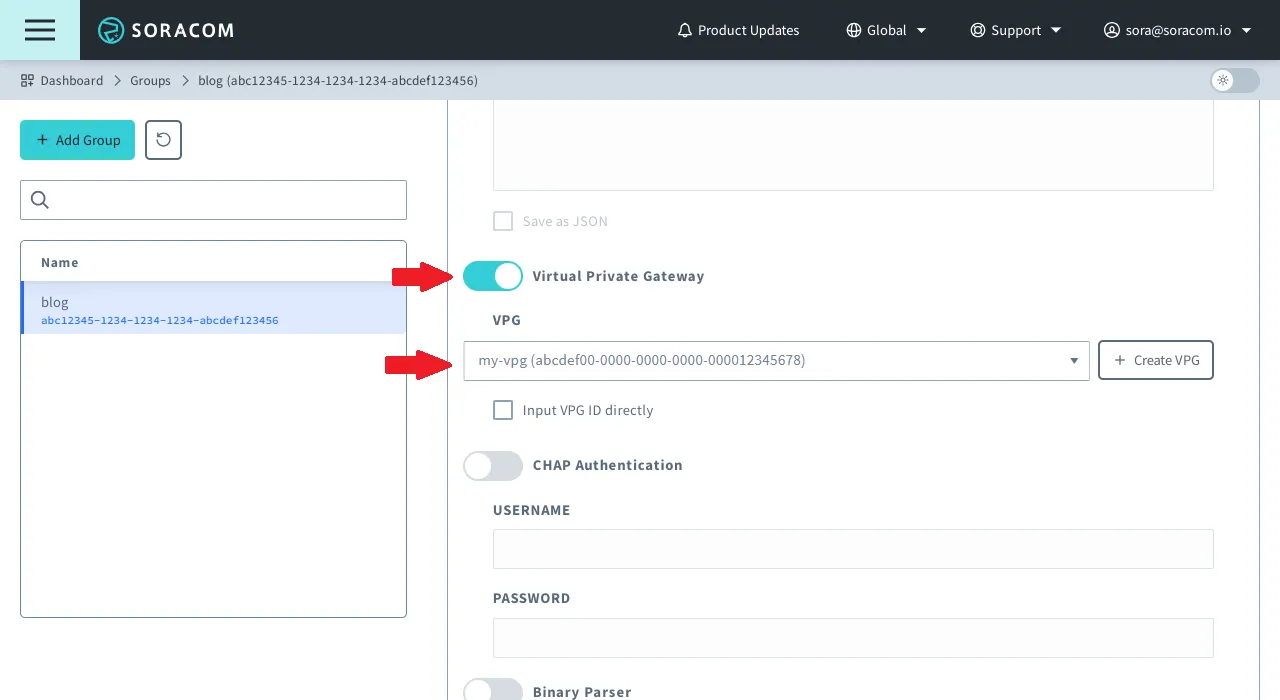
Enable the Virtual Private Gateway option by switching the option to ON.
-
Click the VPG option and select the Virtual Private Gateway that you want to use.
-
Click Save at the bottom of the panel.
When modifying the Virtual Private Gateway settings, the new gateway configuration will not take effect until the attached Air subscribers fully detach and reconnect. To ensure that your device connects using the specified gateway, we recommend restarting the device.
Options
- VPG - The Virtual Private Gateway that should be used for subscribers in the group.
Advanced Configuration
Virtual Private Gateway settings can also be configured through the Soracom API or CLI by using the SoracomAir namespace.
Configuration Structure
"SoracomAir": {
  "useVpg": true|false,
  "vpgId": "",
  // additional SoracomAir settings
}
Parameters
Enable or disable the VPG option:
- key -
useVpg - value (boolean, default:
false) - Enables or disables the Virtual Private Gateway option.
Modify which VPG the group should attach to:
- key -
vpgId - value (string, default:
"") - Defines which VPG to use when the Virtual Private Gateway option is enabled.
Example
The following configuration will set and enable VPG:
[
  {
    "key": "useVpg",
    "value": true
  },
  {
    "key": "vpgId",
    "value": "abcdef00-0000-0000-0000-000012345678"
  }
]
Programmatic Usage
You can use the advanced configuration structure to configure the VPG option programmatically using the Soracom API and Soracom CLI.
Soracom API
To access the Soracom API, first use the auth API to obtain an API Key and Token. Refer to the API Usage Guide for instructions on how to use the API Key and Token in API requests.
Then, use the putConfigurationParameters API with the SoracomAir namespace to set the VPG option:
curl -X PUT \
|  -H 'X-Soracom-API-Key: <MY-API-KEY>' \
|  -H 'X-Soracom-Token: <MY-TOKEN>' \
|  -H 'Content-Type: application/json' \
|  -d '[
|        {
|          "key": "useVpg",
|          "value": true
|        },
|        {
|          "key": "vpgId",
|          "value": "abcdef00-0000-0000-0000-000012345678"
|        }
|      ]' \
|  https://g.api.soracom.io/v1/groups/<GROUP-ID>/configuration/SoracomAir
curl -X PUT \
| -H 'X-Soracom-API-Key: <MY-API-KEY>' \
| -H 'X-Soracom-Token: <MY-TOKEN>' \
| -H 'Content-Type: application/json' \
| -d '[
| {
| "key": "useVpg",
| "value": true
| },
| {
| "key": "vpgId",
| "value": "abcdef00-0000-0000-0000-000012345678"
| }
| ]' \
| https://jp.api.soracom.io/v1/groups/<GROUP-ID>/configuration/SoracomAirSoracom CLI
To use the Soracom CLI, you must first configure it to authenticate with your account information, authorization key, or SAM user credentials.
Then, run the following command to set the VPG option:
soracom groups put-config --group-id "<GROUP-ID>" --namespace "SoracomAir" --body "<CONFIG>" --coverage-type gsoracom groups put-config --group-id "<GROUP-ID>" --namespace "SoracomAir" --body "<CONFIG>" --coverage-type jpHere, the JSON array from the API example above should be passed in to the --body parameter.