


CHAP Authentication
By default, Soracom uses a SIM authentication mechanism built into cellular networks to check the authenticity of a Soracom IoT SIM and determine if it is allowed to connect to a cellular network.
CHAP Authentication allows you to add an extra layer of username and password authentication on top of SIM authentication. Using CHAP authentication can help prevent a Soracom IoT SIM from being removed and used in an unauthorized or tampered device, as the new device will be required to provide additional authentication credentials before it can establish a network connection.
CHAP Authentication is managed in Groups. Air devices that are assigned to a group with CHAP Authentication enabled will be required to provide authentication before a network session is established.
When using CHAP Authentication, you must configure your devices to use
CHAPauthentication, providing the username and password you specified. With CHAP Authentication enabled, devices that useCHAP or PAPauthentication will be unable to connect to a cellular network.
Configuration
Enabling the CHAP Authentication option may incur fees.
The CHAP Authentication option is found within Soracom Air for Cellular Group settings.
-
Sign in to the User Console . From the Menu, open the Groups screen.
-
From the list of groups, click the Name of the group you want to configure to open its settings page.
You can also open the group settings page directly from the SIM Management screen. Simply find a SIM that currently belongs to the group you want to configure, then click the group name.
-
From the Basic Settings tab, click the SORACOM Air for Cellular panel to expand its settings.
-
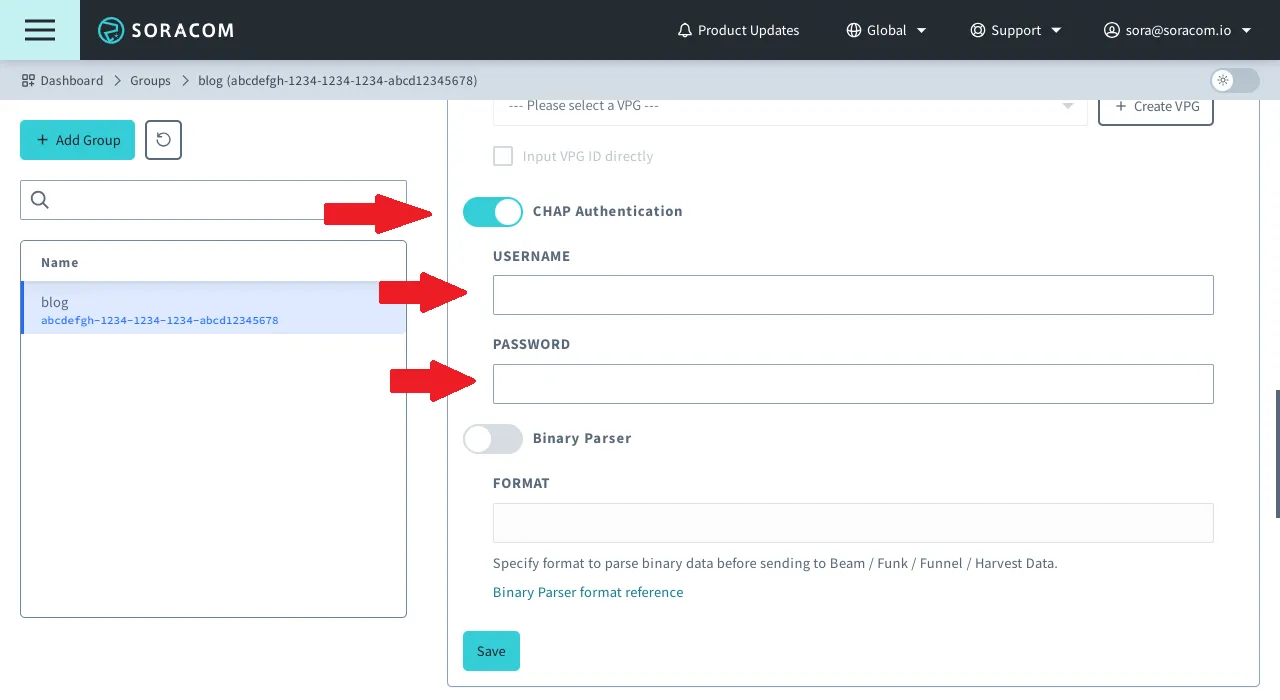
Enable the CHAP Authentication option by switching the option to ON. Enter the Username and Password you would like to use.
-
Click Save at the bottom of the panel.
Your group is now configured to use CHAP Authentication. All Air devices assigned to this group will now be required to provide CHAP Authentication credentials in order to connect to a cellular network.
Advanced Configuration
For security, CHAP authentication credentials are not stored directly within group configuration, and therefore cannot be managed using the Soracom API or Soracom CLI.