


Blues Notecard IoT Starter Kit for Soracom Setup Guide
In this guide, we will provide information on how to set up and configure the Blues Notecard IoT Starter Kit for Soracom.
Requirements
To follow along with this guide, you will need the following:
- A computer with:
- Internet access
- A browser that supports the Web Serial API, like Chrome, Microsoft Edge, or Opera installed.
- An available USB port
- A Soracom account
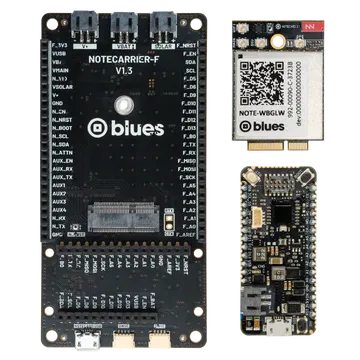
- A Blues Notecard IoT Starter Kit for Soracom containing:
- Notecard Cell+WiFi (Global LTE Cat-1 and 2.4 GHz Wi-Fi) with Type E M.2 key.
- Notecarrier F developer board with Type E M.2 slot.
- Swan (STM32-based host MCU)
- Molex Dual Cellular and GPS Antenna
- A micro USB to USB-A data cable (not a charge-only cable)
- A device capable of scanning a QR code.
In order for the Notecard Cell+WiFi to connect to a cellular network, you will need to be located in an area where LTE Cat-M1 connectivity is supported by the Soracom IoT SIM card. To check network coverage, refer to Supported Carriers page.
Soracom Setup
Registering the Soracom eSIM
Before using the starer kit you will need to register the embedded SIM (eSIM) used by the modem to your Soracom account.
-
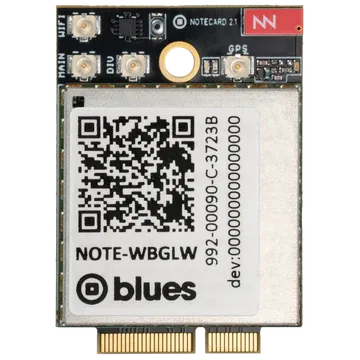
Scan the QR code on your Notecard modem and follow it to the scanned URL.
-
The
dev.blues.iopage you are directed to will contain information specific to your device. Make a note of the information in the SIM ICCID and SIM PUK fields. It will be used to register your SIM to your Soracom account. -
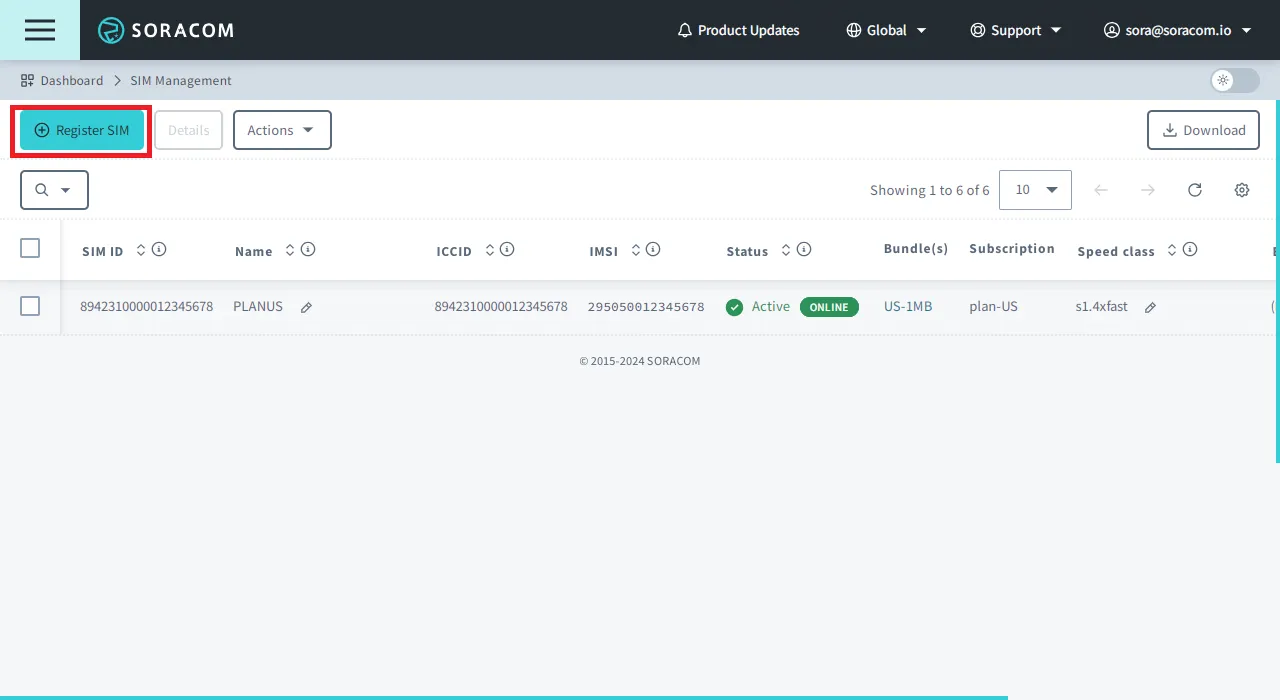
Sign in to the User Console . From the Menu, open the SIM Management screen. Ensure that you have selected the Global coverage type.
-
Click the Register SIM button.
-
From the Direct Input tab, enter the ICCID and PUK numbers of the SIM, and, if desired, assign the SIM a descriptive name such as
Blues. Then click Register.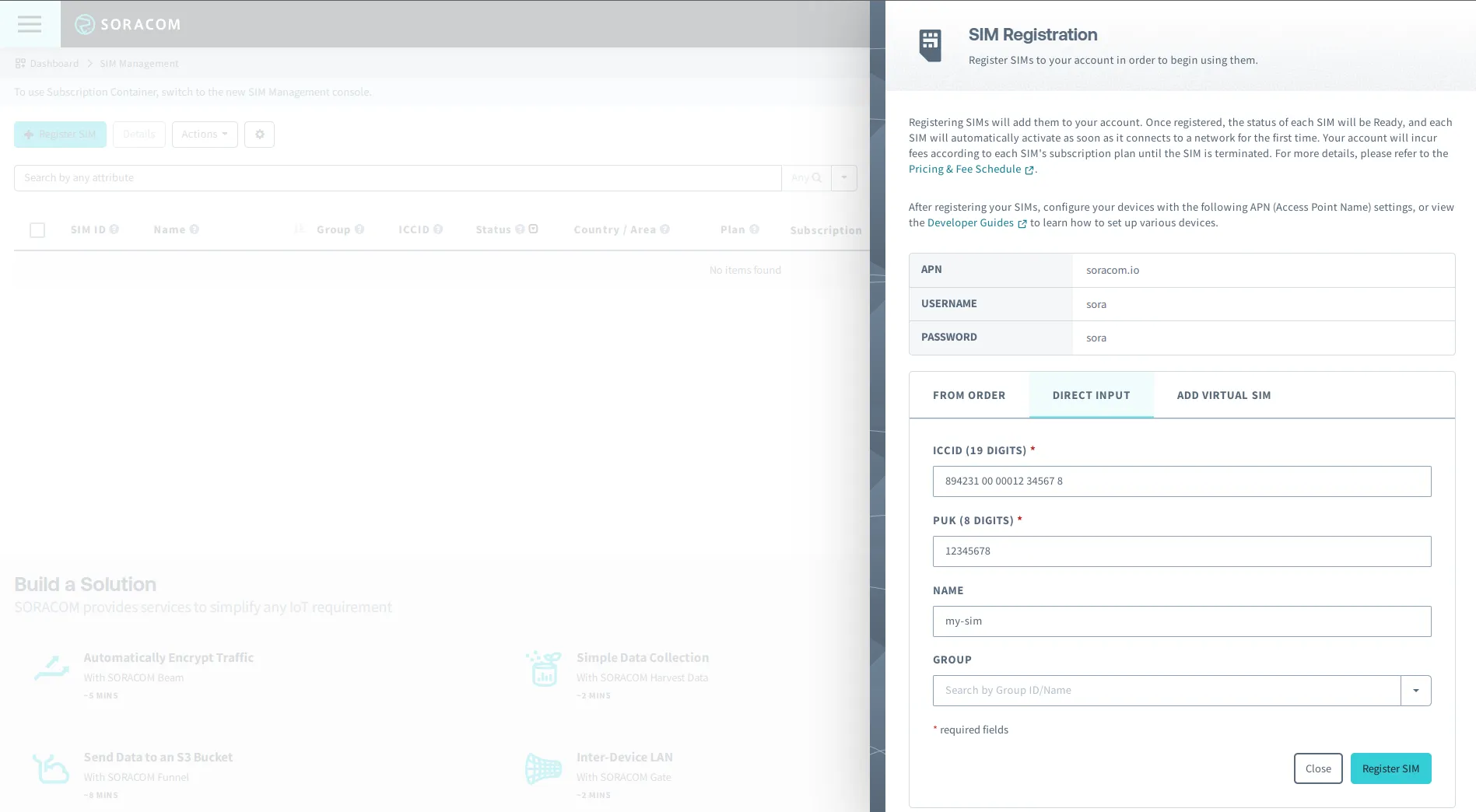
Blues Setup and Next Steps
Blues has a large amount of documentation for the Notecard and the Note platform available on their webpage:
Additional Resources and Support
For complete information on Soracom User Console tools and capabilities, full documentation is available on the Soracom Developer Site.
If you run into any trouble, feel free to submit a support ticket.