


Using Query to Create a Billing Report
Execute a sample query in Soracom Query to display historic monthly billing total.
Prerequisites
You must be subscribed to a Soracom Query plan. For details, see Plan Management.
Step 1: Access Soracom Query
-
Sign in to the User Console .
-
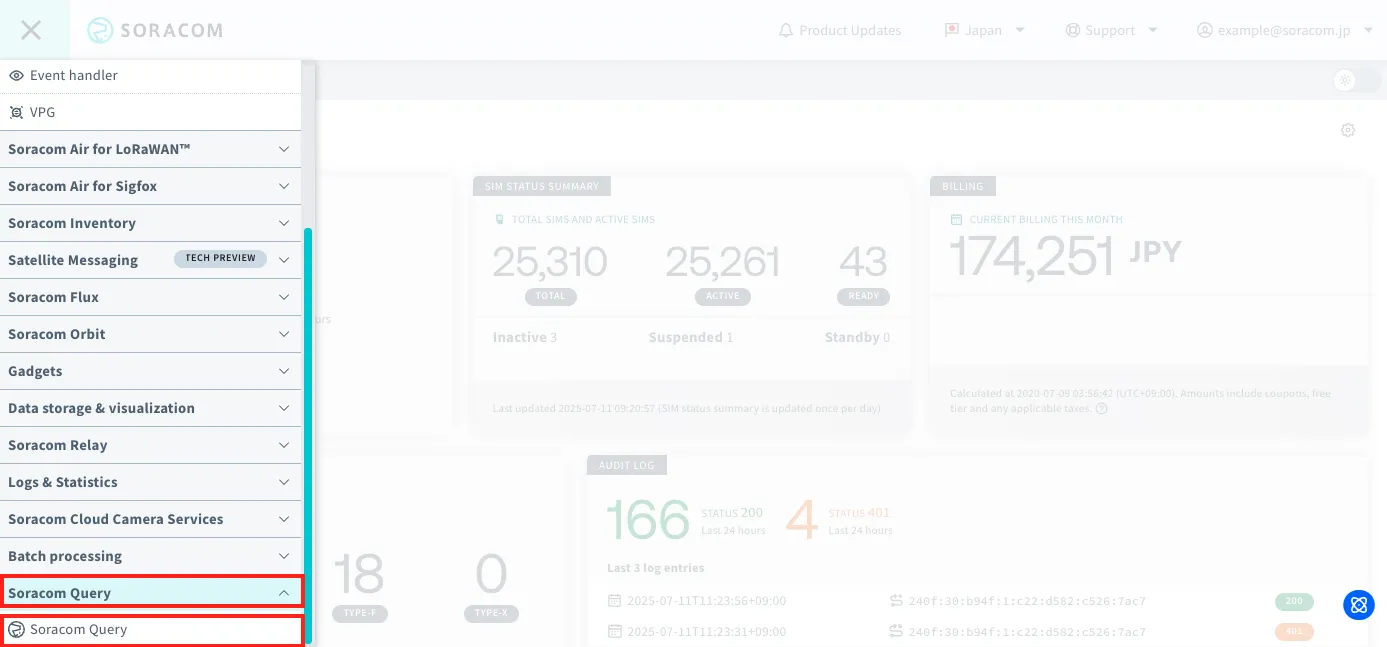
From the Menu, expand Soracom Query and select Soracom Query.
-
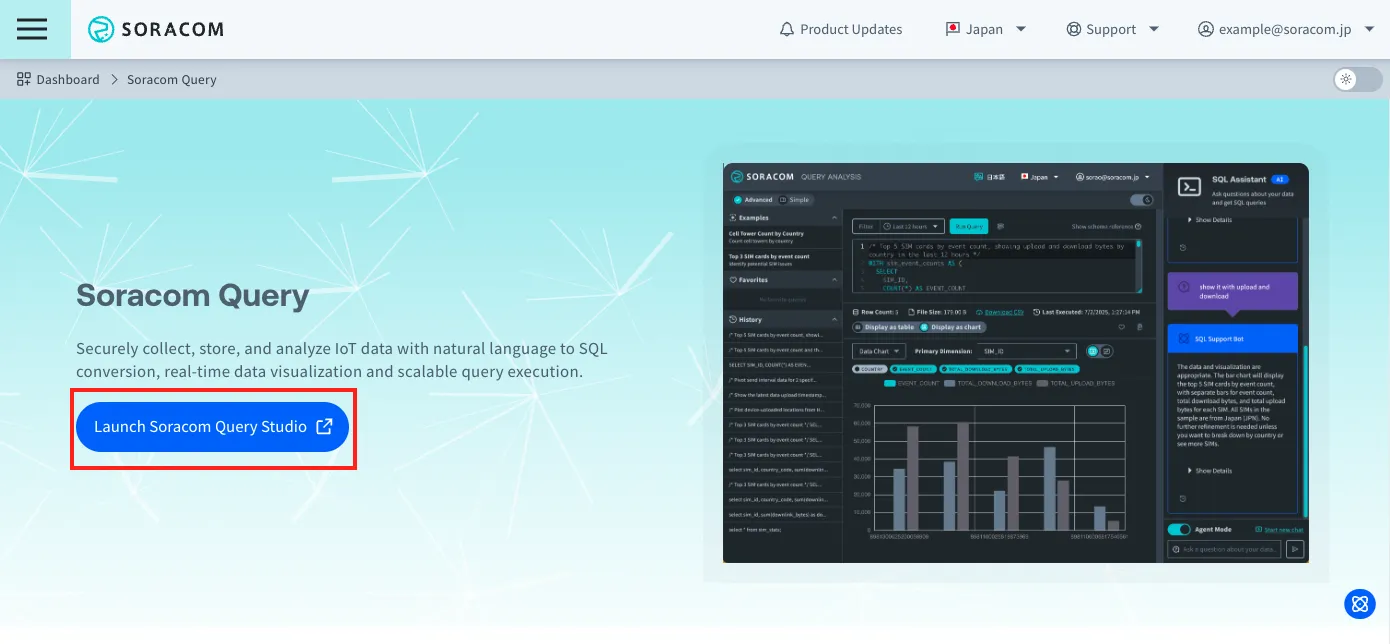
Click Launch Soracom Query Studio.
-
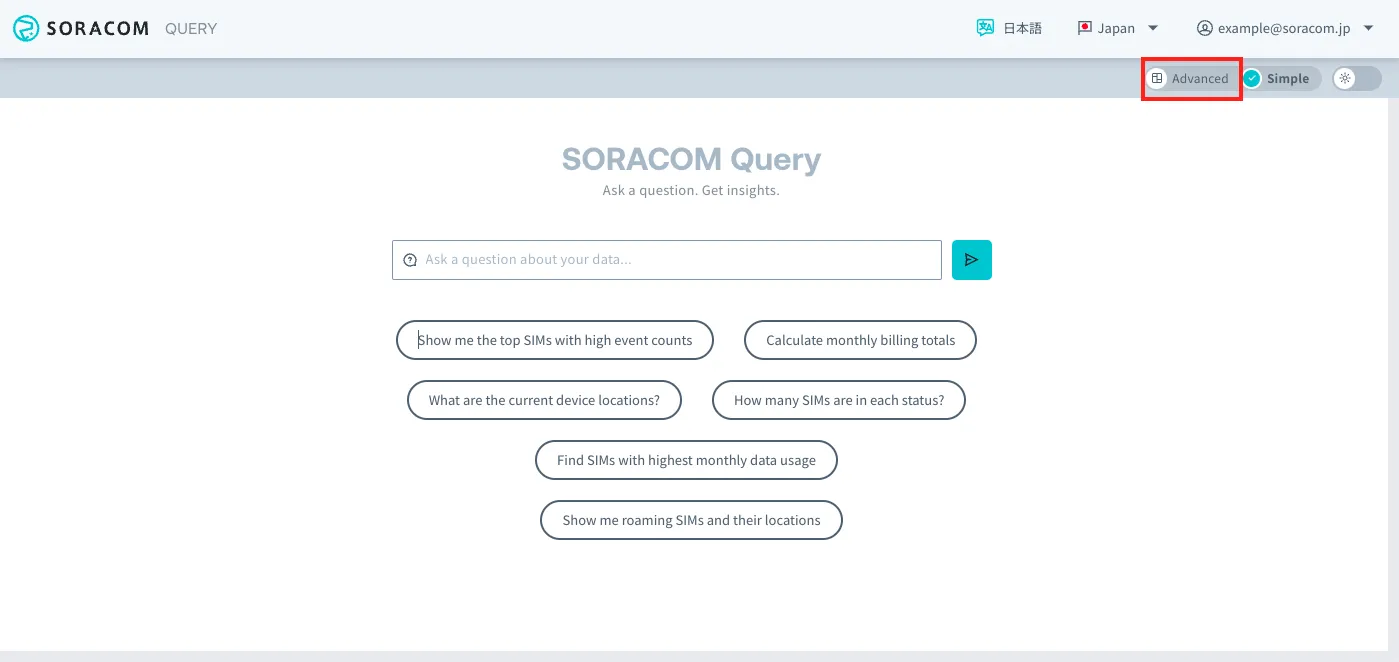
Click Advanced.
Step 2: Execute a Sample Query
-
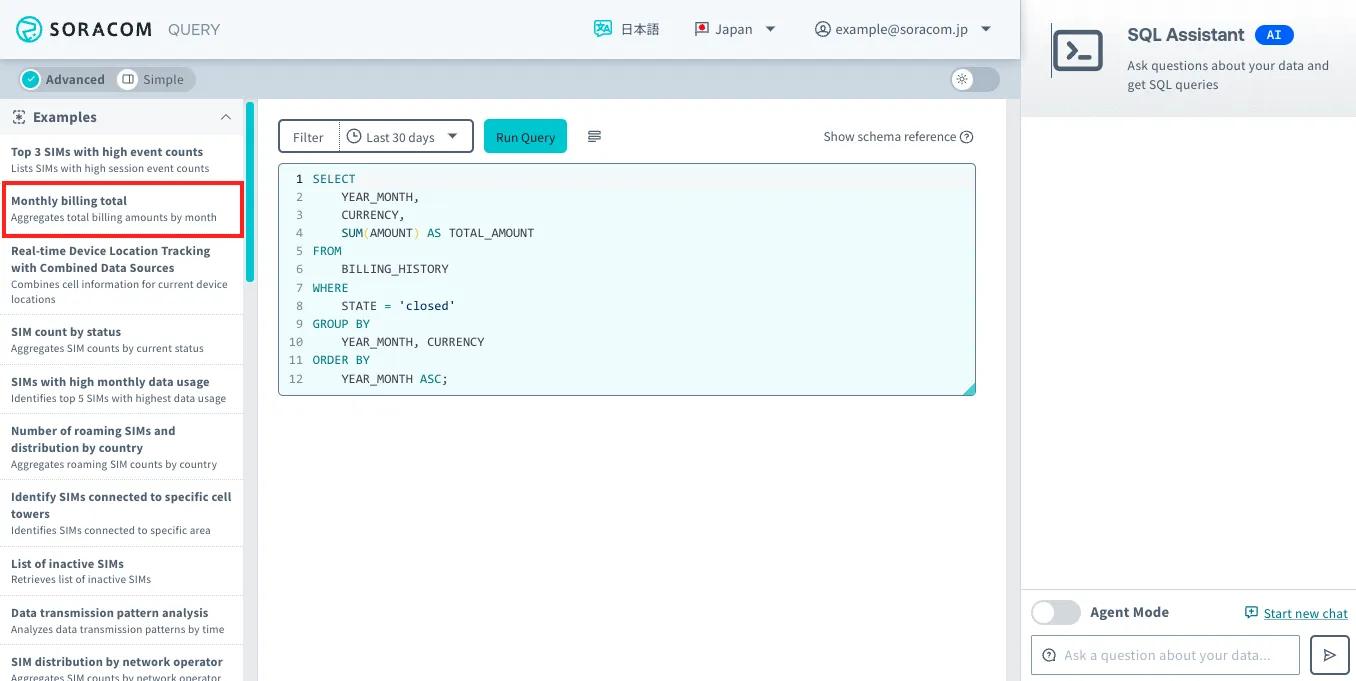
Click Monthly billing total in the Samples section.
-
When the SQL query is displayed, click Run Query.
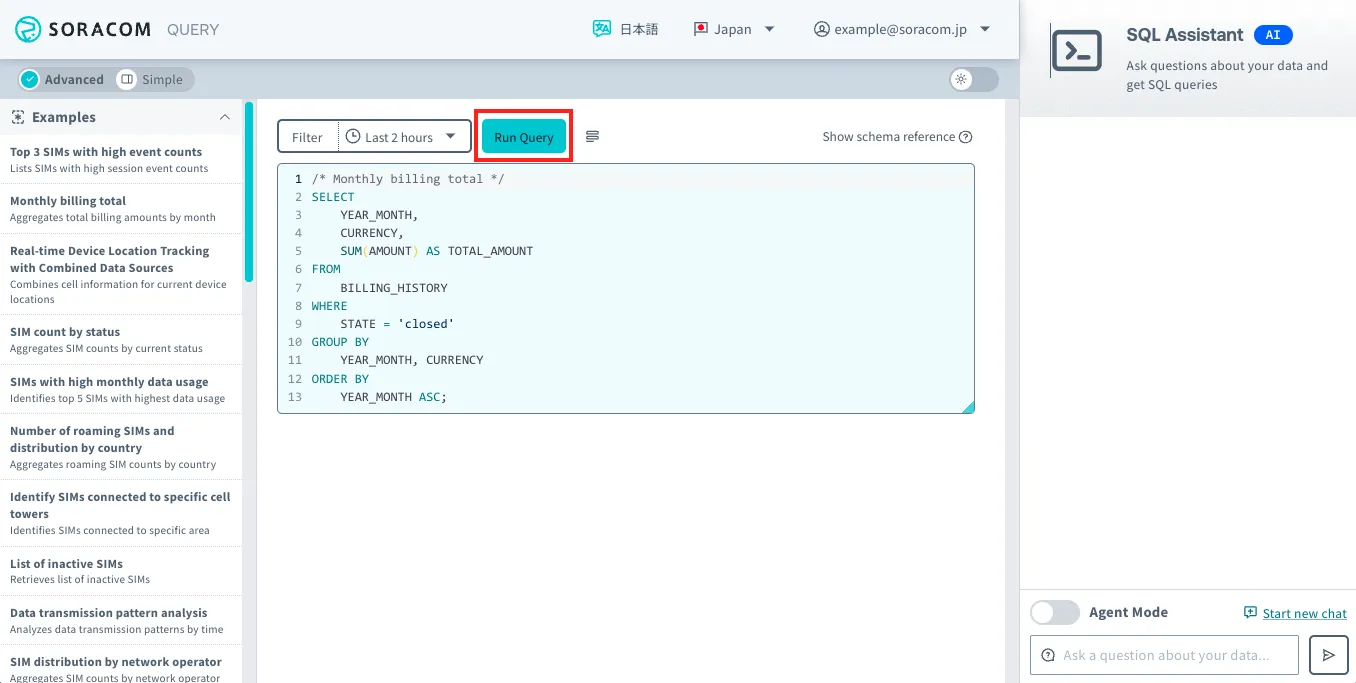
The maximum character limit for SQL queries is 3,000 characters. ! If your SQL query exceeds 3,000 characters, an error will be thrown. If you have exceeded the limit, reduce the number of characters in your SQL query within the allowable amount.
-
The SQL execution results will be displayed.
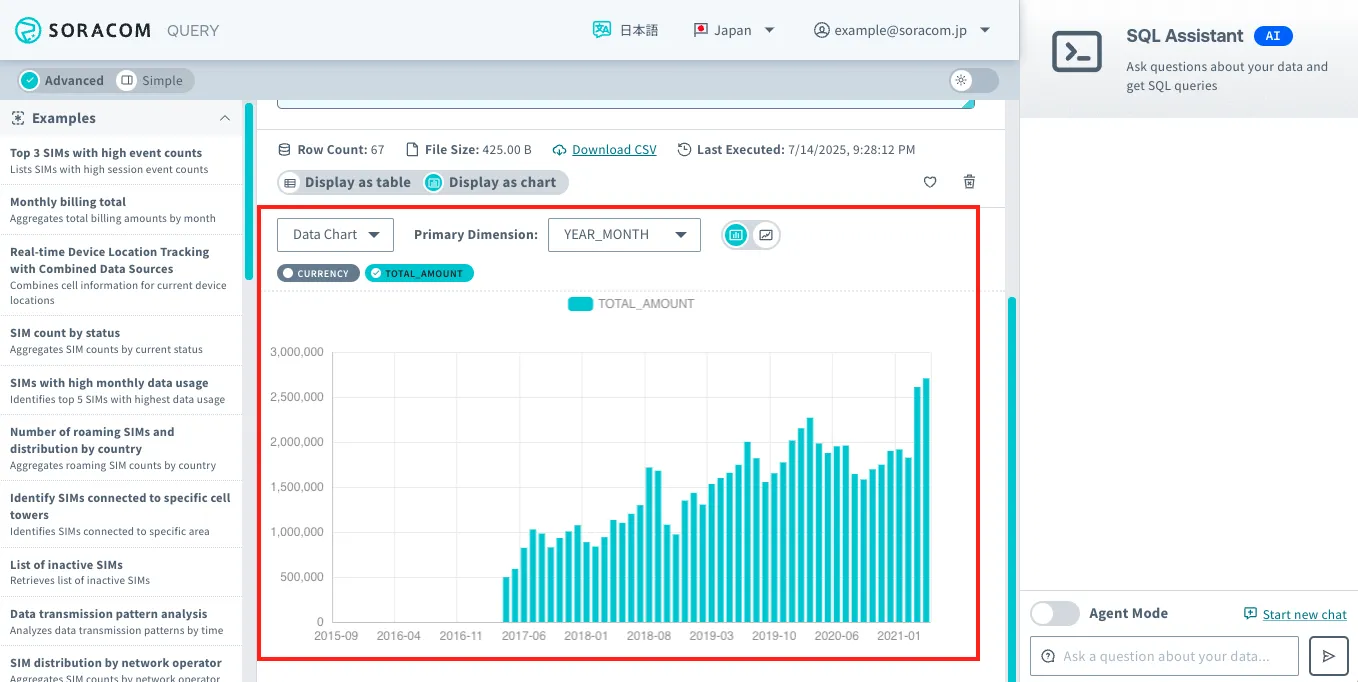
If you want to edit the SQL for other parameters, use the editor to make your changes and click Run Query again.
For instructions on using the SQL Assistant to help generate SQL, refer to the Show Connection Trends using Query example.